 网硕互联帮助中心
文章目录
- Linux 硬盘分区管理
-
- MBR 分区方案
- fdisk 工具
-
- fdisk 命令语法
- 查看分区
- 创建分区
- 删除分区
- GPT 分区方案
- gdisk 工具
-
- gdisk命令语法
- 查看分区表
- 创建分区
- 更改分区名称
- 查看分区详细信息
- 删除分区
- wipefs 工具
- parted 工具
-
- 查看分区表
- 设置单位
- 管理 MBR 磁盘
-
- 设置磁盘分区管理方案
- 创建分区
- 扩展分区容量
- 删除分区
- 免交互操作
- 管理 GPT 磁盘
-
- 设置磁盘分区管理方案
- 创建分区
- 扩展分区
- 删除分区
- 免交互操作
- 文件系统持久化挂载
-
- 持久化挂载
- 取消持久化挂载
- 综合案例:文件系统空间不足
-
- 情况1:大量的大文件占用空间
- 情况2:删除文件后,空间没有释放
- 情况3:大量的小文件占用空间
- 如何彻底擦除硬盘上数据
Linux 硬盘分区管理
MBR 分区方案
主启动记录(MBR-Master Boot Record)分区方案指定了在运行 BIOS 固件 的系统上如何对磁盘进行分区: 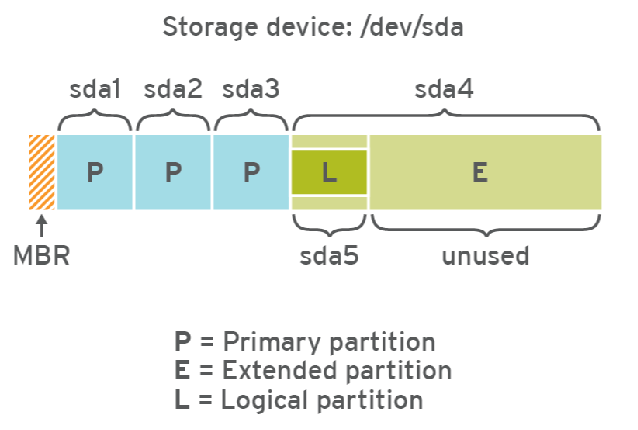
- 该方案支持最多4个主分区。
- 在 Linux系统上,管理员可以使用扩展分区和逻辑分区来创建最多 15个分区。
逻辑分区是可以格式化(format),扩展分区是不可以格式化。
- MBR 记录用4个字节(1byte=8bit)存储分区的总扇区数,最大能表示2的32次方的扇区个数,按每扇区512字节计算,每个分区最大不能超过 2 TiB。
类比为:笔记本只有4个usb接口,如果不够用,则将第四个usb接口外接扩展坞,由扩展坞提供多个usb接口。
通常,我们将磁盘第一个扇区称为主引导扇区,位于硬盘的柱面0、磁头0、扇区1的位置,这一扇区包含MBR引导代码,承担系统启动职能。它不属于磁盘上任何分区,因而分区空间内的格式化命令不能清除主引导记录的任何信息。
主引导扇区由三个部分组成:
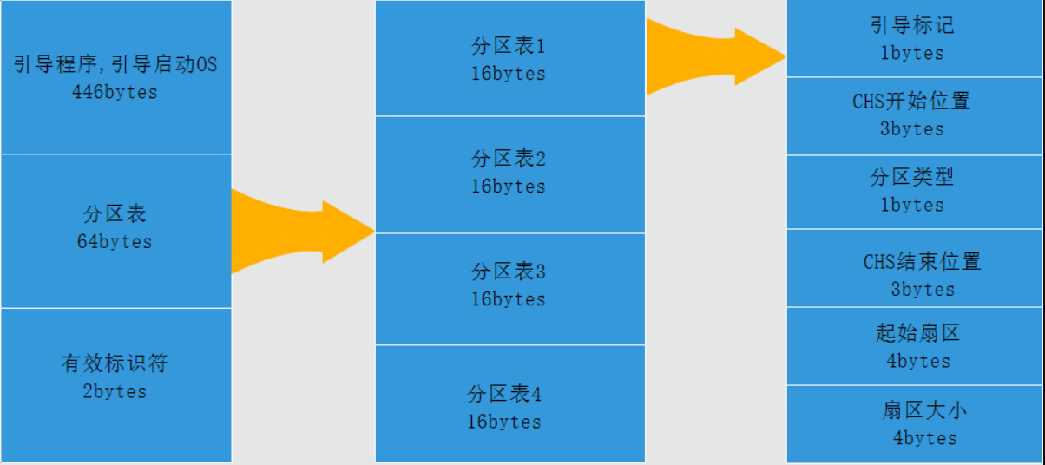
- 引导程序(占446个字节),硬盘启动时将系统控制权转给分区表中的某个操作系统。
- 磁盘分区表项(DPT,Disk Partition Table),由四个分区表项构成(每个16个字节)。
- 结束标志(占2个字节),其值为AA55(十六进制)。
fdisk 工具
fdisk 工具可用于管理采用 MBR 分区方案的磁盘,用户可以根据实际情况进行划分分区。
fdisk 命令语法
[root@server ~ 08:59:35]# fdisk -h
用法:
fdisk [选项] <磁盘> 更改分区表
fdisk [选项] -l <磁盘> 列出分区表
fdisk -s <分区> 给出分区大小(块数)
选项:
-b <大小> 扇区大小(512、1024、2048或4096)
-c[=<模式>] 兼容模式:“dos”或“nondos”(默认)
-h 打印此帮助文本
-u[=<单位>] 显示单位:“cylinders”(柱面)或“sectors”(扇区,默认)
-v 打印程序版本
-C <数字> 指定柱面数
-H <数字> 指定磁头数
-S <数字> 指定每个磁道的扇区数
除了使用-l选项查看分区表,其他选项暂时都不用。
查看分区
fdisk工具大部分操作通过交互式完成,出了查看分区表。
DOS disklabel 指的硬盘管理方式是MBR。
# 准备一块硬盘
# 方法1:
[root@centos7 ~]# fdisk -l /dev/sdb
Disk /dev/sdb: 21.5 GB, 21474836480 bytes, 41943040 sectors
Units = sectors of 1 * 512 = 512 bytes
Sector size (logical/physical): 512 bytes / 512 bytes
I/O size (minimum/optimal): 512 bytes / 512 bytes
Disk label type: dos
Disk identifier: 0x78ceaffe
Device Boot Start End Blocks Id System
/dev/sdb1 2048 41943039 20970496 83 Linux
# 方法2:
[root@centos7 ~]# fdisk /dev/sdb
Welcome to fdisk (util-linux 2.23.2).
Changes will remain in memory only, until you decide to write them.
Be careful before using the write command.
# 输入m,查看帮助信息
Command (m for help): `m`
Command action
a toggle a bootable flag
b edit bsd disklabel
c toggle the dos compatibility flag
d delete a partition
g create a new empty GPT partition table
G create an IRIX (SGI) partition table
l list known partition types
m print this menu
n add a new partition
o create a new empty DOS partition table
p print the partition table
q quit without saving changes
s create a new empty Sun disklabel
t change a partition's system id
u change display/entry units
v verify the partition table
w write table to disk and exit
x extra functionality (experts only)
# 输入q,退出管理
Command (m for help): q
创建分区
# 输入n,创建一个新分区
Command (m for help): `n`
# 选择分区类型
Partition type:
p primary (0 primary, 0 extended, 4 free)
e extended
# 直接回车,选择默认分区类型:primary
Select (default p): `回车`
Using default response p
# 直接回车,分区号,使用默认值1
Partition number (1-4, default 1):
# 直接回车,设置分区起始位置为:默认值2048扇区,也就是1M位置。
First sector (2048-41943039, default 2048):
Using default value 2048
# 设置分区结束位置,输入+2G,也就是起始位置之后2
Last sector, +sectors or +size{K,M,G} (2048-41943039, default 41943039): +2G
Partition 1 of type Linux and of size 2 GiB is set
Command (m for help): p
Disk /dev/sdb: 21.5 GB, 21474836480 bytes, 41943040 sectors
Units = sectors of 1 * 512 = 512 bytes
Sector size (logical/physical): 512 bytes / 512 bytes
I/O size (minimum/optimal): 512 bytes / 512 bytes
Disk label type: dos
Disk identifier: 0x78ceaffe
Device Boot Start End Blocks Id System
/dev/sdb1 2048 4196351 2097152 83 Linux
# 输入w,保存更改并退出
# 输入q,不保存更改并退出
Command (m for help): w
The partition table has been altered!
Calling ioctl() to re-read partition table.
Syncing disks.
# 再次验证分区表变化
[root@centos7 ~]# lsblk /dev/sdb
NAME MAJ:MIN RM SIZE RO TYPE MOUNTPOINT
sdb 8:16 0 20G 0 disk
`-sdb1 8:17 0 2G 0 part
注意:如果此时分区表未生成,执行以下命令,通知kernel重新生成分区表。有时候重启系统才会生成最新分区表。
[root@centos7 ~]# partprobe
删除分区
[root@centos7 ~]# fdisk /dev/sdb
Welcome to fdisk (util-linux 2.23.2).
Changes will remain in memory only, until you decide to write them.
Be careful before using the write command.
# 输入p,打印分区表
Command (m for help): p
Disk /dev/sdb: 21.5 GB, 21474836480 bytes, 41943040 sectors
Units = sectors of 1 * 512 = 512 bytes
Sector size (logical/physical): 512 bytes / 512 bytes
I/O size (minimum/optimal): 512 bytes / 512 bytes
Disk label type: dos
Disk identifier: 0x78ceaffe
Device Boot Start End Blocks Id System
/dev/sdb1 2048 41943039 20970496 83 Linux
# 输入d,删除分区,因为只有1个分区,所以自动删除了第一个分区
Command (m for help): `d`
Selected partition 1
Partition 1 is deleted
Command (m for help): p
Disk /dev/sdb: 21.5 GB, 21474836480 bytes, 41943040 sectors
Units = sectors of 1 * 512 = 512 bytes
Sector size (logical/physical): 512 bytes / 512 bytes
I/O size (minimum/optimal): 512 bytes / 512 bytes
Disk label type: dos
Disk identifier: 0x78ceaffe
Device Boot Start End Blocks Id System
如果硬盘空间比较大,需要的文件系统数量超过4个,那么就需要借助扩展分区创建逻辑分区了。
GPT 分区方案
GPT是运行统一可扩展固件接口(UEFI)固件系统上硬盘分区表的标准。
- MBR分区方案只能管理最大2TiB分区和磁盘。全局唯一标识分区表(GPT,GUID Partition Table)使用8个字节(1byte=8bit)存储分区的总扇区数,可支持最多18 ZiB(=264*512 Byte),即18亿太字节的分区和磁盘。
- MBR分区方案支持最多15个分区。GPT分区方案最多可提供128个分区。
- GPT 提供分区表信息的冗余。
GPT分区表结构如下:
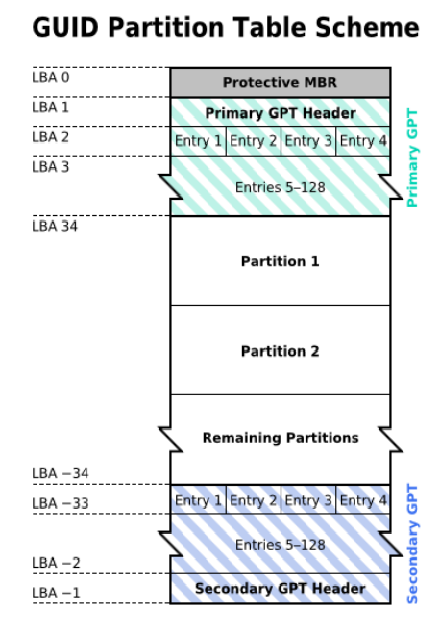
- LBA0(保护性MBR),分为两个部分:
- 第一部分是与MBR中446字节相似的区块,用于存放第一阶段的启动引导程序。
- 第二部分是与MBR分区表记录区对应,该区域存储一个特殊标识符0xEE,用于表示该磁盘为GPT格式。若磁盘管理程序(比较老的软件)无法识别该磁盘,不能修改这个分区信息,进一步保护磁盘。
- LBA1(GPT表头记录),记录了分区表自身的位置和大小,同时也记录了前面提到备份用的GPT分区所在位置(最后34个LBA),还放置了分区表的校验码(CRC32),校验码的作用是让操作系统判断GPT的正确与否,倘若发现错误则可以从备份的GPT中恢复正常运行。
- LBA2-33,记录分区信息,每个LBA可以提供4组的分区记录,默认情况下可以有4×32=128组分区记录。因为每个LBA都有512字节,所以每组分区记录所占128字节,除去每组记录需要的标识符和相关记录信息外,GPT在每组记录中提供了64位记载分区的扇区总数。
- 虽然GPT最大支持128个分区,但是实际使用过程中分区超过第120个会出现无法格式化使用的情况。
gdisk 工具
gdisk工具用于管理采用GPT分区方案的磁盘分区,主要用于管理磁盘容量超过2T的磁盘。
gdisk命令语法
gdisk [ -l ] device
查看分区表
[root@server ~ 09:19:46]# gdisk -l /dev/sdb
GPT fdisk (gdisk) version 0.8.10
# 这里显示识别到了MBR分区方案
Partition table scan:
MBR: MBR only
BSD: not present
APM: not present
GPT: not present
Found invalid GPT and valid MBR; converting MBR to GPT format
in memory.
Disk /dev/sdb: 209715200 sectors, 100.0 GiB
Logical sector size: 512 bytes
Disk identifier (GUID): 36002738-6FDA-4433-8182-2720A000D7C5
Partition table holds up to 128 entries
First usable sector is 34, last usable sector is 209715166
Partitions will be aligned on 2048-sector boundaries
Total free space is 209715133 sectors (100.0 GiB)
Number Start (sector) End (sector) Size Code Name
创建分区
[root@server ~ 09:19:46]# gdisk -l /dev/sdb
......
# 这里识别到了GPT分区方案
Partition table scan:
MBR: protective
BSD: not present
APM: not present
GPT: present
......
# 输入n,创建新分区
Command (? for help): `n`
# 设置分区ID
Partition number (1-128, default 1): `回车`
# 设置分区起始位置
First sector (34-41943006, default = 2048) or {+-}size{KMGTP}: `回车`
# 设置分区结束位置
Last sector (2048-41943006, default = 41943006) or {+-}size{KMGTP}: `+2G`
Current type is 'Linux filesystem'
# 设置分区类型,输入L查看所有分区类型
Hex code or GUID (L to show codes, Enter = 8300): `L`
# 输入回车继续查看
Press the <Enter> key to see more codes:`回车`
# 输入回车,选择默认分区类型
Hex code or GUID (L to show codes, Enter = 8300):
Changed type of partition to 'Linux filesystem'
# 输入p,查看分区表
Number Start (sector) End (sector) Size Code Name
1 2048 4196351 2.0 GiB 8300 Linux filesystem
更改分区名称
# 输入c,修改分区ID为1的分区名
Command (? for help): c
Using 1
# 输入新名称
Enter name: data01
# 查看分区表
Command (? for help): p
Number Start (sector) End (sector) Size Code Name
1 2048 4196351 2.0 GiB 8300 data01
查看分区详细信息
Command (? for help): i
删除分区
# 输入d,删除分区ID为1的分区
Command (? for help): d
wipefs 工具
作用:查看和清除磁盘管理信息。
注意:数据无价,操作需谨慎,最好提前备份。
# 查看磁盘管理信息
[root@server ~ 10:13:49]# wipefs /dev/sdb
# 清除未挂载磁盘的分区表
[root@server ~ 09:46:30]# wipefs -a /dev/sdb
/dev/sdb:8 个字节已擦除,位置偏移为 0x00000200 (gpt):45 46 49 20 50 41 52 54
/dev/sdb:8 个字节已擦除,位置偏移为 0x18fffffe00 (gpt):45 46 49 20 50 41 52 54
/dev/sdb:2 个字节已擦除,位置偏移为 0x000001fe (PMBR):55 aa
/dev/sdb: calling ioclt to re-read partition table: 成功
# 禁止使用 -f 强制清除分区表
[root@centos7 ~ 09:46:42]# wipefs -fa /dev/sdb
parted 工具
parted 工具既可以管理采用MBR分区方案的磁盘,又可以管理采用GPT分区方案的磁盘。
parted 命令同时支持交互式操作和非交互式操作(编写脚本)。
我们先来看看交互式操作。
操作流程:
查看分区表
[root@server ~ 10:39:13]# parted /dev/sdb
GNU Parted 3.1
使用 /dev/sdb
Welcome to GNU Parted! Type 'help' to view a list of commands.
(parted)
# 查看分区表,输入 print
(parted) print
Model: VMware, VMware Virtual S (scsi)
Disk /dev/sdb: 107GB
Sector size (logical/physical): 512B/512B
Partition Table: msdos
Disk Flags:
Number Start End Size Type File system 标志
设置单位
parted工具默认单位是MB(103K),设置为MiB(210KiB)
(parted) unit MiB
管理 MBR 磁盘
设置磁盘分区管理方案
# 输入mklabel或mktable设置磁盘分区管理方案
# 设置分区方案为msdos,也就是MBR,输入mklabel msdos
(parted) `mklabel msdos`
Warning: The existing disk label on /dev/sdb will be destroyed and all data on this disk will
be lost. Do you want to continue?
# 确认更改,输入y
Yes/No? `y`
(parted) print
Model: VMware, VMware Virtual S (scsi)
Disk /dev/sdb: 21.5GB
Sector size (logical/physical): 512B/512B
# 分区表已改成msdos
Partition Table: `msdos`
Disk Flags:
Number Start End Size Type File system Flags
**注意:**parted命令所做更改立刻生效。
创建分区
# 创建分区,输入 mkpart
(parted) `mkpart`
# 设置分区类型,输入 primary
Partition type? primary/extended? `primary`
# 设置分区文件系统类型,输入 xfs,实际不生效,格式化文件系统仍需手动操作
File system type? [ext2]? `xfs`
# 设置分区起始位置,输入 1
Start? `1`
# 设置分区结束位置,输入 2049
End? `2049`
(parted) `print`
Model: VMware, VMware Virtual S (scsi)
Disk /dev/sdb: 2049MiB
Sector size (logical/physical): 512B/512B
Partition Table: msdos
Disk Flags:
Number Start End Size Type File system Flags
1 1.00MiB 2049MiB 2048MiB primary ext4
扩展分区容量
# 1 代表分区号,4097代表分区结束位置
(parted) resizepart 1 4097
(parted) print
Model: VMware, VMware Virtual S (scsi)
Disk /dev/sdb: 20480MiB
Sector size (logical/physical): 512B/512B
Partition Table: msdos
Disk Flags:
Number Start End Size Type File system Flags
1 1.00MiB 4097MiB 4096MiB primary xfs
删除分区
# 1 代表分区号
(parted) rm 1
(parted) print
Model: VMware, VMware Virtual S (scsi)
Disk /dev/sdb: 20480MiB
Sector size (logical/physical): 512B/512B
Partition Table: msdos
Disk Flags:
Number Start End Size Type File system Flags
免交互操作
# 设置磁盘分区管理方案
[root@server ~ 10:47:27]# parted /dev/sdb mklabel msdos
Warning: The existing disk label on /dev/sdb will be destroyed and all data on this
disk will be lost. Do you want to continue?
Yes/No? y
Information: You may need to update /etc/fstab.
# 查看分区
[root@server ~ 10:47:37]# parted /dev/sdb unit MiB print
Model: VMware, VMware Virtual S (scsi)
Disk /dev/sdb: 20480MiB
Sector size (logical/physical): 512B/512B
Partition Table: msdos
Disk Flags:
Number Start End Size Type File system Flags
# 创建分区
[root@server ~ 10:47:46]# parted /dev/sdb unit MiB mkpart primary 1 2049
Information: You may need to update /etc/fstab.
[root@server ~ 10:47:55]# parted /dev/sdb unit MiB print
Model: VMware, VMware Virtual S (scsi)
Disk /dev/sdb: 20480MiB
Sector size (logical/physical): 512B/512B
Partition Table: msdos
Disk Flags:
Number Start End Size Type File system Flags
1 1.00MiB 2049MiB 2048MiB primary xfs
# 扩展分区
[root@server ~ 10:48:14]# parted /dev/sdb unit MiB resizepart 1 5121
Information: You may need to update /etc/fstab.
[root@server ~ 10:48:23]# parted /dev/sdb unit MiB print
Model: VMware, VMware Virtual S (scsi)
Disk /dev/sdb: 20480MiB
Sector size (logical/physical): 512B/512B
Partition Table: msdos
Disk Flags:
Number Start End Size Type File system Flags
1 1.00MiB 5121MiB 5120MiB primary xfs
# 删除分区
[root@server ~ 10:48:44]# parted /dev/sdb rm 1
Information: You may need to update /etc/fstab.
[root@server ~ 10:48:59]# parted /dev/sdb unit MiB print
Model: VMware, VMware Virtual S (scsi)
Disk /dev/sdb: 20480MiB
Sector size (logical/physical): 512B/512B
Partition Table: msdos
Disk Flags:
Number Start End Size Type File system Flags
管理 GPT 磁盘
管理GPT磁盘基本与管理MBR磁盘一致,除了创建分区。
设置磁盘分区管理方案
# 设置分区方案为gpt,输入mklabel gpt
(parted) `mklabel gpt`
Warning: The existing disk label on /dev/sdb will be destroyed and all data on this disk will
be lost. Do you want to continue?
Yes/No? y
(parted) print
Model: VMware, VMware Virtual S (scsi)
Disk /dev/sdb: 21.5GB
Sector size (logical/physical): 512B/512B
# 分区表已改成gpt
Partition Table: `gpt`
Disk Flags:
Number Start End Size File system Name Flags
创建分区
(parted) unit MiB
(parted) mkpart
# 设置分区名
Partition name? []? data01
File system type? [ext2]? xfs
Start? 1
End? 2049
(parted) print
Model: VMware, VMware Virtual S (scsi)
Disk /dev/sdb: 20480MiB
Sector size (logical/physical): 512B/512B
Partition Table: gpt
Disk Flags:
Number Start End Size File system Name Flags
1 1.00MiB 2049MiB 2048MiB xfs data01
扩展分区
(parted) resizepart 1 5121
(parted) print
Model: VMware, VMware Virtual S (scsi)
Disk /dev/sdb: 20480MiB
Sector size (logical/physical): 512B/512B
Partition Table: gpt
Disk Flags:
Number Start End Size File system Name Flags
1 1.00MiB 5121MiB 5120MiB xfs data01
删除分区
(parted) rm 1
(parted) print
Model: VMware, VMware Virtual S (scsi)
Disk /dev/sdb: 20480MiB
Sector size (logical/physical): 512B/512B
Partition Table: gpt
Disk Flags:
Number Start End Size File system Name Flags
免交互操作
# 设置磁盘分区管理方案
[root@server ~ 16:27:28]# parted /dev/sdb mklabel gpt
Warning: The existing disk label on /dev/sdb will be destroyed and all data on this
disk will be lost. Do you want to continue?
Yes/No? y
Information: You may need to update /etc/fstab.
# 查看分区
[root@centos7 ~ 16:27:36]# parted /dev/sdb print
Model: VMware, VMware Virtual S (scsi)
Disk /dev/sdb: 21.5GB
Sector size (logical/physical): 512B/512B
Partition Table: gpt
Disk Flags:
Number Start End Size File system Name Flags
# 创建分区
[root@centos7 ~ 16:27:47]# parted /dev/sdb unit MiB mkpart data01 xfs 1 2049
Information: You may need to update /etc/fstab.
[root@centos7 ~ 16:27:52]# parted /dev/sdb unit MiB print
Model: VMware, VMware Virtual S (scsi)
Disk /dev/sdb: 20480MiB
Sector size (logical/physical): 512B/512B
Partition Table: gpt
Disk Flags:
Number Start End Size File system Name Flags
1 1.00MiB 2049MiB 2048MiB xfs data01
# 扩展分区
[root@centos7 ~ 16:28:04]# parted /dev/sdb unit MiB resizepart 1 5121
Information: You may need to update /etc/fstab.
[root@centos7 ~ 16:28:22]# parted /dev/sdb unit MiB print
Model: VMware, VMware Virtual S (scsi)
Disk /dev/sdb: 20480MiB
Sector size (logical/physical): 512B/512B
Partition Table: gpt
Disk Flags:
Number Start End Size File system Name Flags
1 1.00MiB 5121MiB 5120MiB xfs data01
# 删除分区
[root@centos7 ~ 16:28:29]# parted /dev/sdb rm 1
Information: You may need to update /etc/fstab.
[root@centos7 ~ 16:28:43]# parted /dev/sdb unit MiB print
Model: VMware, VMware Virtual S (scsi)
Disk /dev/sdb: 20480MiB
Sector size (logical/physical): 512B/512B
Partition Table: gpt
Disk Flags:
Number Start End Size File system Name Flags
文件系统持久化挂载
持久化挂载
当服务器重启时,系统不会再次将文件系统自动挂载到目录树上,用户无法访问。为了确保系统在启动时自动挂载文件系统, 需要在 /etc/fstab文件中添加一个条目。
/etc/fstab 是以空格分隔的文件,每行具有六个字段。
- **第一个字段指定设备。**可以使用UUID或device来指定设备。
- **第二个字段是目录挂载点。**通过它可以访问目录结构中的块设备。挂载点必须存在;如果不存在,请使用mkdir命令进行创建。
- 第三个字段包含文件系统类型,如xfs或ext4 。
- 第四个字段是挂载选项,以逗号分隔的。 defaults是一组常用选项。详细信息参考mount(8) 。
- 第五个字段指定dump命令是否备份设备。
- 第六个字段指定fsck顺序字段,决定了在系统启动吋是否应运行fsck命令,以验证文件系统是否干净。 该字段中的值指示了 fsck的运行顺序。 对于XFS文件系统, 请将该字段设为0 ,因为XFS并不使用fsck来检查自己的文件系统状态。 对于ext4 文件系统,如果是根文件系统, 请将该字段设 为 1 ; 如果是其他ext4 文件系统, 则将该字段设为2。 这样, fsck就会先处理根文件系统,然后同步检查不同磁盘上的文件系统,并按顺序检查同一磁盘上的文件系统。
[root@server ~ 11:12:17]# blkid /dev/sda1
/dev/sda1: UUID="c56f943b-a4e0-4deb-853f-0d0ccfe7182a" TYPE="xfs"
[ljw@server ~ 11:18:44]$ vim /etc/fstab
# 最后一行增加一个条目
UUID=e17c3e16-aec1-4600-aae1-c0429e8c4a18 /data xfs defaults 0 0
# 挂载
[root@server ~ 11:15:34]# mount /data
# 验证
[root@server ~ 11:15:53]# df -h /data
文件系统 容量 已用 可用 已用% 挂载点
/dev/sdb1 20G 33M 20G 1% /data
# 重启系统验证
[root@server ~ 11:16:01]# reboot
[root@server ~ 11:16:44]# df -h /data
文件系统 容量 已用 可用 已用% 挂载点
/dev/sdb1 20G 33M 20G 1% /data
取消持久化挂载
删除/etc/fstab中对应条目即可。
综合案例:文件系统空间不足
情况1:大量的大文件占用空间
准备环境
[root@centos7 ~]# parted /dev/sdb mklabel gpt
[root@centos7 ~]# parted /dev/sdb unit MiB mkpart data01 xfs 1 2049
[root@centos7 ~]# mkfs.xfs -f /dev/sdb1
[root@centos7 ~]# mkdir /myapp-1
[root@centos7 ~]# mount /dev/sdb1 /myapp-1
[root@centos7 ~]# cp -r /etc/ /myapp-1/
原因:大文件占用大量空间。
解决方法:找到文件后删除。
[root@centos7 ~]# df -h /myapp-1/
文件系统 容量 已用 可用 已用% 挂载点
/dev/sdb1 2.0G 2.0G 436K 100% /myapp-1
# 方法1:find 查找
[root@centos7 ~]# find /myapp-1/ -size +100M
/myapp-1/etc/bigfile
# 方法2:du 查找
[root@centos7 ~]# du -s /myapp-1/* |sort -n |tail -2
2051628 /myapp-1/etc
[root@centos7 ~]# du -s /myapp-1/etc/* |sort -n |tail -2
23220 /myapp-1/etc/selinux
2008512 /myapp-1/etc/bigfile
[root@centos7 ~]# du -s /myapp-1/etc/bigfile/* |sort -n |tail -2
du: 无法访问"/myapp-1/etc/bigfile/*": 不是目录
# 删除大文件
[root@centos7 ~]# rm -f /myapp-1/etc/bigfile
[root@centos7 ~ ]# df -h /myapp-1/
文件系统 容量 已用 可用 已用% 挂载点
/dev/sdb1 2.0G 77M 2.0G 4% /myapp-1
情况2:删除文件后,空间没有释放
准备环境
[root@centos7 ~]# dd if=/dev/zero of=/myapp-1/etc/bigfile bs=1M count=2000
[root@centos7 ~]# tail -f /myapp-1/etc/bigfile &
# 删除文件后,空间没有释放
[root@centos7 ~]# rm -f /myapp-1/etc/bigfile
[root@centos7 ~]# df -h /myapp-1/
文件系统 容量 已用 可用 已用% 挂载点
/dev/sdb1 2.0G 2.0G 772K 100% /myapp-1
原因:被删除的文件,仍然有程序在使用。
解决方法:找到像一个的程序并,终止程序。
[root@centos7 ~]# lsof |grep delete |grep /myapp-1
tail 1654 root 3r REG 8,17 2061565952 444 /myapp-1/etc/bigfile (deleted)
[root@centos7 ~]# kill 1654
[root@centos7 ~]# df -h /myapp-1/
文件系统 容量 已用 可用 已用% 挂载点
/dev/sdb1 2.0G 72M 2.0G 4% /myapp-1
建议:清理大文件,先使用重定向清空文件内容,再删除文件。
情况3:大量的小文件占用空间
准备环境
[root@centos7 ~]# parted /dev/sdb unit MiB mkpart data02 ext4 2049 3073
[root@centos7 ~]# mkfs.ext4 /dev/sdb2
[root@centos7 ~]# mkdir /myapp-2
[root@centos7 ~]# mount /dev/sdb2 /myapp-2
[root@server ~ 15:01:00]# df -i /myapp-2
文件系统 Inode 已用(I) 可用(I) 已用(I)% 挂载点
/dev/sdb2 65536 11 65525 1% /myapp-2
[root@centos7 ~]# touch /myapp-2/file-{00001..65530}
touch: 无法创建"/myapp-2/file-65526": 设备上没有空间
touch: 无法创建"/myapp-2/file-65527": 设备上没有空间
touch: 无法创建"/myapp-2/file-65528": 设备上没有空间
touch: 无法创建"/myapp-2/file-65529": 设备上没有空间
touch: 无法创建"/myapp-2/file-65530": 设备上没有空间
[root@centos7 ~] df -h /myapp-2/
Filesystem Size Used Avail Use% Mounted on
/dev/sdb2 974M 1.8M 905M 1% /myapp-2
原因:文件系统中inode使用完了。
解决方法:删除大量的小文件或者将这些小文件备份到其他地方。
[root@centos7 ~] df -hi /myapp-2
Filesystem Inodes IUsed IFree IUse% Mounted on
/dev/sdb2 64K 64K 0 100% /myapp-2
# 思路1:直接将这些小文件移走或删除
[root@centos7 ~]# rm -f /myapp-2/file-0*
# 思路2:合并大量小文件为单个文件
[root@centos7 ~]# cat /myapp-2/file-{00001..10000} > file-00001




评论前必须登录!
注册