 网硕互联帮助中心
4.mysql 5.x源码安装
文章目录
- 4.mysql 5.x源码安装
-
- 基础SQL语句
- python导出表
环境准备:
使用CentOS-7-template模板克隆mysql01
#设置主机名
[root@localhost ~]# hostnamectl set-hostname mysql01
#关闭防火墙
[root@mysql01 ~]# systemctl disable firewalld.service –now
mysql5.7稳定版安装
#安装依赖包,ncurses(操作终端) ncurses-devel(编译软件时用)bison(解析语法) cmake(源码编译工具) gcc,gcc-c++(编译器)
[root@mysql01 ~]# yum -y install ncurses ncurses-devel bison cmake gcc gcc-c++
#配置程序用户(不允许终端登录)
[root@mysql01 ~]# useradd -s /sbin/nologin mysql
#解压mysql和boost包到指定目录,boost是支持mysql底层c++运行的仓库
[root@mysql01 ~]# tar zxvf mysql-5.7.17.tar.gz -C /opt/
[root@mysql01 ~]# tar zxvf boost_1_59_0.tar.gz -C /usr/local/
[root@mysql01 ~]# cd /usr/local/
[root@mysql01 ~]# mv boost_1_59_0 boost
#配置安装环境
[root@mysql01 ~]# cd /opt/mysql-5.7.17/
[root@mysql01 mysql-5.7.17]# cmake \\
-DCMAKE_INSTALL_PREFIX=/usr/local/mysql \\
-DMYSQL_UNIX_ADDR=/usr/local/mysql/mysql.sock \\
-DSYSCONFDIR=/etc \\
-DSYSTEMD_PID_DIR=/usr/local/mysql \\
-DDEFAULT_CHARSET=utf8 \\
-DDEFAULT_COLLATION=utf8_general_ci \\
-DWITH_INNOBASE_STORAGE_ENGINE=1 \\
-DWITH_ARCHIVE_STORAGE_ENGINE=1 \\
-DWITH_BLACKHOLE_STORAGE_ENGINE=1 \\
-DWITH_PERFSCHEMA_STORAGE_ENGINE=1 \\
-DMYSQL_DATADIR=/usr/local/mysql/data \\
-DWITH_BOOST=/usr/local/boost \\
-DWITH_SYSTEMD=1
#注释
cmake \\
-DCMAKE_INSTALL_PREFIX=/usr/local/mysql \\ #安装路径
-DMYSQL_UNIX_ADDR=/usr/local/mysql/mysql.sock \\ #客户端连服务的通讯文件
-DSYSCONFDIR=/etc \\ #mysql的配置文件
-DSYSTEMD_PID_DIR=/usr/local/mysql \\ #pid进程文件存放位置
-DDEFAULT_CHARSET=utf8 \\#字符集格式
-DDEFAULT_COLLATION=utf8_general_ci \\#排序规则
-DWITH_INNOBASE_STORAGE_ENGINE=1 \\#开启支持的存储引擎
-DWITH_ARCHIVE_STORAGE_ENGINE=1 \\
-DWITH_BLACKHOLE_STORAGE_ENGINE=1 \\
-DWITH_PERFSCHEMA_STORAGE_ENGINE=1 \\
-DMYSQL_DATADIR=/usr/local/mysql/data \\ #数据存放位置
-DWITH_BOOST=/usr/local/boost \\#底层的c++支持库位置
-DWITH_SYSTEMD=1#id号
——注意:如果在CMAKE的过程中有报错,当报错解决后,需要把源码目录中的CMakeCache.txt文件删除,然后再重新CMAKE,否则错误依旧————
#编译和安装
[root@mysql01 mysql-5.7.17]# make && make install
#递归配置目录所属主和组
[root@mysql01 ~]# chown -R mysql.mysql /usr/local/mysql/
#编辑mysql的配置文件,直接全替换
[root@mysql01 ~]# vim /etc/my.cnf
[client]
port = 3306
default-character-set=utf8
socket = /usr/local/mysql/mysql.sock
[mysql]
port = 3306
default-character-set=utf8
socket = /usr/local/mysql/mysql.sock
[mysqld]
user = mysql
basedir = /usr/local/mysql
datadir = /usr/local/mysql/data
port = 3306
character_set_server=utf8
pid-file = /usr/local/mysql/mysqld.pid
socket = /usr/local/mysql/mysql.sock
server-id = 1
sql_mode=NO_ENGINE_SUBSTITUTION,STRICT_TRANS_TABLES,NO_AUTO_CREATE_USER,NO_AUTO_VALUE_ON_ZERO,NO_ZERO_IN_DATE,NO_ZERO_DATE,ERROR_FOR_DIVISION_BY_ZERO,PIPES_AS_CONCAT,ANSI_QUOTES
#配置文件所属主和组
[root@mysql01 ~]# chown mysql:mysql /etc/my.cnf
#配置环境变量
[root@mysql01 ~]# echo 'PATH=/usr/local/mysql/bin:/usr/local/mysql/lib:$PATH' >> /etc/profile
[root@mysql01 ~]# echo 'export PATH' >> /etc/profile
#加载修改过的配置
[root@mysql01 ~]# source /etc/profile
#数据库初始化
[root@mysql01 ~]# cd /usr/local/mysql/
[root@mysql01 mysql]# bin/mysqld \\
–initialize-insecure \\
–user=mysql \\
–basedir=/usr/local/mysql \\
–datadir=/usr/local/mysql/data
[root@mysql01 mysql]# cp /usr/local/mysql/usr/lib/systemd/system/mysqld.service /usr/lib/systemd/system/
[root@mysql01 mysql]# systemctl daemon-reload
[root@mysql01 mysql]# systemctl start mysqld
[root@mysql01 mysql]# netstat -anpt | grep 3306
tcp6 0 0 :::3306 :::* LISTEN 70276/mysqld
[root@mysql01 mysql]# systemctl enable mysqld
#给root账号设置密码为huawei
[root@mysql01 mysql]# mysqladmin -uroot password "huawei"
#登录mysql
[root@mysql01 ~]# mysql -uroot -phuawei
mysql: [Warning] Using a password on the command line interface can be insecure.
Welcome to the MySQL monitor. Commands end with ; or \\g.
Your MySQL connection id is 4
Server version: 5.7.17 Source distribution
Copyright (c) 2000, 2016, Oracle and/or its affiliates. All rights reserved.
Oracle is a registered trademark of Oracle Corporation and/or its
affiliates. Other names may be trademarks of their respective
owners.
Type 'help;' or '\\h' for help. Type '\\c' to clear the current input statement.
mysql>
#授权远程登录
mysql> grant all privileges on *.* to 'root'@'%' identified by 'huawei' with grant option;
做完,拍摄快照
基础SQL语句
- 查询数据库
[root@mysql01 ~]# mysql -u root -p
Enter password:`huawei`
Welcome to the MySQL monitor. Commands end with ; or \\g.
Your MySQL connection id is 3
Server version: 5.7.17 Source distribution
Copyright (c) 2000, 2016, Oracle and/or its affiliates. All rights reserved.
Oracle is a registered trademark of Oracle Corporation and/or its
affiliates. Other names may be trademarks of their respective
owners.
Type 'help;' or '\\h' for help. Type '\\c' to clear the current input statement.
mysql> show databases; #查看数据库
+——————–+
| Database |
+——————–+
| information_schema |
| mysql |
| performance_schema |
| sys |
+——————–+
4 rows in set (0.00 sec)
- 创建和使用数据库
mysql> create database school; #创建数据库school
Query OK, 1 row affected (0.00 sec)
mysql> show databases; #查看数据库,看到新建的数据库school
+——————–+
| Database |
+——————–+
| information_schema |
| mysql |
| performance_schema |
| school |
| sys |
+——————–+
5 rows in set (0.00 sec)
mysql> use school; #使用数据库school
Database changed
mysql> show tables; #查看表
Empty set (0.00 sec)
mysql>
- 创建表结构
mysql> CREATE TABLE info (
id INT NOT NULL PRIMARY KEY AUTO_INCREMENT,
name CHAR(10) NOT NULL,
score DECIMAL(5,2),
address CHAR(50) DEFAULT '南京',
hobby INT NOT NULL
);
Query OK, 0 rows affected (0.02 sec)
mysql> show tables;
+——————+
| Tables_in_school |
+——————+
| info |
+——————+
1 row in set (0.00 sec)
mysql> describe info;
+———+————–+——+—–+———+—————-+
| Field | Type | Null | Key | Default | Extra |
+———+————–+——+—–+———+—————-+
| id | int(11) | NO | PRI | NULL | auto_increment |
| name | char(10) | NO | | NULL | |
| score | decimal(5,2) | YES | | NULL | |
| address | char(50) | YES | | 南京 | |
| hobby | int(11) | NO | | NULL | |
+———+————–+——+—–+———+—————-+
5 rows in set (0.01 sec)
- 添加表信息
mysql> insert into info (name,score,address,hobby) values ('唐三',90,'广州',1);
Query OK, 1 row affected (0.01 sec)
mysql> select * from info;
+—-+——–+——-+———+——-+
| id | name | score | address | hobby |
+—-+——–+——-+———+——-+
| 1 | 唐三 | 90.00 | 广州 | 1 |
+—-+——–+——-+———+——-+
1 row in set (0.00 sec)
mysql> insert into info (name,score,address,hobby) values ('叶凡',91,'伦敦',2);
Query OK, 1 row affected (0.00 sec)
mysql> insert into info (name,score,address,hobby) values ('喜羊羊',92,'',3);
Query OK, 1 row affected (0.00 sec)
mysql> select * from info;
+—-+———–+——-+———+——-+
| id | name | score | address | hobby |
+—-+———–+——-+———+——-+
| 1 | 唐三 | 90.00 | 广州 | 1 |
| 2 | 叶凡 | 91.00 | 伦敦 | 2 |
| 3 | 喜羊羊 | 92.00 | | 3 |
+—-+———–+——-+———+——-+
3 rows in set (0.00 sec)
mysql> insert into info (name,score,address,hobby) values ('曹操',93,default,4);
Query OK, 1 row affected (0.00 sec)
mysql> select * from info;
+—-+———–+——-+———+——-+
| id | name | score | address | hobby |
+—-+———–+——-+———+——-+
| 1 | 唐三 | 90.00 | 广州 | 1 |
| 2 | 叶凡 | 91.00 | 伦敦 | 2 |
| 3 | 喜羊羊 | 92.00 | | 3 |
| 4 | 曹操 | 93.00 | 南京 | 4 |
+—-+———–+——-+———+——-+
4 rows in set (0.00 sec)
- 修改表内容
mysql> update info set address='华盛顿' where name='喜羊羊';
Query OK, 1 row affected (0.01 sec)
Rows matched: 1 Changed: 1 Warnings: 0
mysql> select * from info;
+—-+———–+——-+———–+——-+
| id | name | score | address | hobby |
+—-+———–+——-+———–+——-+
| 1 | 唐三 | 90.00 | 广州 | 1 |
| 2 | 叶凡 | 91.00 | 伦敦 | 2 |
| 3 | 喜羊羊 | 92.00 | 华盛顿 | 3 |
| 4 | 曹操 | 93.00 | 南京 | 4 |
+—-+———–+——-+———–+——-+
4 rows in set (0.00 sec)
mysql> update info set address='巴黎' where name='曹操';
Query OK, 1 row affected (0.01 sec)
Rows matched: 1 Changed: 1 Warnings: 0
mysql> select * from info;
+—-+———–+——-+———–+——-+
| id | name | score | address | hobby |
+—-+———–+——-+———–+——-+
| 1 | 唐三 | 90.00 | 广州 | 1 |
| 2 | 叶凡 | 91.00 | 伦敦 | 2 |
| 3 | 喜羊羊 | 92.00 | 华盛顿 | 3 |
| 4 | 曹操 | 93.00 | 巴黎 | 4 |
+—-+———–+——-+———–+——-+
4 rows in set (0.00 sec)
mysql> update info set score=66.5,address='合肥' where id=4;
Query OK, 1 row affected (0.00 sec)
Rows matched: 1 Changed: 1 Warnings: 0
mysql> select * from info;
+—-+———–+——-+———–+——-+
| id | name | score | address | hobby |
+—-+———–+——-+———–+——-+
| 1 | 唐三 | 90.00 | 广州 | 1 |
| 2 | 叶凡 | 91.00 | 伦敦 | 2 |
| 3 | 喜羊羊 | 92.00 | 华盛顿 | 3 |
| 4 | 曹操 | 66.50 | 合肥 | 4 |
+—-+———–+——-+———–+——-+
4 rows in set (0.00 sec)
mysql> select * from info where name='喜羊羊' ;
+—-+——+——-+———–+——-+
| id | name | score | address | hobby |
+—-+——+——-+———–+——-+
| 3 | 喜羊羊 | 92.00 | 华盛顿 | 3 |
+—-+——+——-+———–+——-+
1 row in set (0.00 sec)
mysql> select * from info;
+—-+———–+——-+———–+——-+
| id | name | score | address | hobby |
+—-+———–+——-+———–+——-+
| 1 | 唐三 | 90.00 | 广州 | 1 |
| 2 | 叶凡 | 91.00 | 伦敦 | 2 |
| 3 | 喜羊羊 | 92.00 | 华盛顿 | 3 |
| 4 | 曹操 | 66.50 | 合肥 | 4 |
+—-+———–+——-+———–+——-+
4 rows in set (0.00 sec)
- 删除表内容
mysql> delete from info where id=3;
Query OK, 1 row affected (0.00 sec)
mysql> select * from info;
+—-+——–+——-+———+——-+
| id | name | score | address | hobby |
+—-+——–+——-+———+——-+
| 1 | 唐三 | 90.00 | 广州 | 1 |
| 2 | 叶凡 | 91.00 | 伦敦 | 2 |
| 4 | 曹操 | 66.50 | 合肥 | 4 |
+—-+——–+——-+———+——-+
3 rows in set (0.00 sec)
python导出表
先配置pip源:
Windows系统:
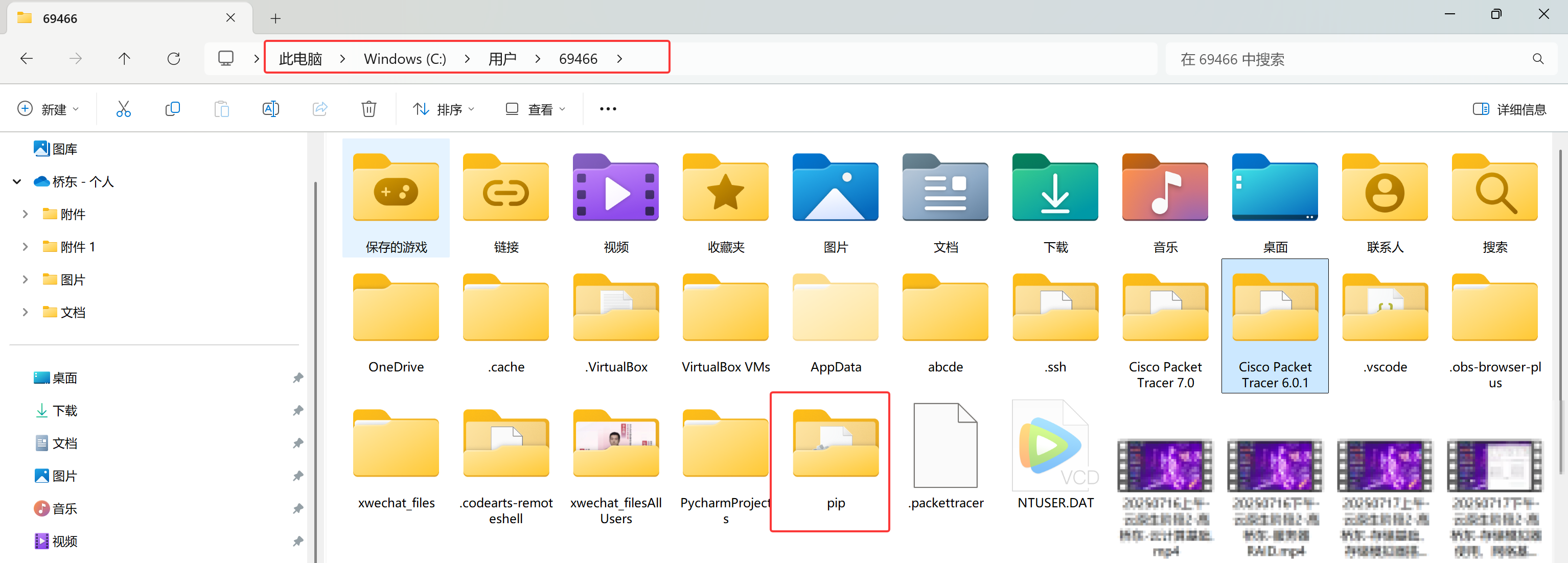
在用户目录下(如 C:\\Users\\你的用户名\\)创建一个名为 pip 的文件夹。
以我举例
C:\\Users\\69466
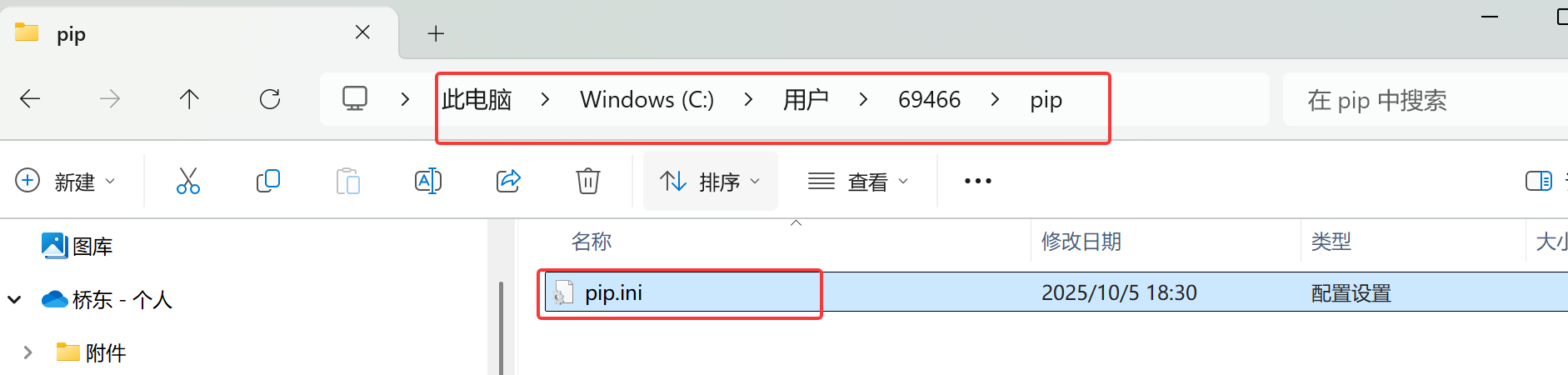
在 pip 文件夹内创建一个名为 pip.ini 的文件。
用记事本打开 pip.ini,输入以下内容并保存:
[global]
index-url = https://mirrors.aliyun.com/pypi/simple/
trusted-host = mirrors.aliyun.com
pycharm下载软件包
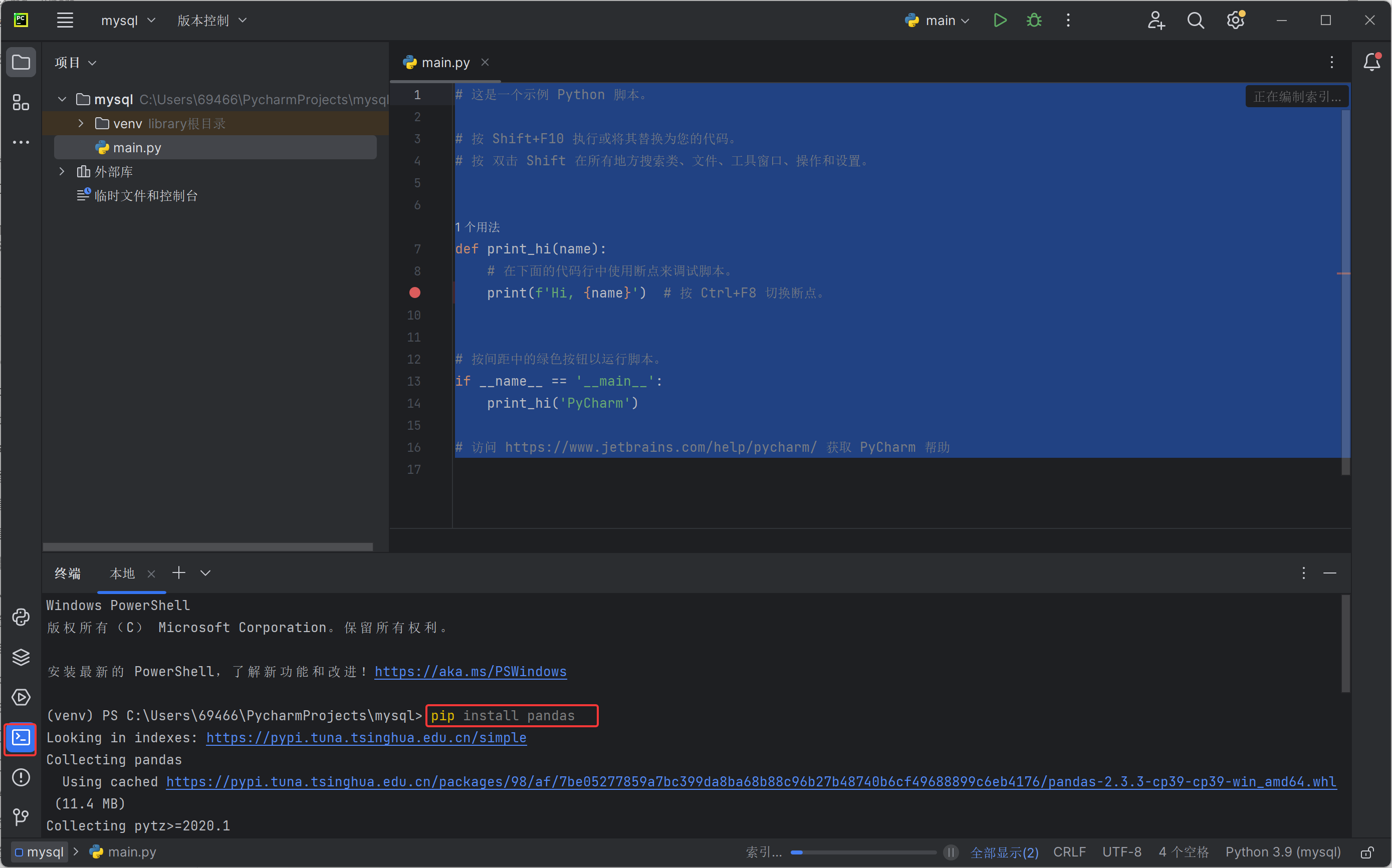
pip install pandas
pip install sqlalchemy –only-binary :all: -i https://mirrors.aliyun.com/pypi/simple/
pip install pymysql
pip install openpyxl
下图演示了pip install pandas,另外3个一样
代码如下
import pandas as pd
from sqlalchemy import create_engine
#创建数据连接
engine = create_engine('mysql+pymysql://root:huawei@192.168.108.142:3306/school')
#执行获取数据
df = pd.read_sql('select * from info', engine)
print(df)
#导出到excel表格
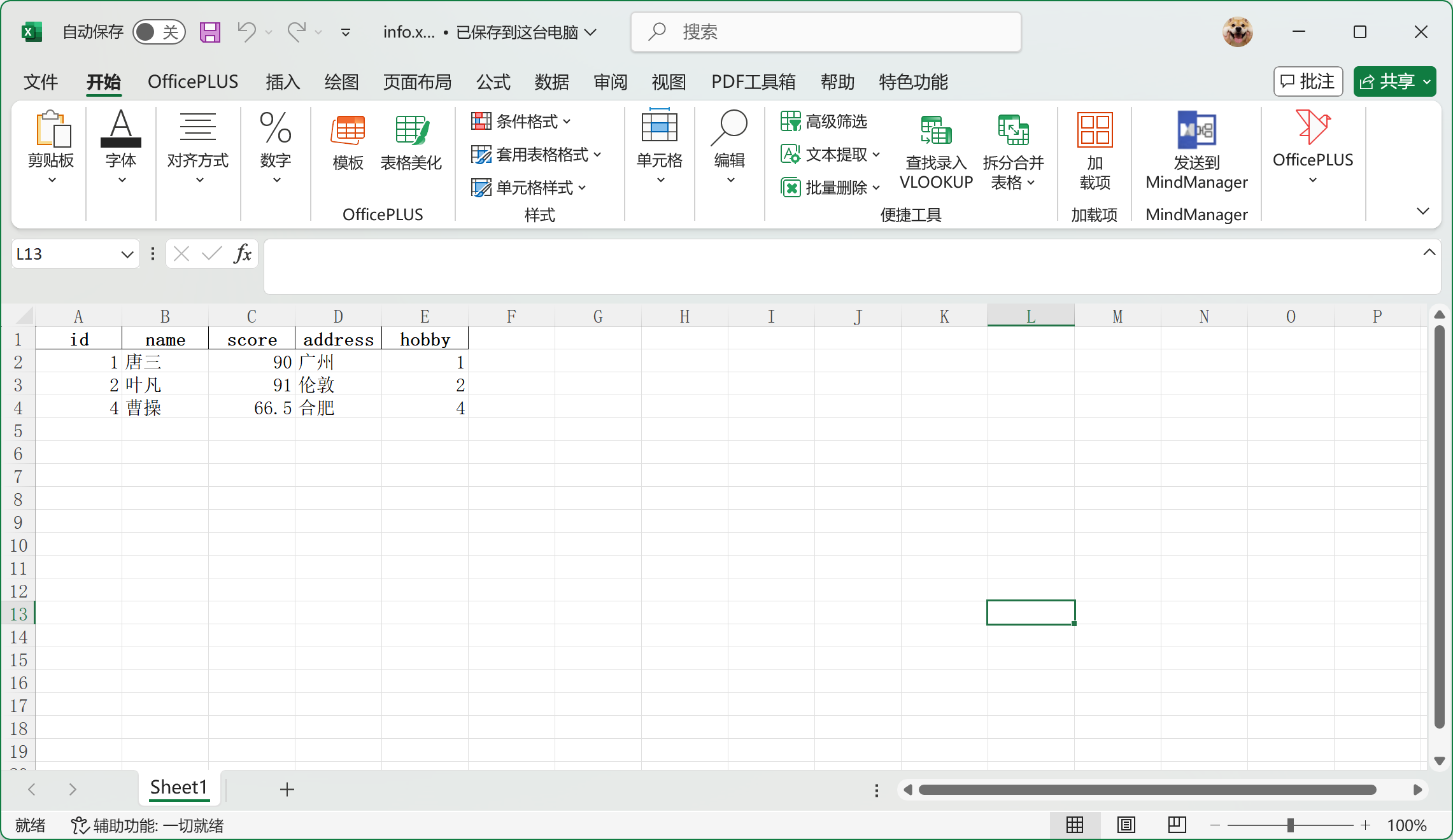
df.to_excel('info.xlsx', index=False)
print('excel 导出成功!')
右击项目,新建python文件
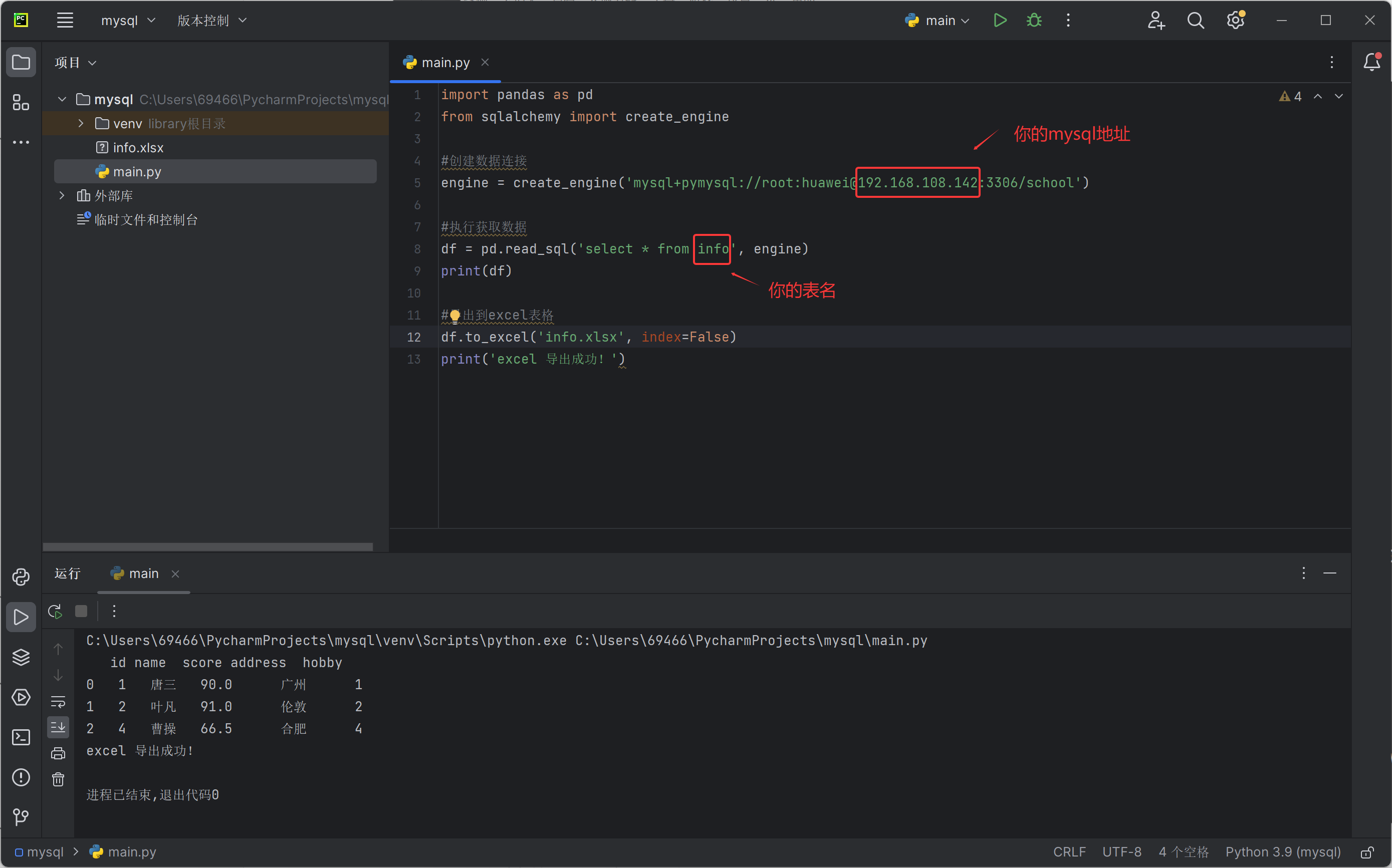
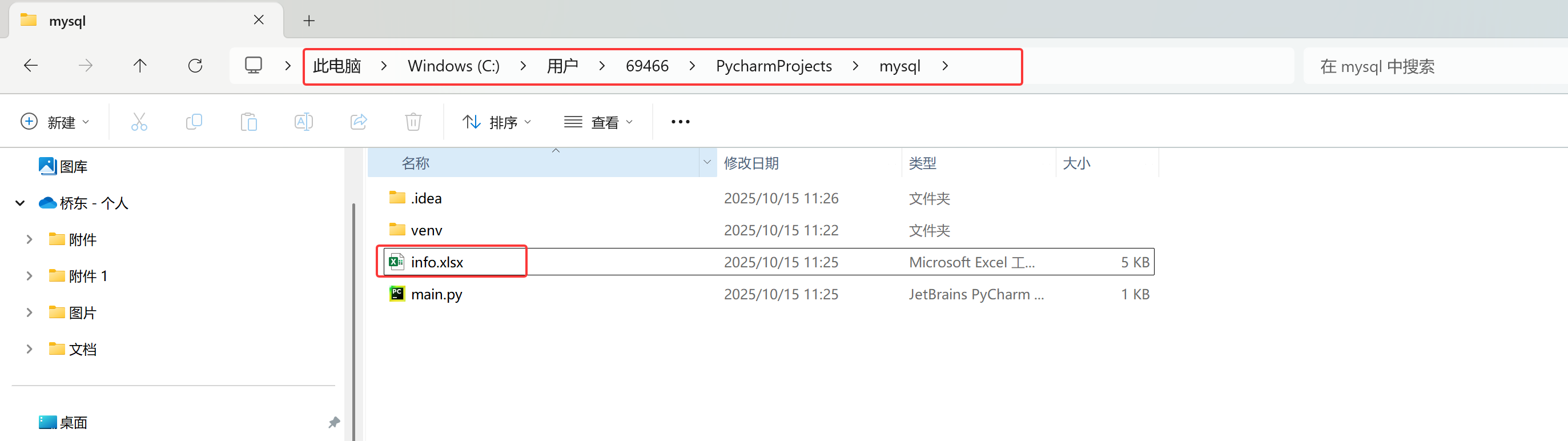
根据项目位置找到,输出的excel





评论前必须登录!
注册