 网硕互联帮助中心

PyQt+QML 实现MQTT从机调试助手源码分享
- 一、效果展示
- 二、源码分享
-
- 1、工程结构
- 2、库安装
- 3、main.py
- 4、main.qml
- 三、实现原理
-
- 1、整体架构与通信机制
- 2、MQTTBridge 桥接类的设计
- 3、QML 界面与数据绑定
- 4、paho-mqtt 与 Qt 事件循环的协作
- 5、运行流程总结
一、效果展示
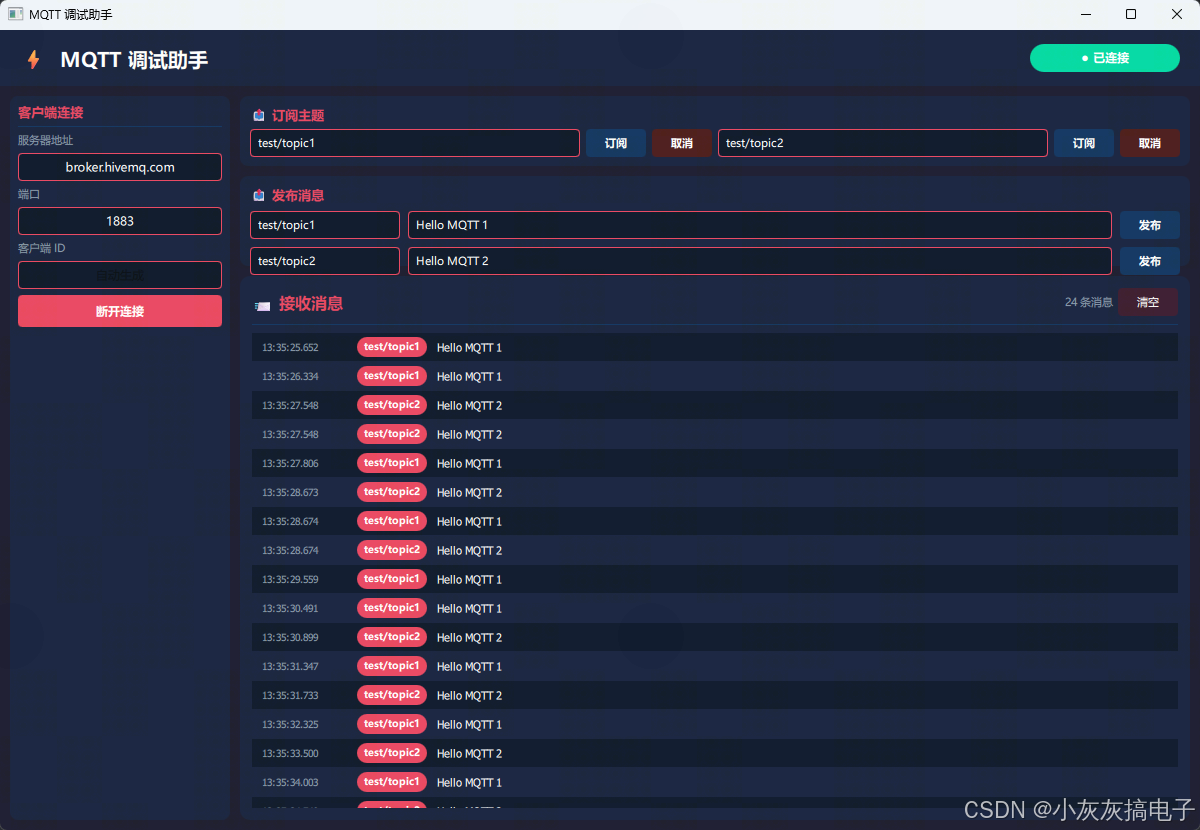
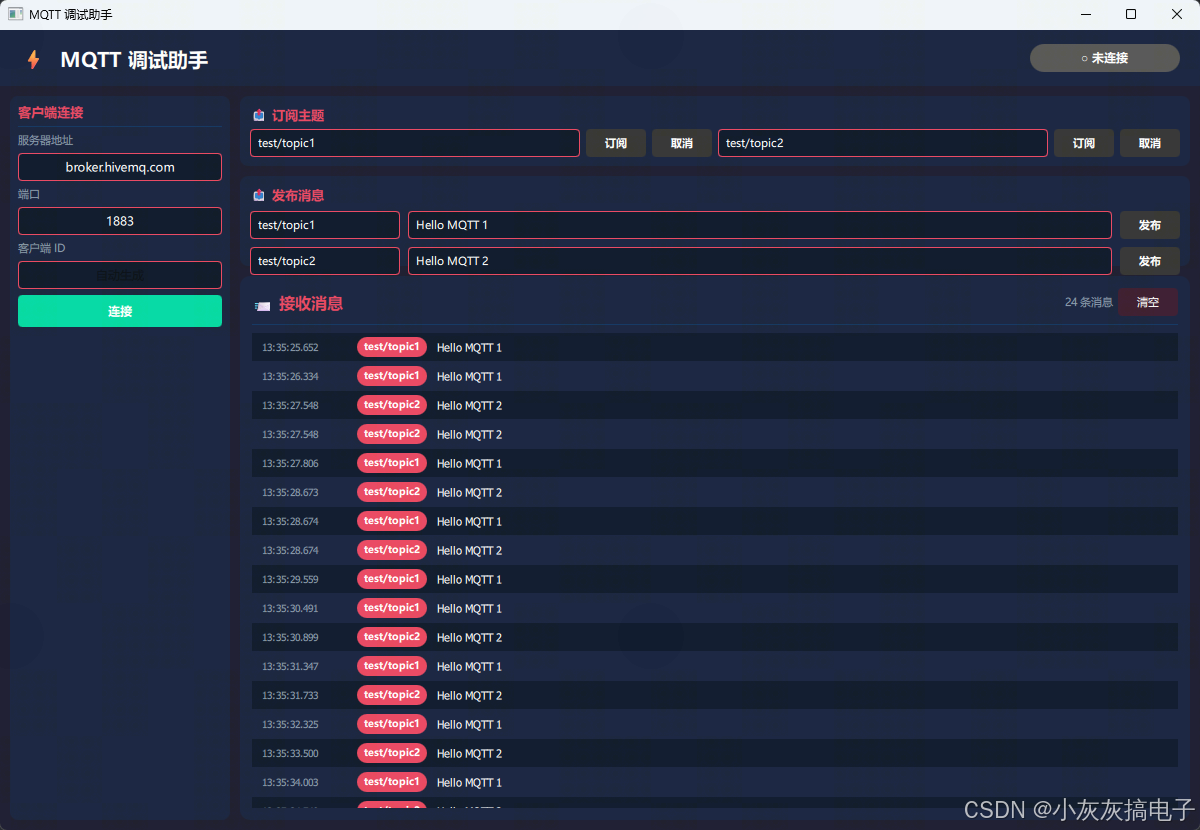
二、源码分享
1、工程结构
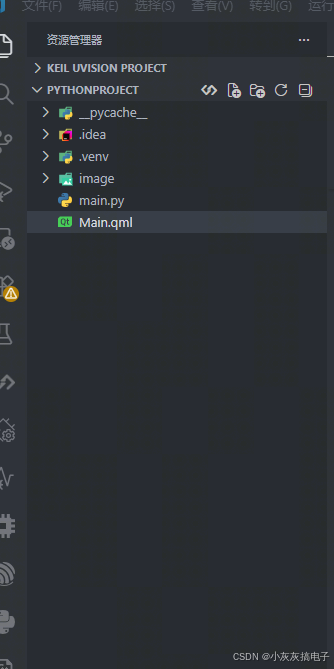
2、库安装
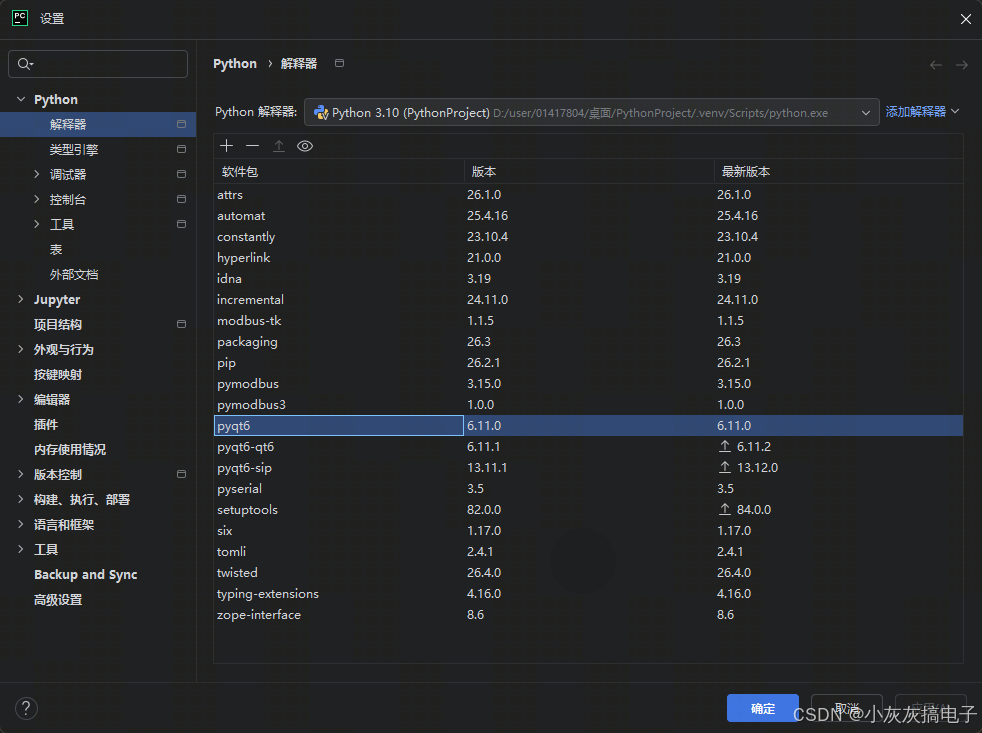
3、main.py
import sys
import os
os.environ["QT_QUICK_CONTROLS_STYLE"] = "Fusion"
from PyQt6.QtWidgets import QApplication
from PyQt6.QtQml import QQmlApplicationEngine
from PyQt6.QtCore import QObject, pyqtSlot, pyqtSignal
from datetime import datetime
import paho.mqtt.client as mqtt
class MQTTBridge(QObject):
"""MQTT 桥接类"""
# 信号定义
logMessage = pyqtSignal(str, str) # timestamp, message
messageReceived = pyqtSignal(str, str, str) # topic, payload, timestamp
clientStatusChanged = pyqtSignal(bool, str) # is_connected, status_text
def __init__(self):
super().__init__()
self.client = None
self.is_client_connected = False
# 订阅的主题词列表
self.subscribed_topics = []
@pyqtSlot(str, str, str, result=bool)
def connect_client(self, host, port, client_id):
"""连接 MQTT 客户端"""
if self.is_client_connected:
self.logMessage.emit(self._timestamp(), "客户端已连接")
return False
try:
# API v2 用于 paho-mqtt 2.x
try:
self.client = mqtt.Client(
callback_api_version=mqtt.CallbackAPIVersion.VERSION2,
client_id=client_id if client_id else None
)
except (AttributeError, TypeError):
# 回退到旧版 API
self.client = mqtt.Client(client_id=client_id if client_id else None)
self.client.on_connect = self._on_connect
self.client.on_disconnect = self._on_disconnect
self.client.on_message = self._on_message
msg = f"正在连接到 {host}:{port}…"
print(msg)
self.logMessage.emit(self._timestamp(), msg)
self.client.connect(host, int(port), 60)
self.client.loop_start()
# 等待连接完成(最多3秒)
import time
for _ in range(30):
time.sleep(0.1)
if self.is_client_connected:
return True
# 超时但未连接
if not self.is_client_connected:
msg = "连接超时"
print(msg)
self.logMessage.emit(self._timestamp(), msg)
self.clientStatusChanged.emit(False, "连接超时")
return False
return True
except ConnectionRefusedError:
msg = f"连接被拒绝: {host}:{port}"
print(msg)
self.logMessage.emit(self._timestamp(), msg)
self.clientStatusChanged.emit(False, "连接被拒绝")
return False
except Exception as e:
msg = f"连接失败: {str(e)}"
print(msg)
import traceback
traceback.print_exc()
self.logMessage.emit(self._timestamp(), msg)
self.clientStatusChanged.emit(False, "连接失败")
return False
@pyqtSlot()
def disconnect_client(self):
"""断开客户端连接"""
if not self.is_client_connected:
return
try:
if self.client:
self.client.loop_stop()
self.client.disconnect()
self.is_client_connected = False
self.subscribed_topics.clear()
self.clientStatusChanged.emit(False, "已断开")
msg = "已断开连接"
print(msg)
self.logMessage.emit(self._timestamp(), msg)
except Exception as e:
self.logMessage.emit(self._timestamp(), f"断开失败: {str(e)}")
@pyqtSlot(str)
def unsubscribe_topic(self, topic):
"""取消订阅主题"""
if not self.is_client_connected or not self.client:
self.logMessage.emit(self._timestamp(), "客户端未连接")
return
try:
result, mid = self.client.unsubscribe(topic)
if result == mqtt.MQTT_ERR_SUCCESS:
if topic in self.subscribed_topics:
self.subscribed_topics.remove(topic)
msg = f"已取消订阅: {topic}"
print(msg)
self.logMessage.emit(self._timestamp(), msg)
else:
msg = f"取消订阅失败: {topic}"
print(msg)
self.logMessage.emit(self._timestamp(), msg)
except Exception as e:
self.logMessage.emit(self._timestamp(), f"取消订阅异常: {str(e)}")
@pyqtSlot(str)
def subscribe_topic(self, topic):
"""订阅主题"""
if not self.is_client_connected or not self.client:
self.logMessage.emit(self._timestamp(), "客户端未连接")
return
try:
result, mid = self.client.subscribe(topic)
if result == mqtt.MQTT_ERR_SUCCESS:
if topic not in self.subscribed_topics:
self.subscribed_topics.append(topic)
msg = f"已订阅: {topic}"
print(msg)
self.logMessage.emit(self._timestamp(), msg)
else:
msg = f"订阅失败: {topic}"
print(msg)
self.logMessage.emit(self._timestamp(), msg)
except Exception as e:
self.logMessage.emit(self._timestamp(), f"订阅异常: {str(e)}")
@pyqtSlot(str, str)
def publish_message(self, topic, payload):
"""发布消息"""
if not self.is_client_connected or not self.client:
self.logMessage.emit(self._timestamp(), "客户端未连接")
return
try:
result = self.client.publish(topic, payload)
if result.rc == mqtt.MQTT_ERR_SUCCESS:
msg = f"已发布到 {topic}: {payload}"
print(msg)
self.logMessage.emit(self._timestamp(), msg)
else:
msg = f"发布失败: {topic}"
print(msg)
self.logMessage.emit(self._timestamp(), msg)
except Exception as e:
self.logMessage.emit(self._timestamp(), f"发布异常: {str(e)}")
def _on_connect(self, client, userdata, flags, reason_code, properties=None):
"""连接回调 – paho-mqtt v2"""
# reason_code 是 ReasonCode 对象,需要获取其值
if reason_code is None:
rc = –1
elif hasattr(reason_code, 'value'):
rc = reason_code.value
else:
try:
rc = int(reason_code)
except (TypeError, ValueError):
rc = –1
print(f"[DEBUG] _on_connect called: rc={rc}, reason_code={reason_code}")
if rc == 0:
self.is_client_connected = True
self.clientStatusChanged.emit(True, "已连接")
msg = "连接成功"
print(msg)
self.logMessage.emit(self._timestamp(), msg)
else:
self.clientStatusChanged.emit(False, f"连接失败 (rc={rc})")
msg = f"连接失败 (rc={rc})"
print(msg)
self.logMessage.emit(self._timestamp(), msg)
def _on_disconnect(self, client, userdata, flags, reason_code, properties=None):
"""断开回调 – paho-mqtt v2"""
self.is_client_connected = False
self.subscribed_topics.clear()
# reason_code 是 ReasonCode 对象,需要获取其值
if reason_code is None:
rc = –1
elif hasattr(reason_code, 'value'):
rc = reason_code.value
else:
try:
rc = int(reason_code)
except (TypeError, ValueError):
rc = –1
if rc == 0:
self.clientStatusChanged.emit(False, "已断开")
msg = "连接已断开"
else:
self.clientStatusChanged.emit(False, f"意外断开 (rc={rc})")
msg = f"意外断开 (rc={rc})"
print(msg)
self.logMessage.emit(self._timestamp(), msg)
def _on_message(self, client, userdata, msg):
"""消息回调"""
timestamp = self._timestamp()
topic = msg.topic
try:
payload = msg.payload.decode('utf-8')
except:
payload = str(msg.payload)
self.messageReceived.emit(topic, payload, timestamp)
def _timestamp(self):
"""获取时间戳"""
return datetime.now().strftime("%H:%M:%S.%f")[:–3]
def main():
"""主函数"""
app = QApplication(sys.argv)
engine = QQmlApplicationEngine()
bridge = MQTTBridge()
engine.rootContext().setContextProperty("mqttBridge", bridge)
qml_file = os.path.join(os.path.dirname(__file__), "Main.qml")
engine.load(qml_file)
if not engine.rootObjects():
sys.exit(–1)
sys.exit(app.exec())
if __name__ == "__main__":
main()
4、main.qml
import QtQuick
import QtQuick.Controls
import QtQuick.Layouts
import QtQuick.Window
ApplicationWindow {
id: mainWindow
visible: true
width: 1200
height: 800
minimumWidth: 900
minimumHeight: 600
title: "MQTT 调试助手"
// 颜色主题
readonly property color bgColor: "#1a1a2e"
readonly property color panelColor: "#16213e"
readonly property color primaryColor: "#0f3460"
readonly property color accentColor: "#e94560"
readonly property color successColor: "#00d9a3"
readonly property color warningColor: "#ffa500"
readonly property color errorColor: "#e94560"
readonly property color textPrimary: "#ffffff"
readonly property color textSecondary: "#8899aa"
readonly property color inputColor: "#0a1628"
// 状态
property bool isClientConnected: false
property string clientStatus: "未连接"
background: Rectangle { color: bgColor }
// 顶部标题栏
header: Rectangle {
height: 56
color: panelColor
RowLayout {
anchors.fill: parent
anchors.leftMargin: 20
anchors.rightMargin: 20
Text {
text: "⚡ MQTT 调试助手"
font.pixelSize: 20
font.bold: true
color: textPrimary
}
Item { Layout.fillWidth: true }
Rectangle {
Layout.alignment: Qt.AlignRight
Layout.preferredWidth: 150
Layout.preferredHeight: 28
radius: 14
color: isClientConnected ? successColor : "#555555"
Behavior on color { ColorAnimation { duration: 200 } }
Text {
anchors.centerIn: parent
text: isClientConnected ? "● " + clientStatus : "○ 未连接"
font.pixelSize: 12
font.bold: true
color: textPrimary
}
}
}
}
// 主内容
RowLayout {
anchors.fill: parent
anchors.margins: 10
spacing: 10
// 左侧面板
ColumnLayout {
Layout.preferredWidth: 220
Layout.maximumWidth: 220
Layout.fillHeight: true
spacing: 8
// 客户端连接
Pane {
Layout.fillWidth: true
Layout.fillHeight: true
padding: 8
background: Rectangle { color: panelColor; radius: 8 }
ColumnLayout {
anchors.fill: parent
spacing: 6
Text {
text: "客户端连接"
font.pixelSize: 13
font.bold: true
color: accentColor
}
Rectangle { height: 1; Layout.fillWidth: true; color: primaryColor }
Label {
text: "服务器地址"
font.pixelSize: 11
color: textSecondary
}
TextField {
id: hostField
Layout.fillWidth: true
Layout.preferredHeight: 28
text: "broker.hivemq.com"
font.pixelSize: 12
color: textPrimary
horizontalAlignment: TextInput.AlignHCenter
selectByMouse: true
background: Rectangle {
color: inputColor
radius: 4
border.color: accentColor
border.width: 1
}
}
Label {
text: "端口"
font.pixelSize: 11
color: textSecondary
}
TextField {
id: clientPortField
Layout.fillWidth: true
Layout.preferredHeight: 28
text: "1883"
font.pixelSize: 12
color: textPrimary
horizontalAlignment: TextInput.AlignHCenter
selectByMouse: true
inputMethodHints: Qt.ImhDigitsOnly
background: Rectangle {
color: inputColor
radius: 4
border.color: accentColor
border.width: 1
}
}
Label {
text: "客户端 ID"
font.pixelSize: 11
color: textSecondary
}
TextField {
id: clientIdField
Layout.fillWidth: true
Layout.preferredHeight: 28
text: ""
placeholderText: "自动生成"
font.pixelSize: 12
color: textPrimary
horizontalAlignment: TextInput.AlignHCenter
selectByMouse: true
background: Rectangle {
color: inputColor
radius: 4
border.color: accentColor
border.width: 1
}
}
Button {
id: connectBtn
Layout.fillWidth: true
Layout.preferredHeight: 32
text: isClientConnected ? "断开连接" : "连接"
contentItem: Text {
text: parent.text
font.pixelSize: 12
font.bold: true
color: textPrimary
horizontalAlignment: Text.AlignHCenter
verticalAlignment: Text.AlignVCenter
}
background: Rectangle {
radius: 4
color: !isClientConnected
? (parent.hovered ? "#00e6b0" : successColor)
: (parent.hovered ? "#ff5555" : errorColor)
}
onClicked: {
if (isClientConnected) {
mqttBridge.disconnect_client()
} else {
mqttBridge.connect_client(
hostField.text,
parseInt(clientPortField.text),
clientIdField.text
)
}
}
}
Item { Layout.fillHeight: true }
}
}
}
// 右侧主内容
ColumnLayout {
Layout.fillWidth: true
Layout.fillHeight: true
spacing: 10
// 订阅区域
Pane {
Layout.fillWidth: true
Layout.preferredHeight: 70
padding: 10
background: Rectangle { color: panelColor; radius: 8 }
ColumnLayout {
anchors.fill: parent
spacing: 6
Text {
text: "📤 订阅主题"
font.pixelSize: 13
font.bold: true
color: accentColor
}
RowLayout {
Layout.fillWidth: true
spacing: 6
TextField {
id: subTopic1
Layout.fillWidth: true
Layout.preferredHeight: 28
text: "test/topic1"
placeholderText: "主题1…"
font.pixelSize: 11
color: textPrimary
horizontalAlignment: TextInput.AlignLeft
selectByMouse: true
leftPadding: 8
background: Rectangle {
color: inputColor
radius: 4
border.color: accentColor
border.width: 1
}
}
Button {
Layout.preferredWidth: 60
Layout.preferredHeight: 28
text: "订阅"
enabled: isClientConnected
contentItem: Text { text: parent.text; font.pixelSize: 11; font.bold: true; color: textPrimary; horizontalAlignment: Text.AlignHCenter; verticalAlignment: Text.AlignVCenter }
background: Rectangle { radius: 4; color: parent.enabled ? (parent.hovered ? "#1a4a7a" : primaryColor) : "#333333" }
onClicked: mqttBridge.subscribe_topic(subTopic1.text)
}
Button {
Layout.preferredWidth: 60
Layout.preferredHeight: 28
text: "取消"
enabled: isClientConnected
contentItem: Text { text: parent.text; font.pixelSize: 11; font.bold: true; color: textPrimary; horizontalAlignment: Text.AlignHCenter; verticalAlignment: Text.AlignVCenter }
background: Rectangle { radius: 4; color: parent.enabled ? (parent.hovered ? "#7a1a1a" : "#4a1a1a") : "#333333" }
onClicked: mqttBridge.unsubscribe_topic(subTopic1.text)
}
TextField {
id: subTopic2
Layout.fillWidth: true
Layout.preferredHeight: 28
text: "test/topic2"
placeholderText: "主题2…"
font.pixelSize: 11
color: textPrimary
horizontalAlignment: TextInput.AlignLeft
selectByMouse: true
leftPadding: 8
background: Rectangle {
color: inputColor
radius: 4
border.color: accentColor
border.width: 1
}
}
Button {
Layout.preferredWidth: 60
Layout.preferredHeight: 28
text: "订阅"
enabled: isClientConnected
contentItem: Text { text: parent.text; font.pixelSize: 11; font.bold: true; color: textPrimary; horizontalAlignment: Text.AlignHCenter; verticalAlignment: Text.AlignVCenter }
background: Rectangle { radius: 4; color: parent.enabled ? (parent.hovered ? "#1a4a7a" : primaryColor) : "#333333" }
onClicked: mqttBridge.subscribe_topic(subTopic2.text)
}
Button {
Layout.preferredWidth: 60
Layout.preferredHeight: 28
text: "取消"
enabled: isClientConnected
contentItem: Text { text: parent.text; font.pixelSize: 11; font.bold: true; color: textPrimary; horizontalAlignment: Text.AlignHCenter; verticalAlignment: Text.AlignVCenter }
background: Rectangle { radius: 4; color: parent.enabled ? (parent.hovered ? "#7a1a1a" : "#4a1a1a") : "#333333" }
onClicked: mqttBridge.unsubscribe_topic(subTopic2.text)
}
}
}
}
// 发布区域
Pane {
Layout.fillWidth: true
Layout.preferredHeight: 90
padding: 10
background: Rectangle { color: panelColor; radius: 8 }
ColumnLayout {
anchors.fill: parent
spacing: 8
Text {
text: "📤 发布消息"
font.pixelSize: 13
font.bold: true
color: accentColor
}
RowLayout {
Layout.fillWidth: true
spacing: 8
TextField {
id: pubTopic1
Layout.preferredWidth: 150
Layout.preferredHeight: 28
text: "test/topic1"
placeholderText: "主题…"
font.pixelSize: 11
color: textPrimary
horizontalAlignment: TextInput.AlignLeft
selectByMouse: true
leftPadding: 8
background: Rectangle {
color: inputColor
radius: 4
border.color: accentColor
border.width: 1
}
}
TextField {
id: pubPayload1
Layout.fillWidth: true
Layout.preferredHeight: 28
text: "Hello MQTT"
placeholderText: "消息内容…"
font.pixelSize: 11
color: textPrimary
horizontalAlignment: TextInput.AlignLeft
selectByMouse: true
leftPadding: 8
background: Rectangle {
color: inputColor
radius: 4
border.color: accentColor
border.width: 1
}
}
Button {
Layout.preferredWidth: 60
Layout.preferredHeight: 28
text: "发布"
enabled: isClientConnected
contentItem: Text {
text: parent.text
font.pixelSize: 11
font.bold: true
color: textPrimary
horizontalAlignment: Text.AlignHCenter
verticalAlignment: Text.AlignVCenter
}
background: Rectangle {
radius: 4
color: parent.enabled
? (parent.hovered ? "#1a4a7a" : primaryColor)
: "#333333"
}
onClicked: mqttBridge.publish_message(pubTopic1.text, pubPayload1.text)
}
}
RowLayout {
Layout.fillWidth: true
spacing: 8
TextField {
id: pubTopic2
Layout.preferredWidth: 150
Layout.preferredHeight: 28
text: "test/topic2"
placeholderText: "主题…"
font.pixelSize: 11
color: textPrimary
horizontalAlignment: TextInput.AlignLeft
selectByMouse: true
leftPadding: 8
background: Rectangle {
color: inputColor
radius: 4
border.color: accentColor
border.width: 1
}
}
TextField {
id: pubPayload2
Layout.fillWidth: true
Layout.preferredHeight: 28
text: "Hello MQTT"
placeholderText: "消息内容…"
font.pixelSize: 11
color: textPrimary
horizontalAlignment: TextInput.AlignLeft
selectByMouse: true
leftPadding: 8
background: Rectangle {
color: inputColor
radius: 4
border.color: accentColor
border.width: 1
}
}
Button {
Layout.preferredWidth: 60
Layout.preferredHeight: 28
text: "发布"
enabled: isClientConnected
contentItem: Text {
text: parent.text
font.pixelSize: 11
font.bold: true
color: textPrimary
horizontalAlignment: Text.AlignHCenter
verticalAlignment: Text.AlignVCenter
}
background: Rectangle {
radius: 4
color: parent.enabled
? (parent.hovered ? "#1a4a7a" : primaryColor)
: "#333333"
}
onClicked: mqttBridge.publish_message(pubTopic2.text, pubPayload2.text)
}
}
}
}
// 消息列表
Pane {
Layout.fillWidth: true
Layout.fillHeight: true
padding: 0
background: Rectangle { color: panelColor; radius: 10 }
ColumnLayout {
anchors.fill: parent
anchors.margins: 12
spacing: 8
RowLayout {
Text {
text: "📨 接收消息"
font.pixelSize: 16
font.bold: true
color: accentColor
}
Item { Layout.fillWidth: true }
Text {
text: messageModel.count + " 条消息"
font.pixelSize: 11
color: textSecondary
}
Button {
Layout.preferredHeight: 28
Layout.preferredWidth: 60
text: "清空"
contentItem: Text {
text: parent.text
font.pixelSize: 11
color: textPrimary
horizontalAlignment: Text.AlignHCenter
verticalAlignment: Text.AlignVCenter
}
background: Rectangle {
radius: 4
color: parent.hovered ? "#5a2a3e" : "#3a1a2e"
}
onClicked: messageModel.clear()
}
}
Rectangle { height: 1; Layout.fillWidth: true; color: primaryColor }
ListView {
id: messageList
Layout.fillWidth: true
Layout.fillHeight: true
model: ListModel { id: messageModel }
spacing: 1
clip: true
delegate: Rectangle {
width: messageList.width
height: 28
color: index % 2 === 0 ? Qt.lighter(inputColor, 1.05) : "transparent"
Row {
anchors.fill: parent
anchors.leftMargin: 10
anchors.rightMargin: 10
spacing: 10
Text {
text: model.time
font.pixelSize: 10
font.family: "Consolas, Courier, monospace"
color: textSecondary
width: 85
height: 28
verticalAlignment: Text.AlignVCenter
}
Rectangle {
width: tagText.implicitWidth + 14
height: 20
radius: 10
color: accentColor
anchors.verticalCenter: parent.verticalCenter
Text {
id: tagText
anchors.centerIn: parent
text: model.topic
font.pixelSize: 10
font.bold: true
color: textPrimary
}
}
Text {
text: model.payload
font.pixelSize: 11
font.family: "Consolas, Courier, monospace"
color: textPrimary
width: messageList.width – 120 – tagText.implicitWidth – 34
height: 28
elide: Text.ElideRight
verticalAlignment: Text.AlignVCenter
}
}
}
onContentHeightChanged: {
if (contentHeight > height) {
contentY = contentHeight – height
}
}
}
}
}
}
}
// 信号连接
Connections {
target: mqttBridge
function onLogMessage(time, message) {
console.log(time + " " + message)
}
function onMessageReceived(topic, payload, timestamp) {
messageModel.append({
time: timestamp,
topic: topic,
payload: payload
})
}
function onClientStatusChanged(connected, status) {
isClientConnected = connected
clientStatus = status
}
}
}
三、实现原理
本工具采用 PyQt6 + QML 的混合架构,将 Python 的业务逻辑与 QML 的声明式界面分离,通过 Qt 的信号槽机制(Signal/Slot)实现前后端解耦。下面从几个层面拆解其核心实现原理。
1、整体架构与通信机制
程序启动后,main.py 中的 main() 函数完成三件关键工作:
核心通信链路如下:
#mermaid-svg-H7mpYqjj7K69CPOV{font-family:\”trebuchet ms\”,verdana,arial,sans-serif;font-size:16px;fill:#333;}@keyframes edge-animation-frame{from{stroke-dashoffset:0;}}@keyframes dash{to{stroke-dashoffset:0;}}#mermaid-svg-H7mpYqjj7K69CPOV .edge-animation-slow{stroke-dasharray:9,5!important;stroke-dashoffset:900;animation:dash 50s linear infinite;stroke-linecap:round;}#mermaid-svg-H7mpYqjj7K69CPOV .edge-animation-fast{stroke-dasharray:9,5!important;stroke-dashoffset:900;animation:dash 20s linear infinite;stroke-linecap:round;}#mermaid-svg-H7mpYqjj7K69CPOV .error-icon{fill:#552222;}#mermaid-svg-H7mpYqjj7K69CPOV .error-text{fill:#552222;stroke:#552222;}#mermaid-svg-H7mpYqjj7K69CPOV .edge-thickness-normal{stroke-width:1px;}#mermaid-svg-H7mpYqjj7K69CPOV .edge-thickness-thick{stroke-width:3.5px;}#mermaid-svg-H7mpYqjj7K69CPOV .edge-pattern-solid{stroke-dasharray:0;}#mermaid-svg-H7mpYqjj7K69CPOV .edge-thickness-invisible{stroke-width:0;fill:none;}#mermaid-svg-H7mpYqjj7K69CPOV .edge-pattern-dashed{stroke-dasharray:3;}#mermaid-svg-H7mpYqjj7K69CPOV .edge-pattern-dotted{stroke-dasharray:2;}#mermaid-svg-H7mpYqjj7K69CPOV .marker{fill:#333333;stroke:#333333;}#mermaid-svg-H7mpYqjj7K69CPOV .marker.cross{stroke:#333333;}#mermaid-svg-H7mpYqjj7K69CPOV svg{font-family:\”trebuchet ms\”,verdana,arial,sans-serif;font-size:16px;}#mermaid-svg-H7mpYqjj7K69CPOV p{margin:0;}#mermaid-svg-H7mpYqjj7K69CPOV .label{font-family:\”trebuchet ms\”,verdana,arial,sans-serif;color:#333;}#mermaid-svg-H7mpYqjj7K69CPOV .cluster-label text{fill:#333;}#mermaid-svg-H7mpYqjj7K69CPOV .cluster-label span{color:#333;}#mermaid-svg-H7mpYqjj7K69CPOV .cluster-label span p{background-color:transparent;}#mermaid-svg-H7mpYqjj7K69CPOV .label text,#mermaid-svg-H7mpYqjj7K69CPOV span{fill:#333;color:#333;}#mermaid-svg-H7mpYqjj7K69CPOV .node rect,#mermaid-svg-H7mpYqjj7K69CPOV .node circle,#mermaid-svg-H7mpYqjj7K69CPOV .node ellipse,#mermaid-svg-H7mpYqjj7K69CPOV .node polygon,#mermaid-svg-H7mpYqjj7K69CPOV .node path{fill:#ECECFF;stroke:#9370DB;stroke-width:1px;}#mermaid-svg-H7mpYqjj7K69CPOV .rough-node .label text,#mermaid-svg-H7mpYqjj7K69CPOV .node .label text,#mermaid-svg-H7mpYqjj7K69CPOV .image-shape .label,#mermaid-svg-H7mpYqjj7K69CPOV .icon-shape .label{text-anchor:middle;}#mermaid-svg-H7mpYqjj7K69CPOV .node .katex path{fill:#000;stroke:#000;stroke-width:1px;}#mermaid-svg-H7mpYqjj7K69CPOV .rough-node .label,#mermaid-svg-H7mpYqjj7K69CPOV .node .label,#mermaid-svg-H7mpYqjj7K69CPOV .image-shape .label,#mermaid-svg-H7mpYqjj7K69CPOV .icon-shape .label{text-align:center;}#mermaid-svg-H7mpYqjj7K69CPOV .node.clickable{cursor:pointer;}#mermaid-svg-H7mpYqjj7K69CPOV .root .anchor path{fill:#333333!important;stroke-width:0;stroke:#333333;}#mermaid-svg-H7mpYqjj7K69CPOV .arrowheadPath{fill:#333333;}#mermaid-svg-H7mpYqjj7K69CPOV .edgePath .path{stroke:#333333;stroke-width:2.0px;}#mermaid-svg-H7mpYqjj7K69CPOV .flowchart-link{stroke:#333333;fill:none;}#mermaid-svg-H7mpYqjj7K69CPOV .edgeLabel{background-color:rgba(232,232,232, 0.8);text-align:center;}#mermaid-svg-H7mpYqjj7K69CPOV .edgeLabel p{background-color:rgba(232,232,232, 0.8);}#mermaid-svg-H7mpYqjj7K69CPOV .edgeLabel rect{opacity:0.5;background-color:rgba(232,232,232, 0.8);fill:rgba(232,232,232, 0.8);}#mermaid-svg-H7mpYqjj7K69CPOV .labelBkg{background-color:rgba(232, 232, 232, 0.5);}#mermaid-svg-H7mpYqjj7K69CPOV .cluster rect{fill:#ffffde;stroke:#aaaa33;stroke-width:1px;}#mermaid-svg-H7mpYqjj7K69CPOV .cluster text{fill:#333;}#mermaid-svg-H7mpYqjj7K69CPOV .cluster span{color:#333;}#mermaid-svg-H7mpYqjj7K69CPOV div.mermaidTooltip{position:absolute;text-align:center;max-width:200px;padding:2px;font-family:\”trebuchet ms\”,verdana,arial,sans-serif;font-size:12px;background:hsl(80, 100%, 96.2745098039%);border:1px solid #aaaa33;border-radius:2px;pointer-events:none;z-index:100;}#mermaid-svg-H7mpYqjj7K69CPOV .flowchartTitleText{text-anchor:middle;font-size:18px;fill:#333;}#mermaid-svg-H7mpYqjj7K69CPOV rect.text{fill:none;stroke-width:0;}#mermaid-svg-H7mpYqjj7K69CPOV .icon-shape,#mermaid-svg-H7mpYqjj7K69CPOV .image-shape{background-color:rgba(232,232,232, 0.8);text-align:center;}#mermaid-svg-H7mpYqjj7K69CPOV .icon-shape p,#mermaid-svg-H7mpYqjj7K69CPOV .image-shape p{background-color:rgba(232,232,232, 0.8);padding:2px;}#mermaid-svg-H7mpYqjj7K69CPOV .icon-shape .label rect,#mermaid-svg-H7mpYqjj7K69CPOV .image-shape .label rect{opacity:0.5;background-color:rgba(232,232,232, 0.8);fill:rgba(232,232,232, 0.8);}#mermaid-svg-H7mpYqjj7K69CPOV .label-icon{display:inline-block;height:1em;overflow:visible;vertical-align:-0.125em;}#mermaid-svg-H7mpYqjj7K69CPOV .node .label-icon path{fill:currentColor;stroke:revert;stroke-width:revert;}#mermaid-svg-H7mpYqjj7K69CPOV :root{–mermaid-font-family:\”trebuchet ms\”,verdana,arial,sans-serif;}
调用 @pyqtSlot 方法
pyqtSignal 发射信号
更新界面状态
paho-mqtt 回调
消息推送
QML 界面(按钮/输入框)
MQTTBridge(Python 桥接类)
QML Connections(信号监听)
MQTT Broker
- QML → Python:QML 中点击按钮时,直接调用 mqttBridge.connect_client(…)、mqttBridge.publish_message(…) 等方法。这些方法在 Python 侧用 @pyqtSlot 装饰器标注,Qt 会自动完成参数类型转换(如字符串、整数、布尔值)。
- Python → QML:Python 侧通过 pyqtSignal 发射信号(如 logMessage、messageReceived、clientStatusChanged),QML 中使用 Connections 元素监听这些信号,并更新界面上的状态文字、消息列表等。
2、MQTTBridge 桥接类的设计
MQTTBridge 继承自 QObject,这是它能在 QML 中被调用的前提。类中定义了三个信号:
| logMessage | str, str(时间戳、消息) | 输出日志到控制台 |
| messageReceived | str, str, str(主题、载荷、时间戳) | 通知 QML 有新消息到达 |
| clientStatusChanged | bool, str(连接状态、状态文本) | 更新界面顶部的连接状态指示灯 |
关键设计点:
- 连接状态管理:connect_client() 中通过 loop_start() 启动 paho-mqtt 的网络线程,随后用 time.sleep(0.1) 轮询等待最多 3 秒,直到 _on_connect 回调把 is_client_connected 置为 True。这样既保证了连接成功后才返回,又避免了界面卡死。
- API 版本兼容:代码中先尝试使用 paho-mqtt 2.x 的 CallbackAPIVersion.VERSION2 构造客户端,若抛出 AttributeError 或 TypeError 则回退到旧版 API,兼顾不同环境下的依赖版本差异。
- 回调处理:_on_connect、_on_disconnect、_on_message 三个回调函数中,通过 reason_code.value 或 int(reason_code) 兼容不同版本的返回类型,并统一转换为 rc 整数值判断连接结果。
3、QML 界面与数据绑定
Main.qml 采用 ApplicationWindow 作为根组件,整体布局为「左侧控制面板 + 右侧消息列表」的经典调试工具形态。
界面状态绑定:
- 顶部状态栏的 Rectangle 颜色绑定 isClientConnected 属性,连接成功显示绿色(successColor),断开显示灰色,并通过 Behavior on color 添加 200ms 的过渡动画。
- 连接按钮的文本、颜色、可用性均与 isClientConnected 联动,实现「连接/断开」两种状态的自动切换。
- 订阅、发布按钮的 enabled 属性绑定 isClientConnected,未连接时自动置灰,避免误操作。
消息列表的动态更新:
- 使用 ListModel(messageModel)作为 ListView 的数据源。
- 当 Python 侧收到 MQTT 消息并发射 messageReceived 信号时,QML 的 Connections 块中 onMessageReceived 函数被触发,调用 messageModel.append({…}) 向列表追加一条记录。
- ListView 的 onContentHeightChanged 中自动滚动到底部,保证新消息始终可见。
4、paho-mqtt 与 Qt 事件循环的协作
paho-mqtt 的 loop_start() 会在后台启动一个独立线程处理网络 I/O,这与 Qt 的主事件循环互不阻塞。当 MQTT 消息到达时,paho 在后台线程中调用 _on_message 回调,该回调通过 pyqtSignal.emit() 发射信号——Qt 的信号槽机制会自动将跨线程的信号投递到主线程执行,因此 QML 界面的更新始终发生在主线程,避免了线程安全问题。
这种「后台线程收数据 + 主线程刷界面」的模式,是 Qt 网络类应用的标准做法,既保证了响应速度,又保证了界面操作的线程安全。
5、运行流程总结
 r)



评论前必须登录!
注册