 网硕互联帮助中心
📖 前言
手势交互是移动应用中最重要的用户交互方式之一。Flutter 提供了丰富的手势检测组件,包括 GestureDetector、InkWell、InkResponse 等,能够识别点击、双击、长按、拖动、缩放、滑动等多种手势。
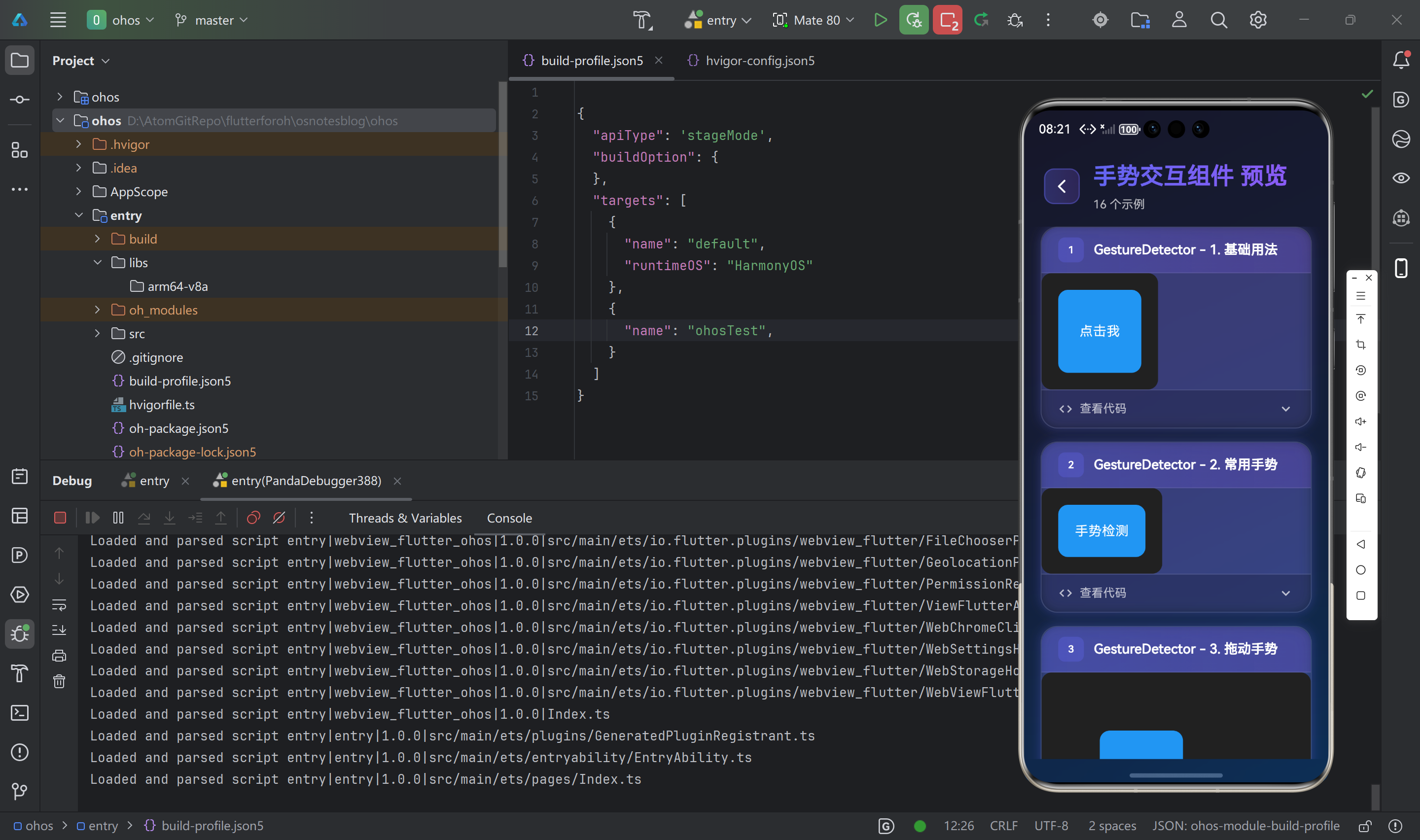
🎯 手势交互组件概览
Flutter 提供了以下手势交互组件:
| GestureDetector | 手势检测器 | 通用手势检测,无视觉反馈 |
| InkWell | 水波纹点击 | Material Design 风格点击效果 |
| InkResponse | 水波纹响应 | 更灵活的水波纹效果控制 |
👆 GestureDetector 组件
GestureDetector 是 Flutter 中最基础的手势检测组件,它不提供任何视觉样式,只负责检测和处理手势事件。
基础用法
GestureDetector(
onTap: () {
print('点击了');
},
child: Container(
width: 100,
height: 100,
color: Colors.blue,
child: Center(child: Text('点击我')),
),
)
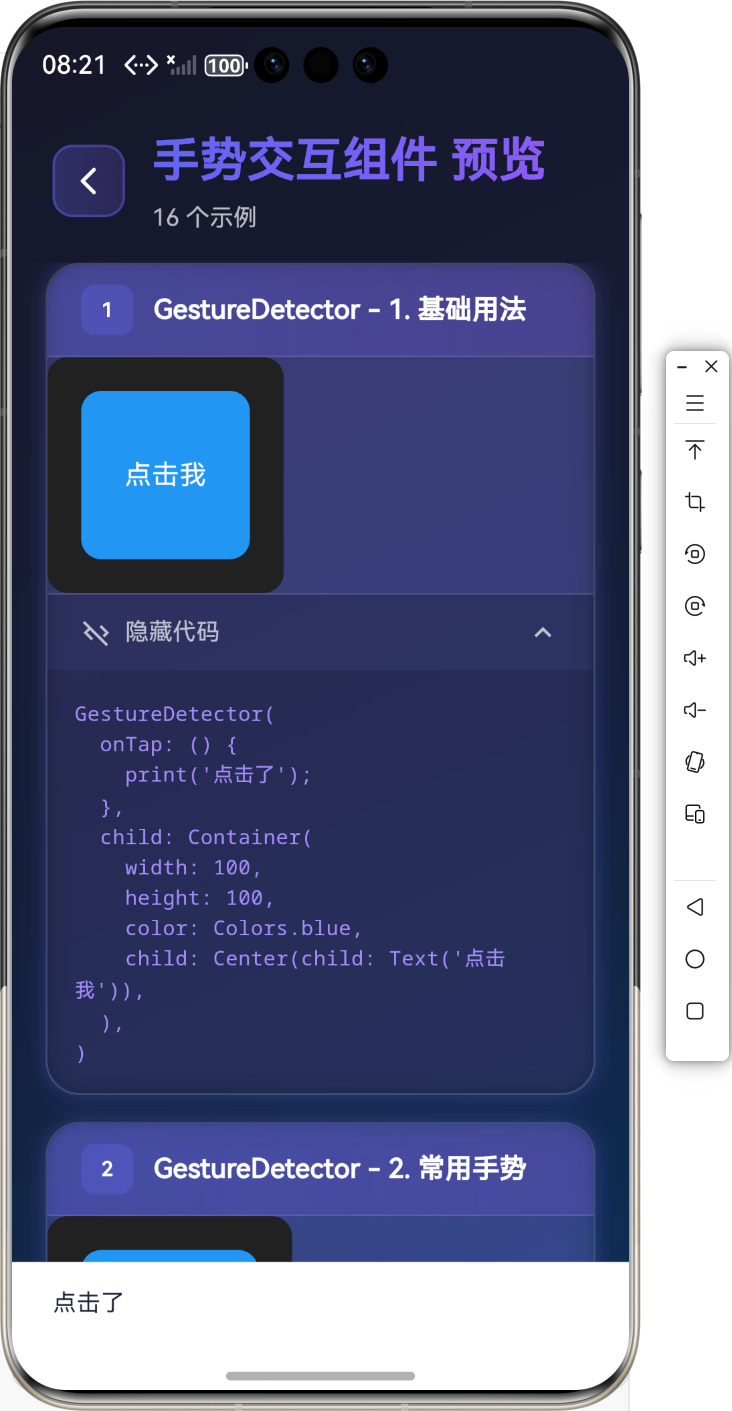
常用手势
GestureDetector(
onTap: () => print('点击'),
onDoubleTap: () => print('双击'),
onLongPress: () => print('长按'),
onTapDown: (details) => print('按下: ${details.localPosition}'),
onTapUp: (details) => print('抬起'),
onTapCancel: () => print('取消'),
child: Container(
padding: EdgeInsets.all(20),
color: Colors.blue,
child: Text('手势检测'),
),
)
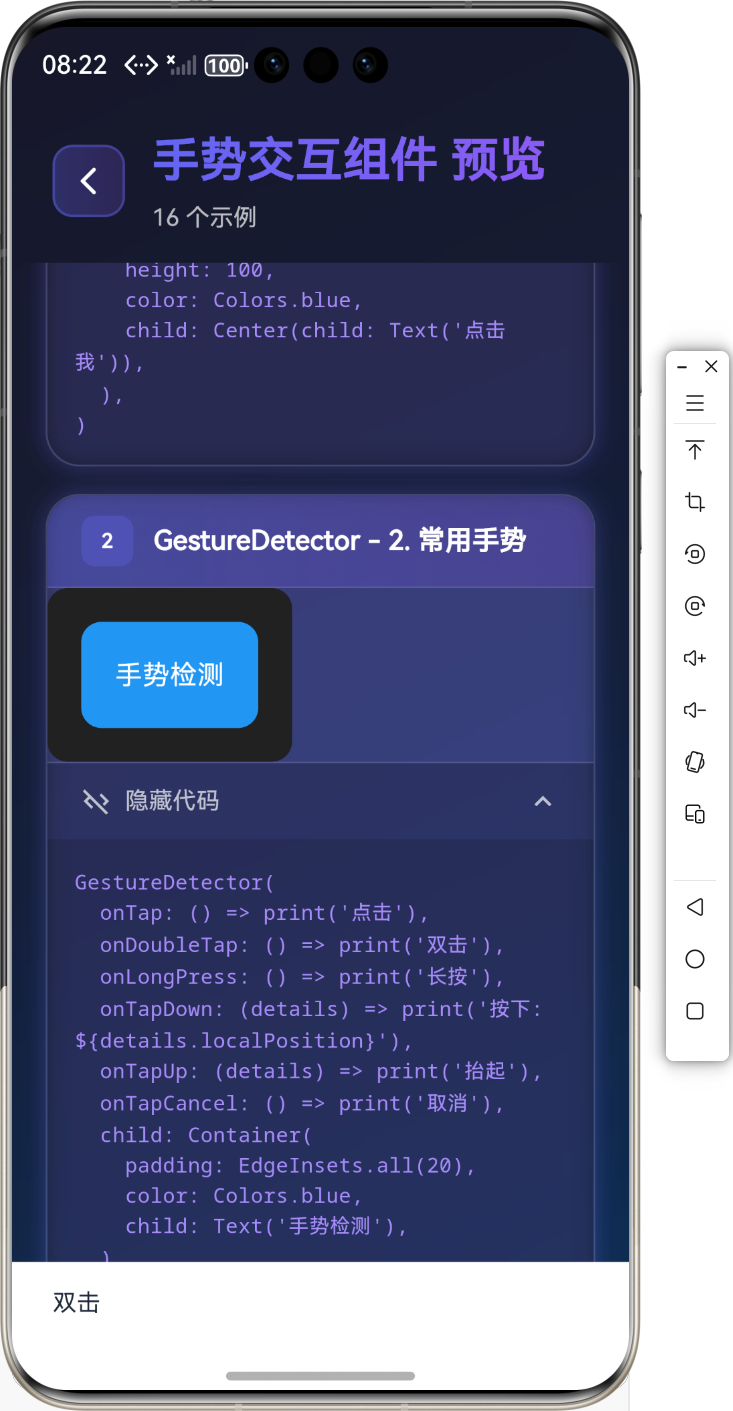
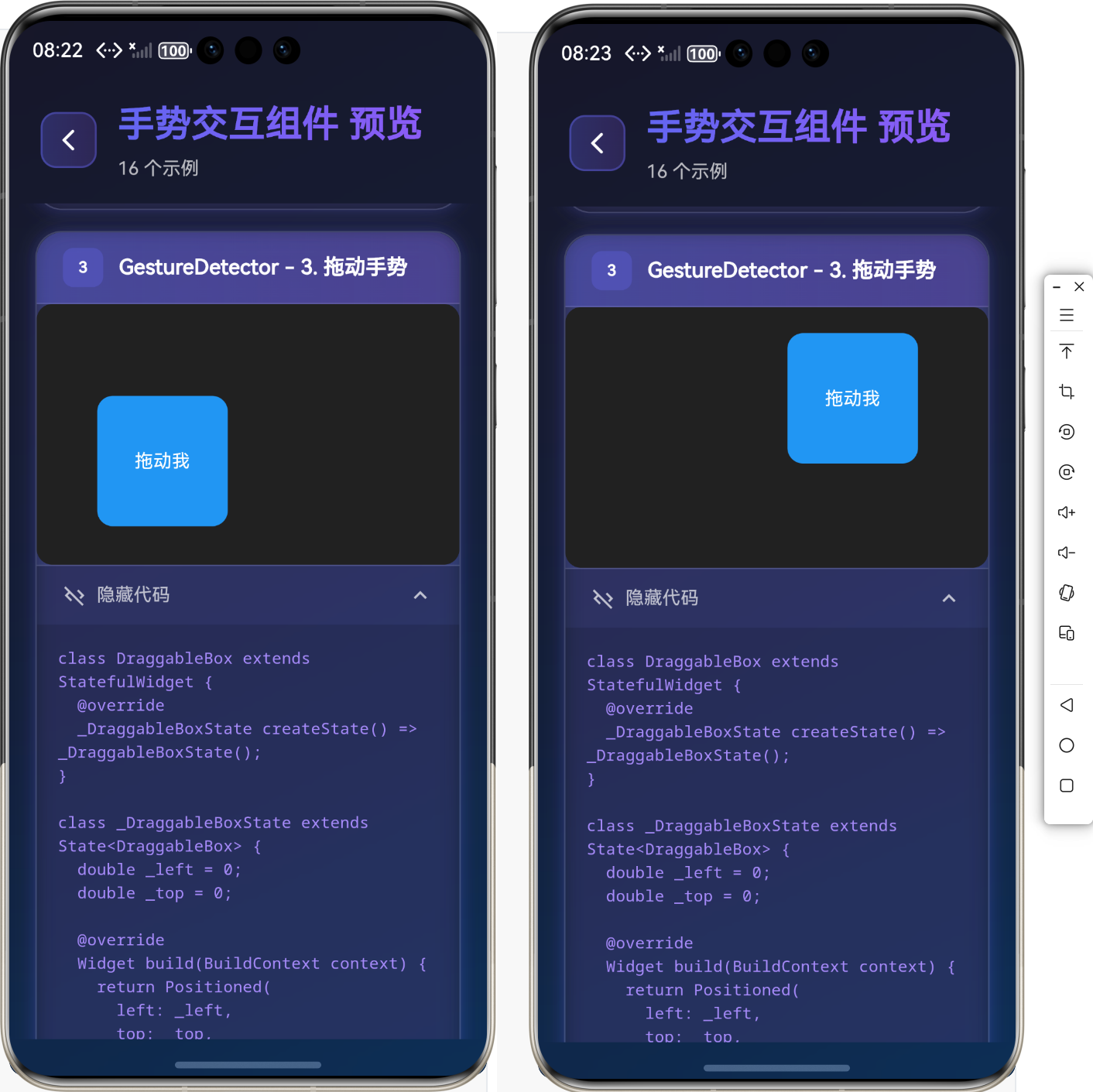
拖动手势
class DraggableBox extends StatefulWidget {
_DraggableBoxState createState() => _DraggableBoxState();
}
class _DraggableBoxState extends State<DraggableBox> {
double _left = 0;
double _top = 0;
Widget build(BuildContext context) {
return Positioned(
left: _left,
top: _top,
child: GestureDetector(
onPanUpdate: (details) {
setState(() {
_left += details.delta.dx;
_top += details.delta.dy;
});
},
child: Container(
width: 100,
height: 100,
color: Colors.blue,
child: Center(child: Text('拖动我')),
),
),
);
}
}
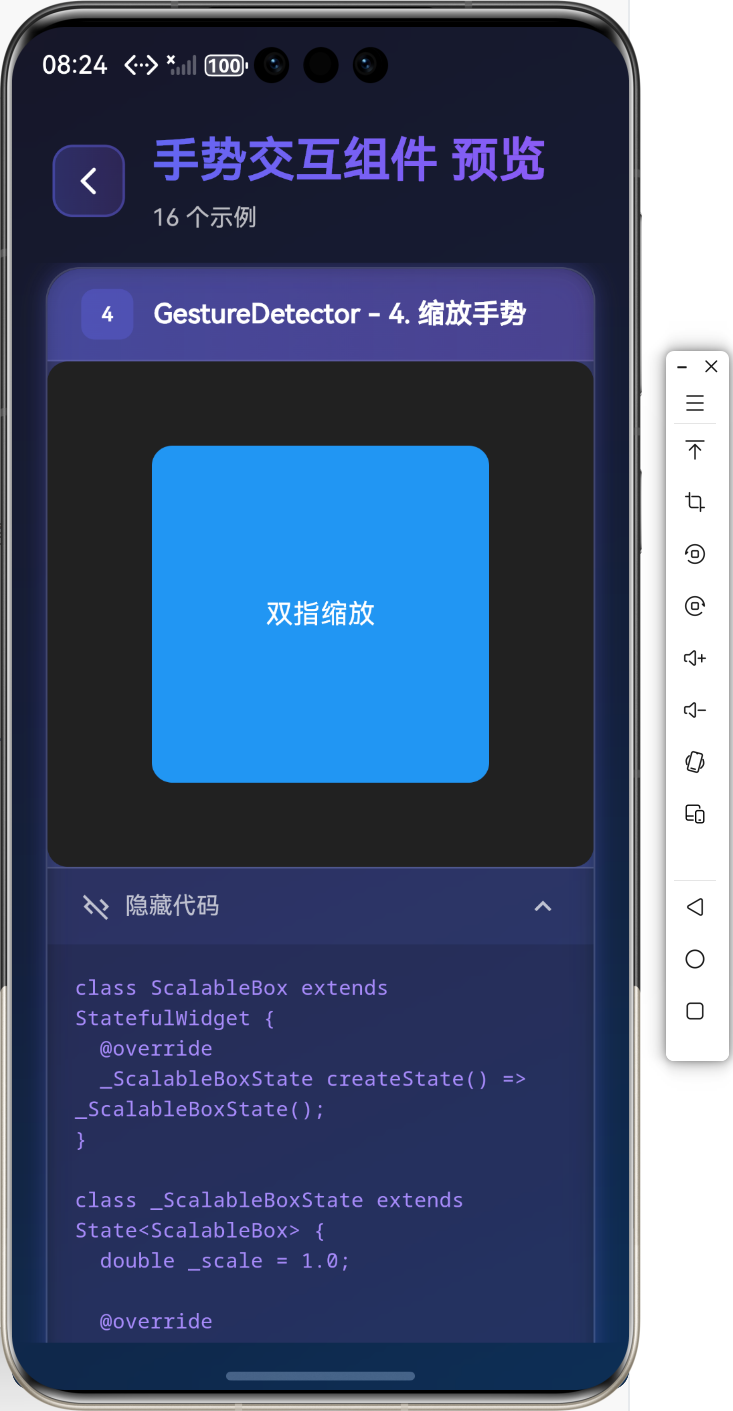
缩放手势
class ScalableBox extends StatefulWidget {
_ScalableBoxState createState() => _ScalableBoxState();
}
class _ScalableBoxState extends State<ScalableBox> {
double _scale = 1.0;
Widget build(BuildContext context) {
return GestureDetector(
onScaleUpdate: (details) {
setState(() {
_scale = details.scale;
});
},
onScaleEnd: (details) {
setState(() {
_scale = 1.0;
});
},
child: Transform.scale(
scale: _scale,
child: Container(
width: 200,
height: 200,
color: Colors.blue,
child: Center(child: Text('双指缩放')),
),
),
);
}
}
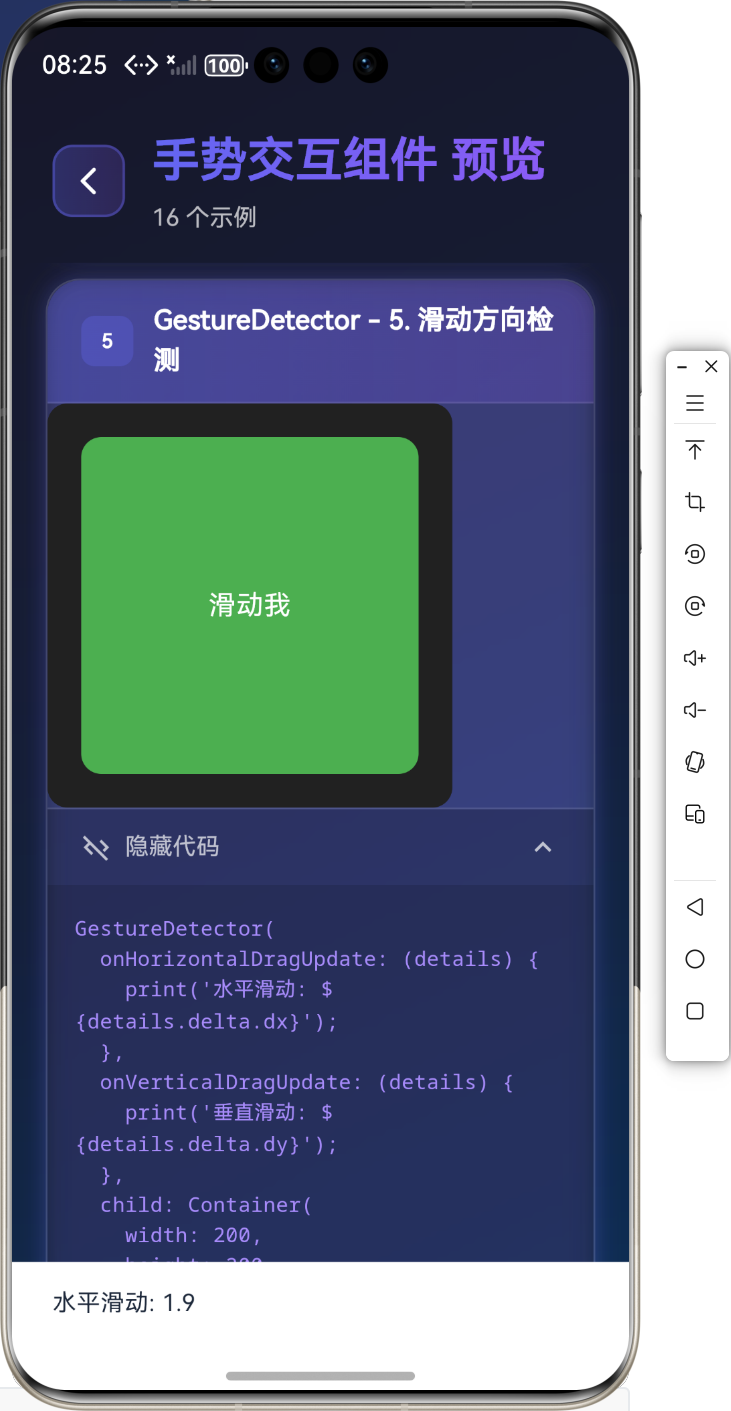
滑动方向检测
GestureDetector(
onHorizontalDragUpdate: (details) {
print('水平滑动: ${details.delta.dx}');
},
onVerticalDragUpdate: (details) {
print('垂直滑动: ${details.delta.dy}');
},
child: Container(
width: 200,
height: 200,
color: Colors.green,
child: Center(child: Text('滑动我')),
),
)
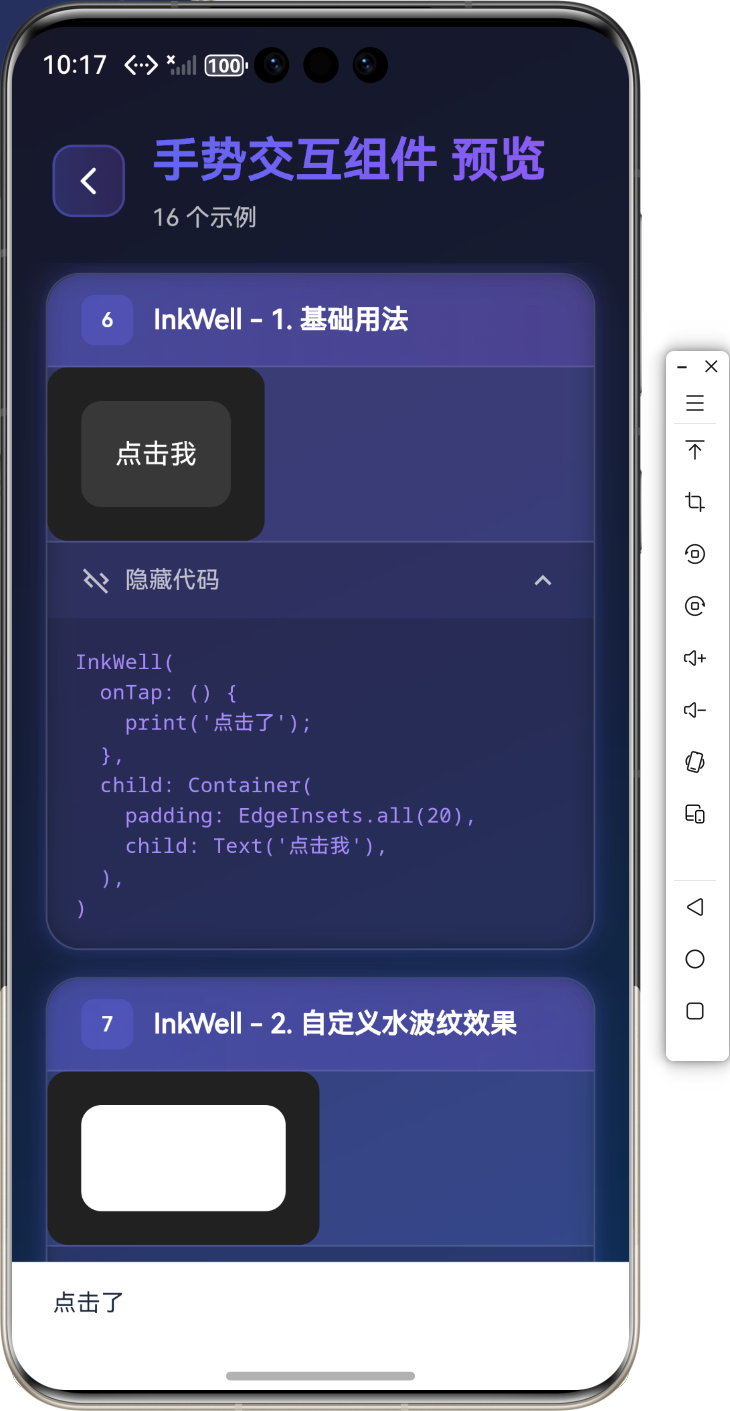
💧 InkWell 组件
InkWell 是 Material Design 风格的交互组件,提供水波纹(Ripple)效果。
基础用法
InkWell(
onTap: () {
print('点击了');
},
child: Container(
padding: EdgeInsets.all(20),
child: Text('点击我'),
),
)
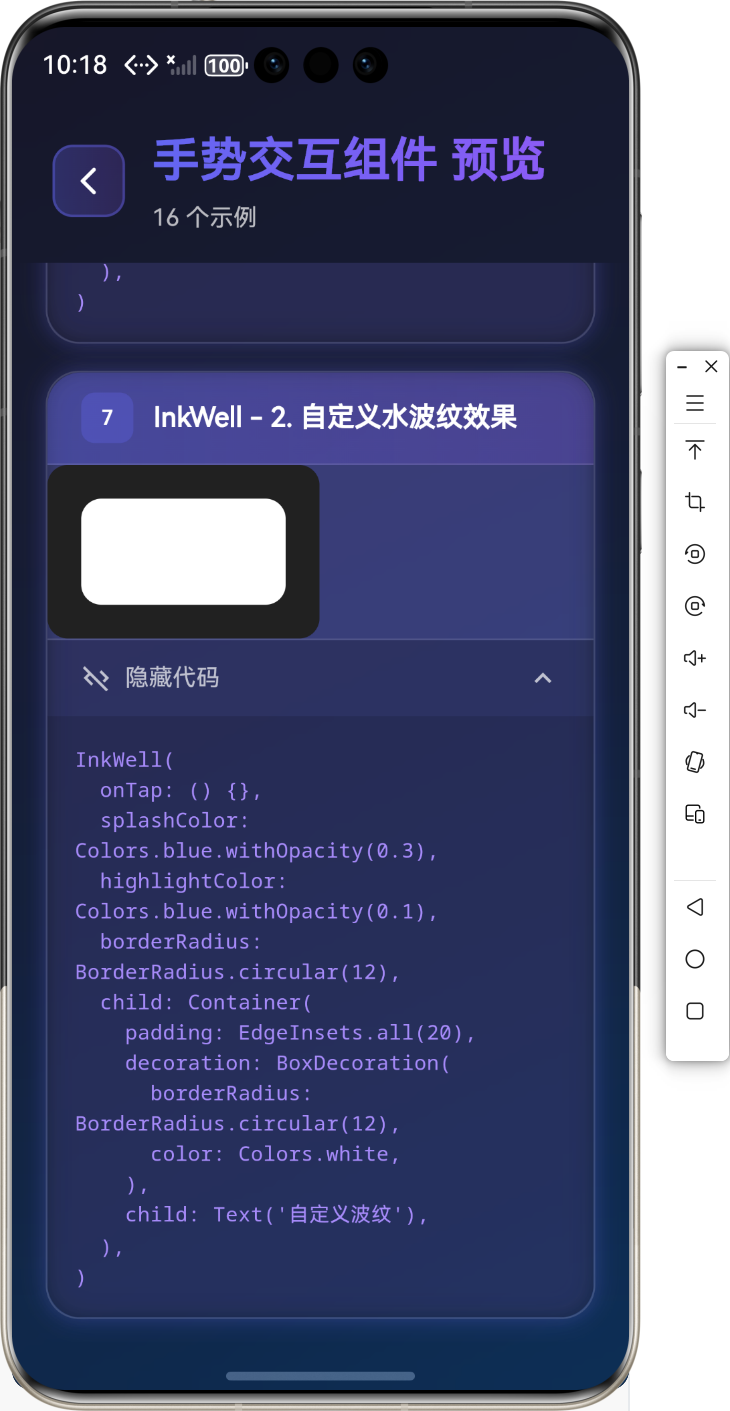
自定义水波纹效果
InkWell(
onTap: () {},
splashColor: Colors.blue.withOpacity(0.3),
highlightColor: Colors.blue.withOpacity(0.1),
borderRadius: BorderRadius.circular(12),
child: Container(
padding: EdgeInsets.all(20),
decoration: BoxDecoration(
borderRadius: BorderRadius.circular(12),
color: Colors.white,
),
child: Text('自定义波纹'),
),
)
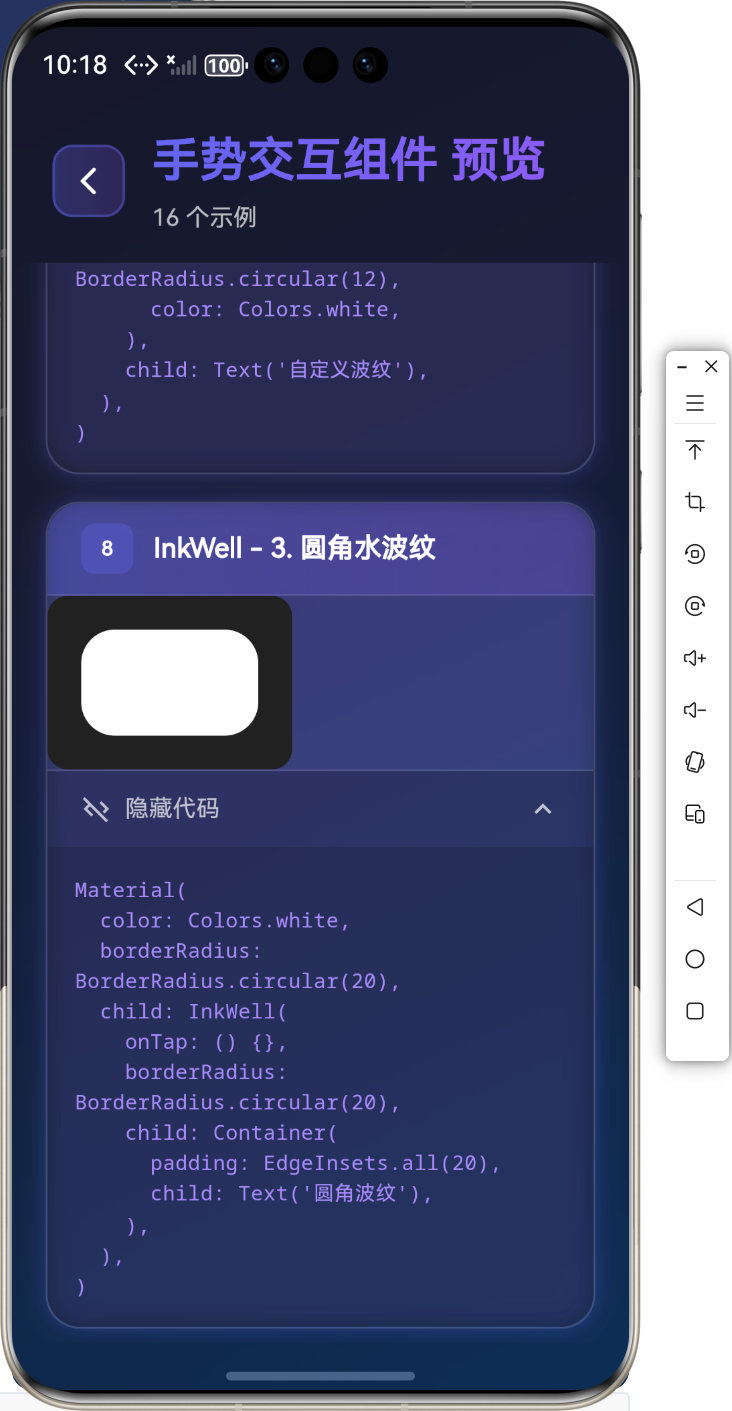
圆角水波纹
Material(
color: Colors.white,
borderRadius: BorderRadius.circular(20),
child: InkWell(
onTap: () {},
borderRadius: BorderRadius.circular(20),
child: Container(
padding: EdgeInsets.all(20),
child: Text('圆角波纹'),
),
),
)
🎨 InkResponse 组件
InkResponse 是 InkWell 的增强版,提供更灵活的水波纹效果控制。
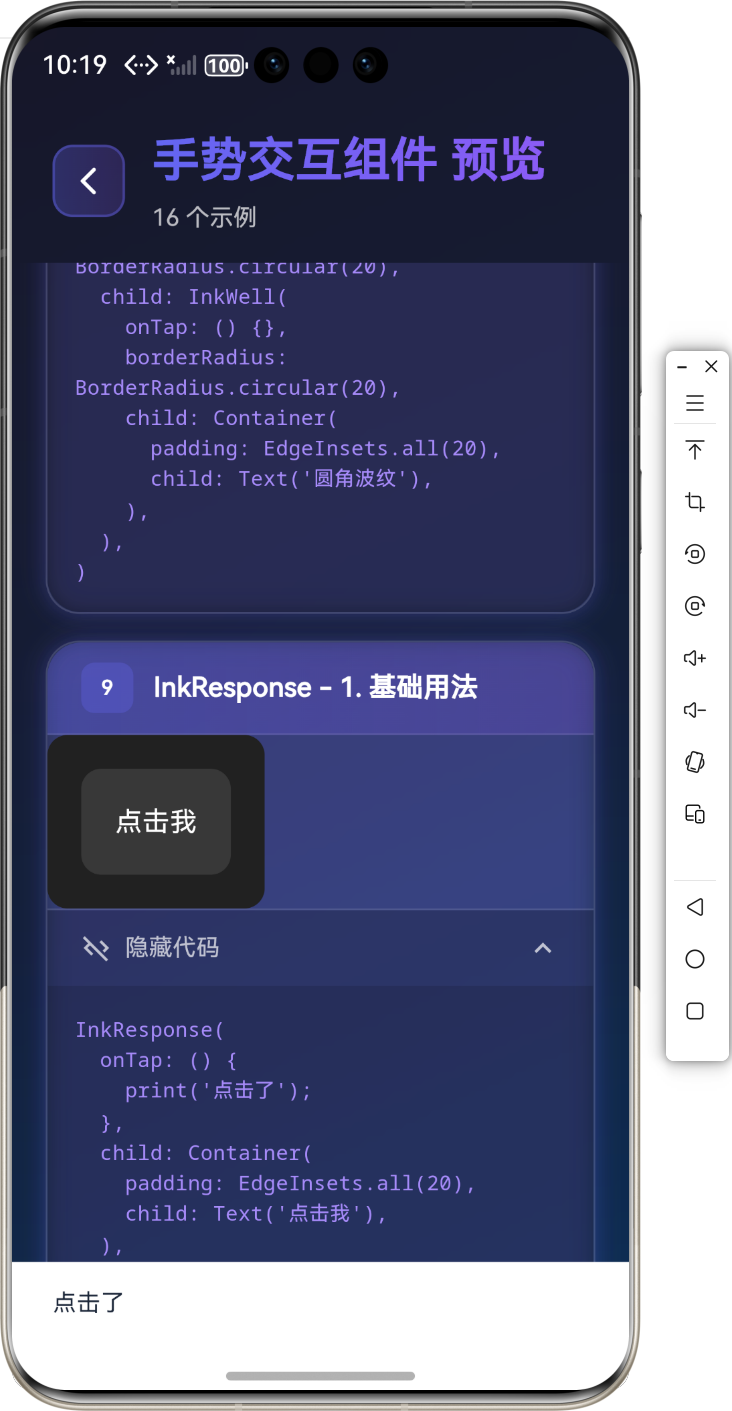
基础用法
InkResponse(
onTap: () {
print('点击了');
},
child: Container(
padding: EdgeInsets.all(20),
child: Text('点击我'),
),
)
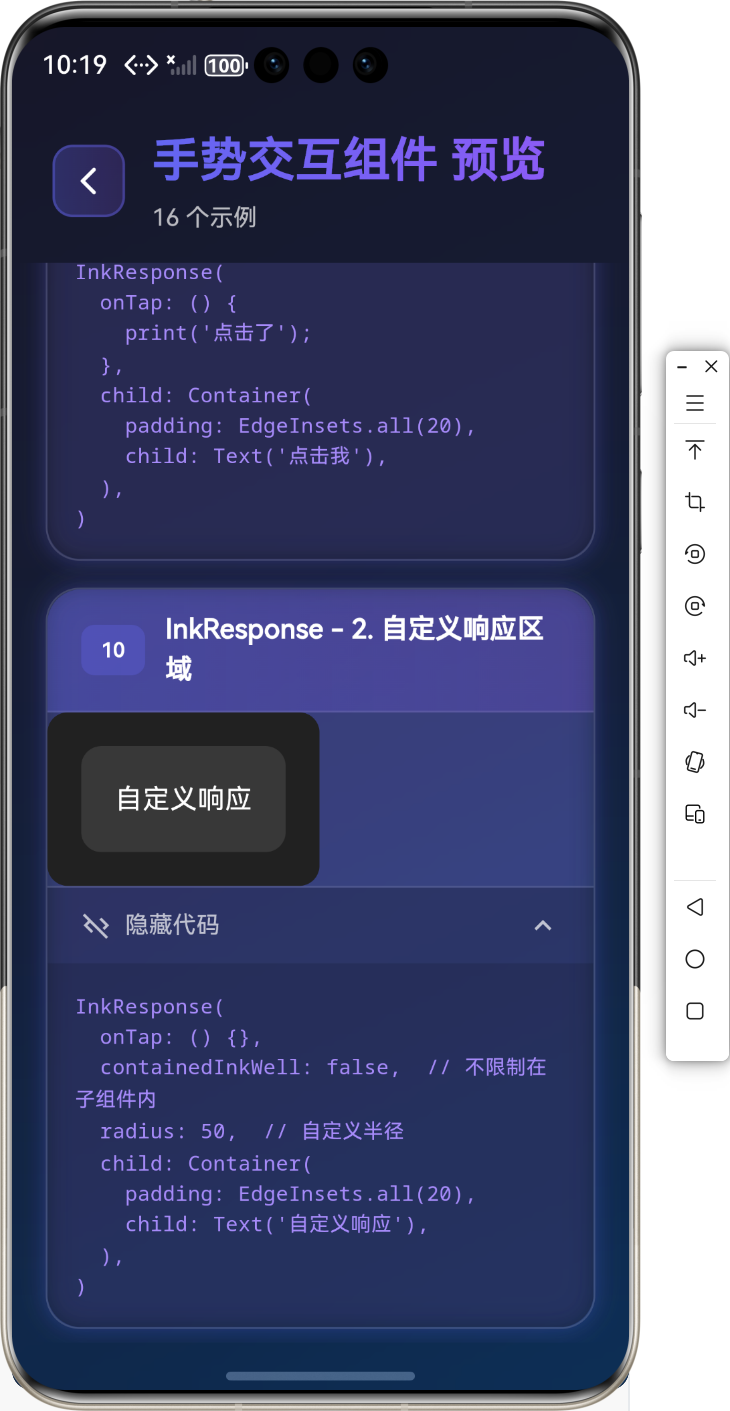
自定义响应区域
InkResponse(
onTap: () {},
containedInkWell: false, // 不限制在子组件内
radius: 50, // 自定义半径
child: Container(
padding: EdgeInsets.all(20),
child: Text('自定义响应'),
),
)
💡 实际应用场景
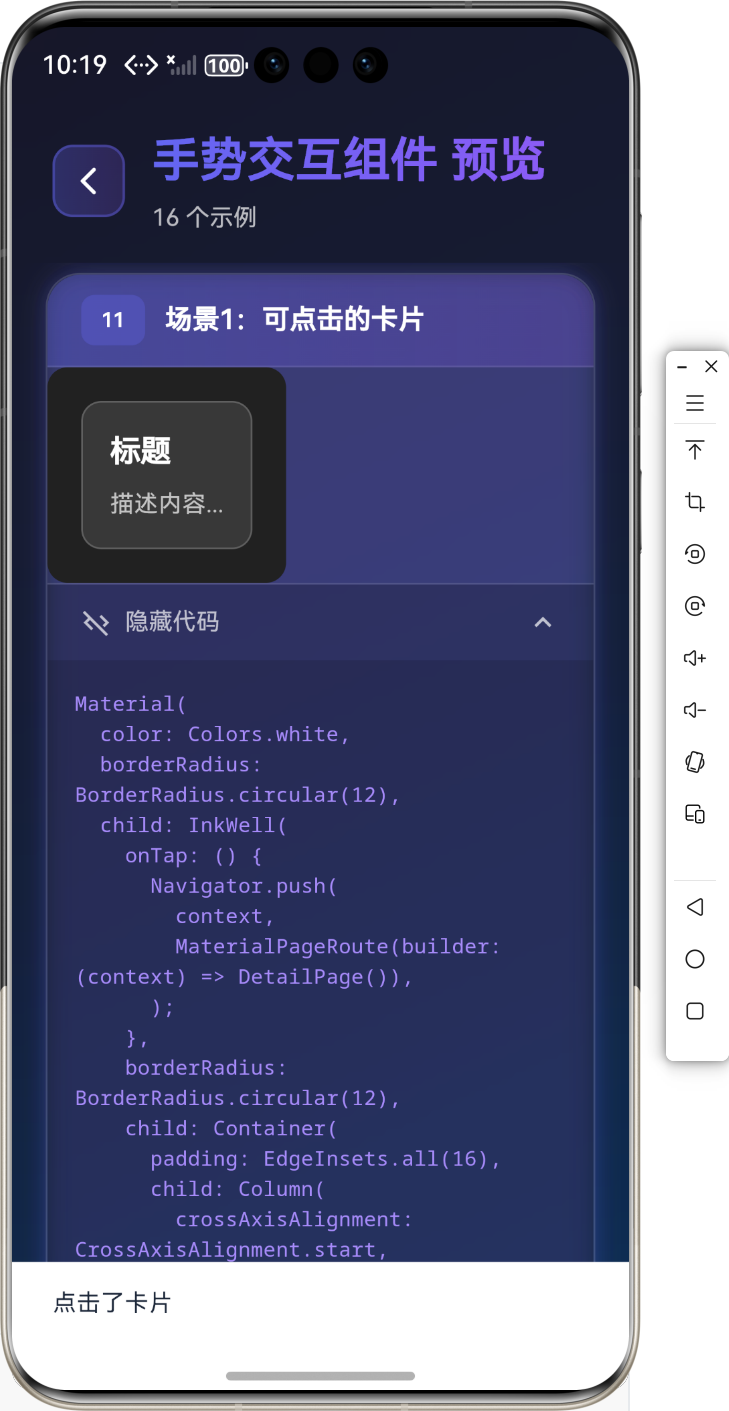
场景1:可点击的卡片
Material(
color: Colors.white,
borderRadius: BorderRadius.circular(12),
child: InkWell(
onTap: () {
Navigator.push(
context,
MaterialPageRoute(builder: (context) => DetailPage()),
);
},
borderRadius: BorderRadius.circular(12),
child: Container(
padding: EdgeInsets.all(16),
child: Column(
crossAxisAlignment: CrossAxisAlignment.start,
children: [
Text('标题', style: TextStyle(fontSize: 18, fontWeight: FontWeight.bold)),
SizedBox(height: 8),
Text('描述内容…'),
],
),
),
),
)
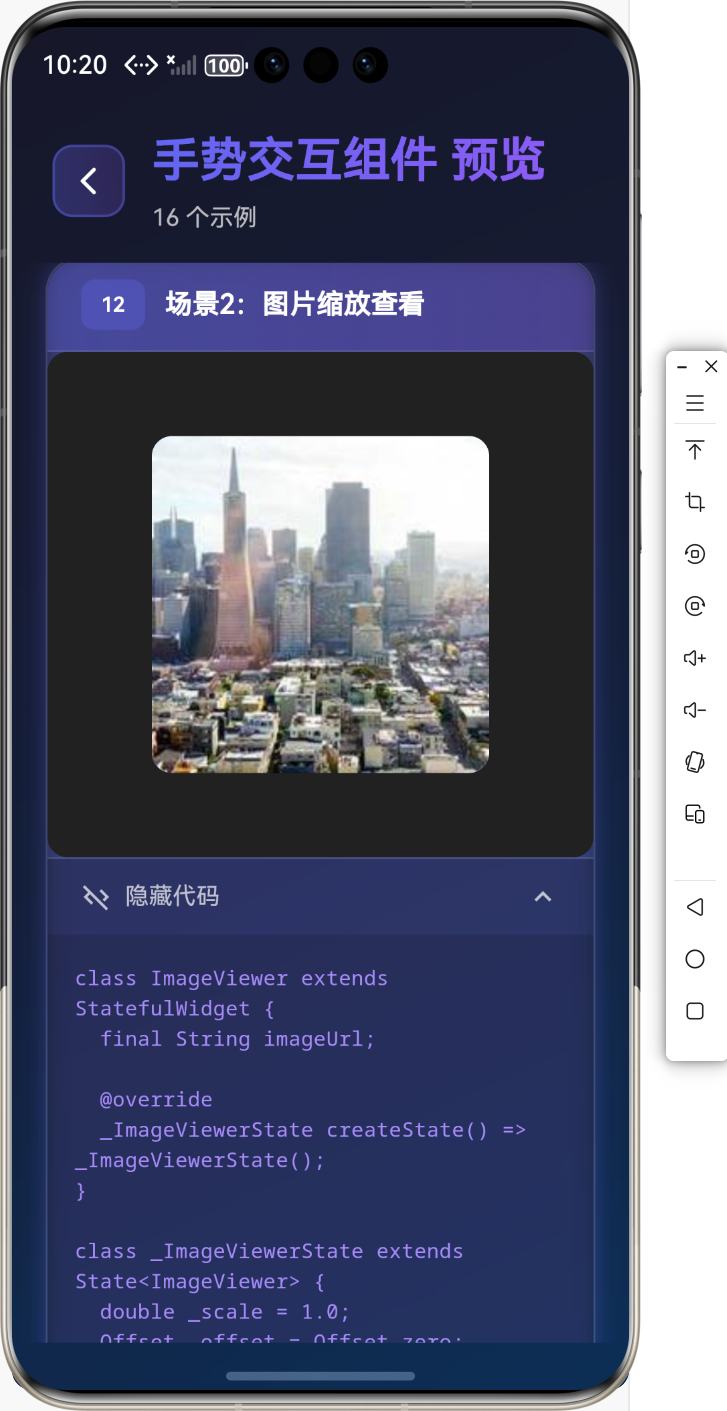
场景2:图片缩放查看
class ImageViewer extends StatefulWidget {
final String imageUrl;
_ImageViewerState createState() => _ImageViewerState();
}
class _ImageViewerState extends State<ImageViewer> {
double _scale = 1.0;
Offset _offset = Offset.zero;
Widget build(BuildContext context) {
return GestureDetector(
onScaleUpdate: (details) {
setState(() {
_scale = details.scale;
});
},
onScaleEnd: (details) {
setState(() {
if (_scale < 1.0) {
_scale = 1.0;
_offset = Offset.zero;
}
});
},
child: Transform.scale(
scale: _scale,
child: Image.network(widget.imageUrl),
),
);
}
}
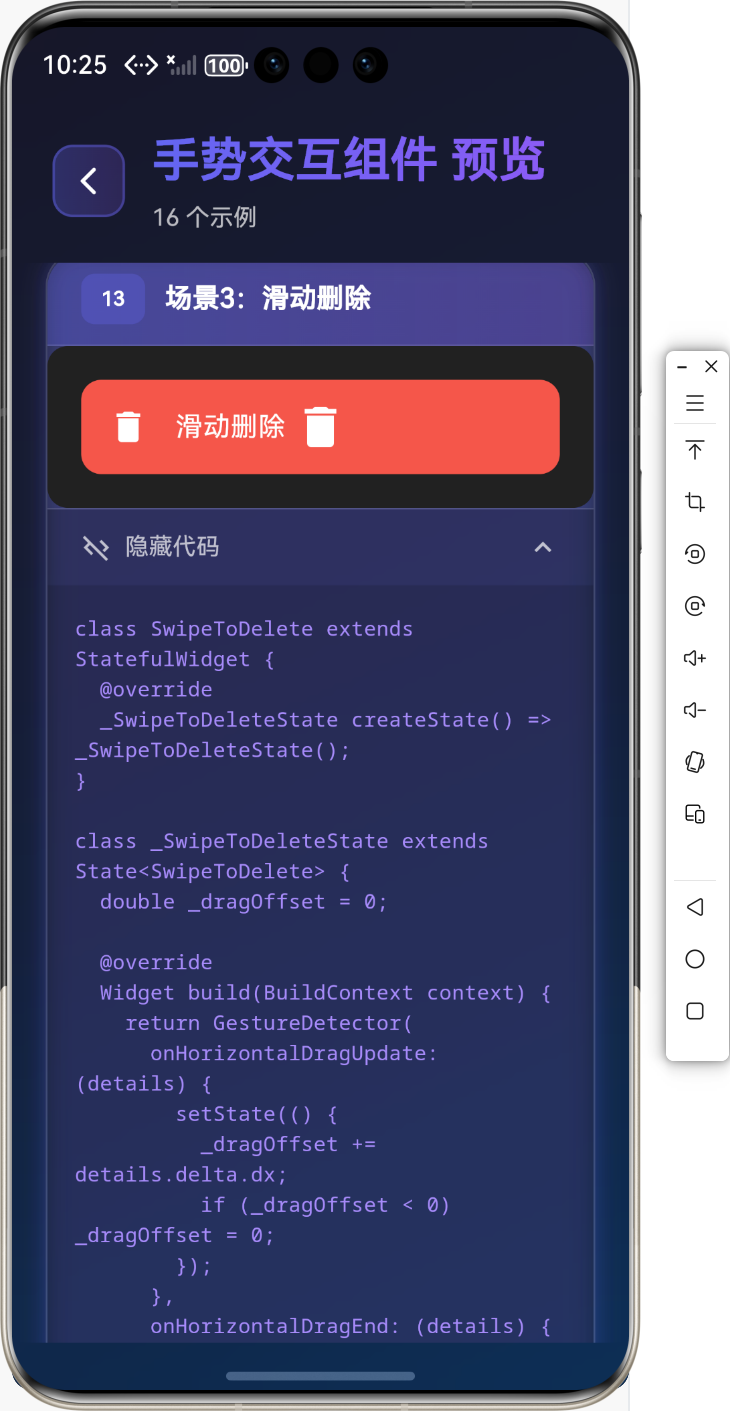
场景3:滑动删除
class SwipeToDelete extends StatefulWidget {
_SwipeToDeleteState createState() => _SwipeToDeleteState();
}
class _SwipeToDeleteState extends State<SwipeToDelete> {
double _dragOffset = 0;
Widget build(BuildContext context) {
return GestureDetector(
onHorizontalDragUpdate: (details) {
setState(() {
_dragOffset += details.delta.dx;
if (_dragOffset < 0) _dragOffset = 0;
});
},
onHorizontalDragEnd: (details) {
if (_dragOffset > 100) {
// 执行删除操作
} else {
setState(() {
_dragOffset = 0;
});
}
},
child: Transform.translate(
offset: Offset(_dragOffset, 0),
child: Container(
padding: EdgeInsets.all(16),
color: Colors.white,
child: Row(
children: [
Icon(Icons.delete, color: Colors.red),
SizedBox(width: 16),
Text('滑动删除'),
],
),
),
),
);
}
}
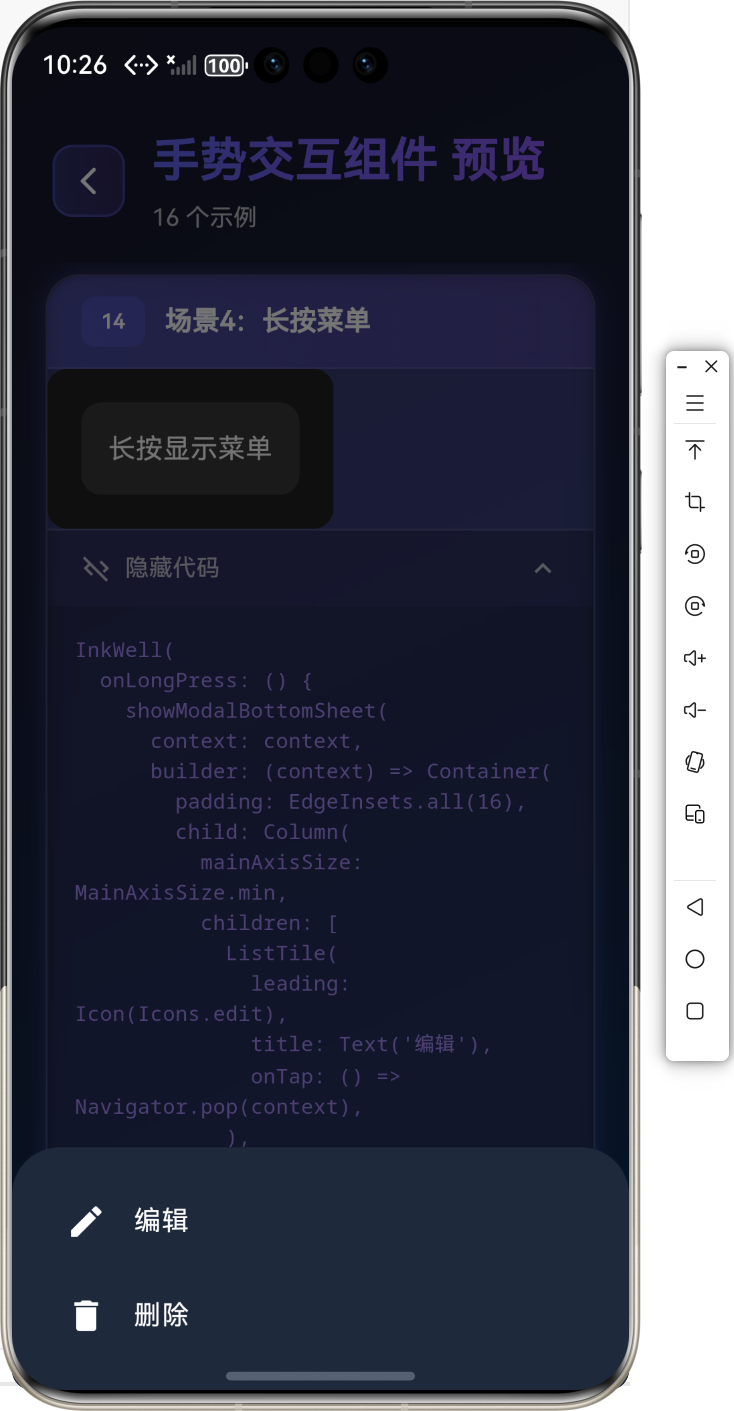
场景4:长按菜单
InkWell(
onLongPress: () {
showModalBottomSheet(
context: context,
builder: (context) => Container(
padding: EdgeInsets.all(16),
child: Column(
mainAxisSize: MainAxisSize.min,
children: [
ListTile(
leading: Icon(Icons.edit),
title: Text('编辑'),
onTap: () => Navigator.pop(context),
),
ListTile(
leading: Icon(Icons.delete),
title: Text('删除'),
onTap: () => Navigator.pop(context),
),
],
),
),
);
},
child: Container(
padding: EdgeInsets.all(16),
child: Text('长按显示菜单'),
),
)
🎨 样式定制
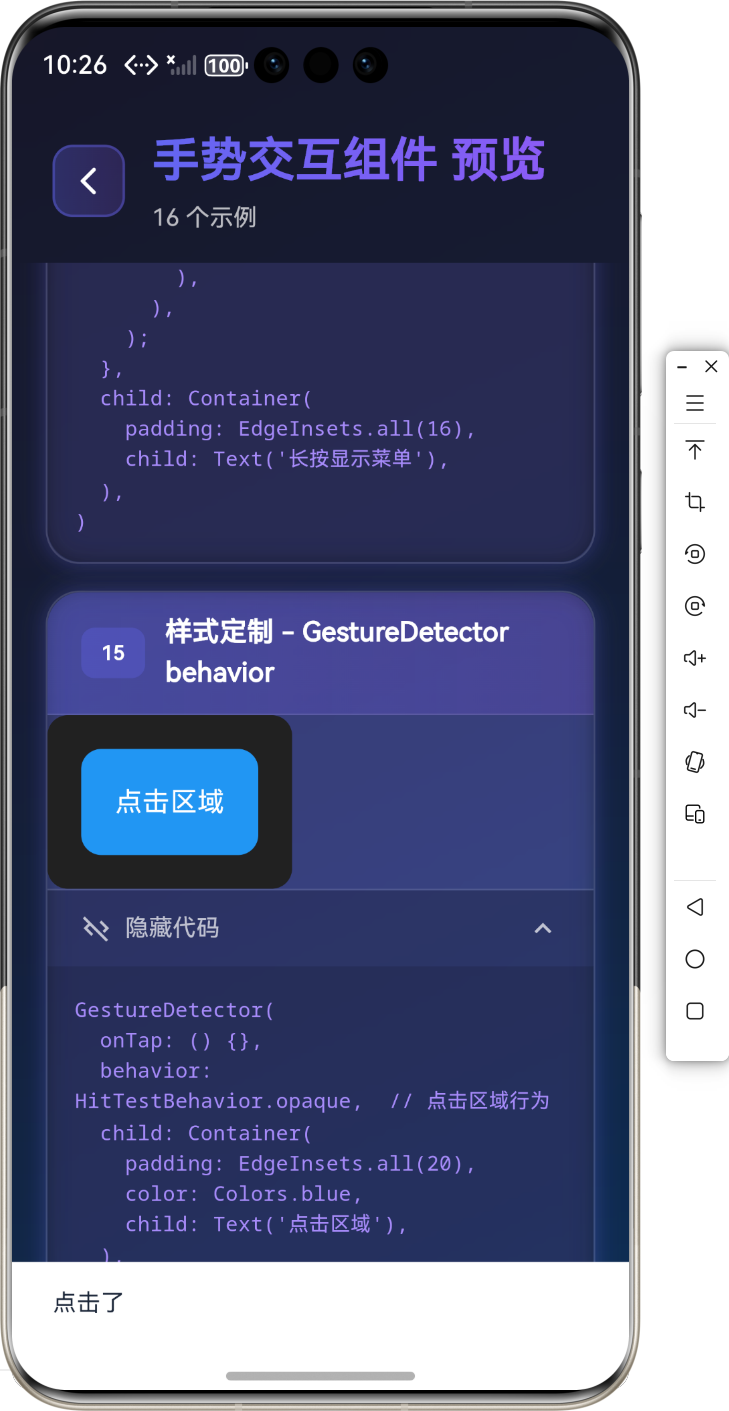
GestureDetector 样式
GestureDetector(
onTap: () {},
behavior: HitTestBehavior.opaque, // 点击区域行为
child: Container(
padding: EdgeInsets.all(20),
color: Colors.blue,
child: Text('点击区域'),
),
)
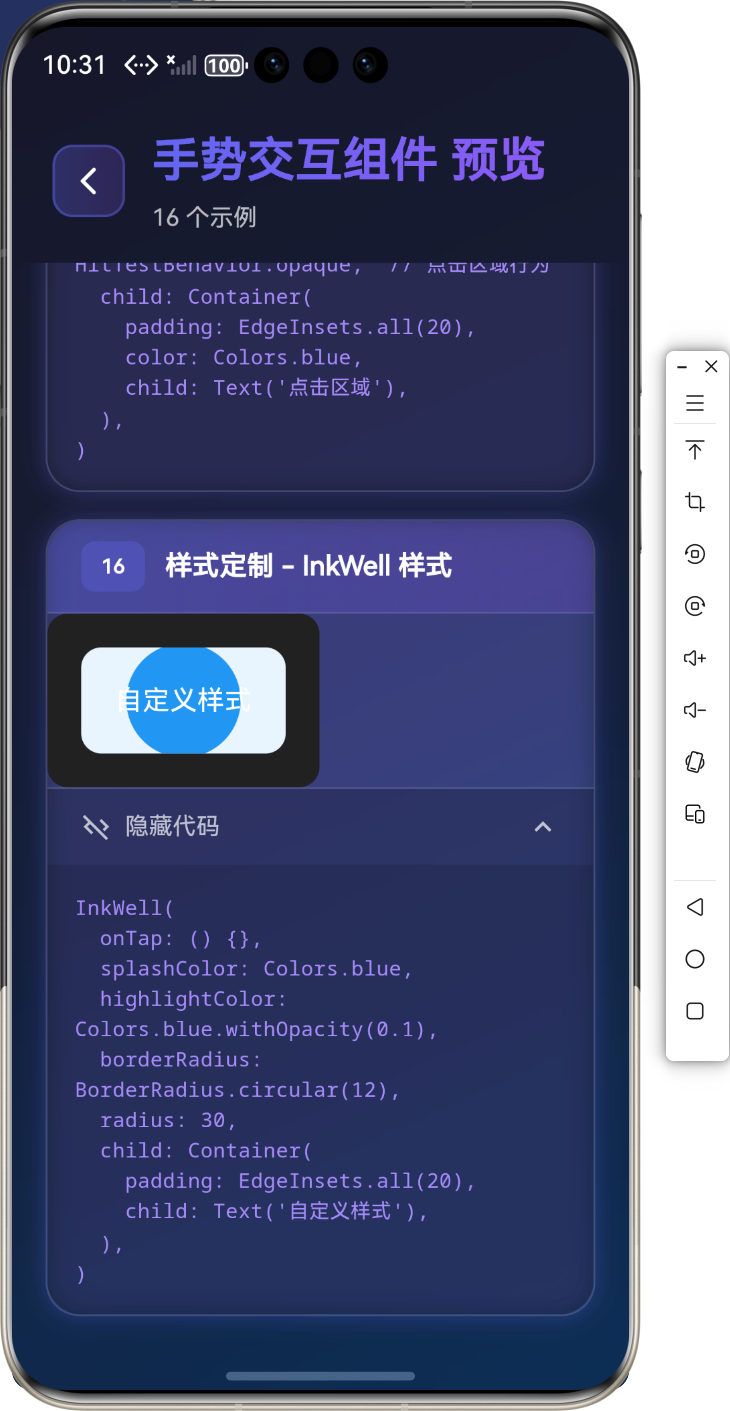
InkWell 样式
InkWell(
onTap: () {},
splashColor: Colors.blue,
highlightColor: Colors.blue.withOpacity(0.1),
borderRadius: BorderRadius.circular(12),
radius: 30,
child: Container(
padding: EdgeInsets.all(20),
child: Text('自定义样式'),
),
)
⚠️ 常见问题与解决方案
问题1:手势冲突
解决方案:
- 使用 GestureDetector 的 behavior 属性
- 合理使用 Listener 和 GestureDetector 的组合
- 使用 AbsorbPointer 或 IgnorePointer 控制事件传递
问题2:水波纹效果不显示
解决方案:
- 确保 InkWell 包裹在 Material 组件内
- 检查 splashColor 和 highlightColor 是否设置
- 确保子组件有足够的空间显示波纹
问题3:拖动时位置不准确
解决方案:
- 使用 onPanUpdate 的 details.delta 而不是 details.localPosition
- 确保在 setState 中更新位置
- 使用 Transform.translate 或 Positioned 控制位置
💼 最佳实践
1. 统一的手势处理
class AppGestureDetector extends StatelessWidget {
final Widget child;
final VoidCallback? onTap;
const AppGestureDetector({
required this.child,
this.onTap,
});
Widget build(BuildContext context) {
return GestureDetector(
onTap: onTap,
behavior: HitTestBehavior.opaque,
child: child,
);
}
}
2. 手势优先级管理
GestureDetector(
onTap: () => print('点击'),
onLongPress: () => print('长按'),
child: GestureDetector(
onDoubleTap: () => print('双击'),
child: Container(
padding: EdgeInsets.all(20),
child: Text('多层手势'),
),
),
)
📚 总结
通过本教程,我们学习了:
手势交互组件是 Flutter 应用中实现用户交互的基础,掌握好这些组件的用法,能够让你的应用交互更加丰富和流畅!
🔗 相关资源
- Flutter GestureDetector 官方文档
- InkWell 官方文档
- InkResponse 官方文档
Happy Coding! 🎨✨ 欢迎加入开源鸿蒙跨平台社区




评论前必须登录!
注册