 网硕互联帮助中心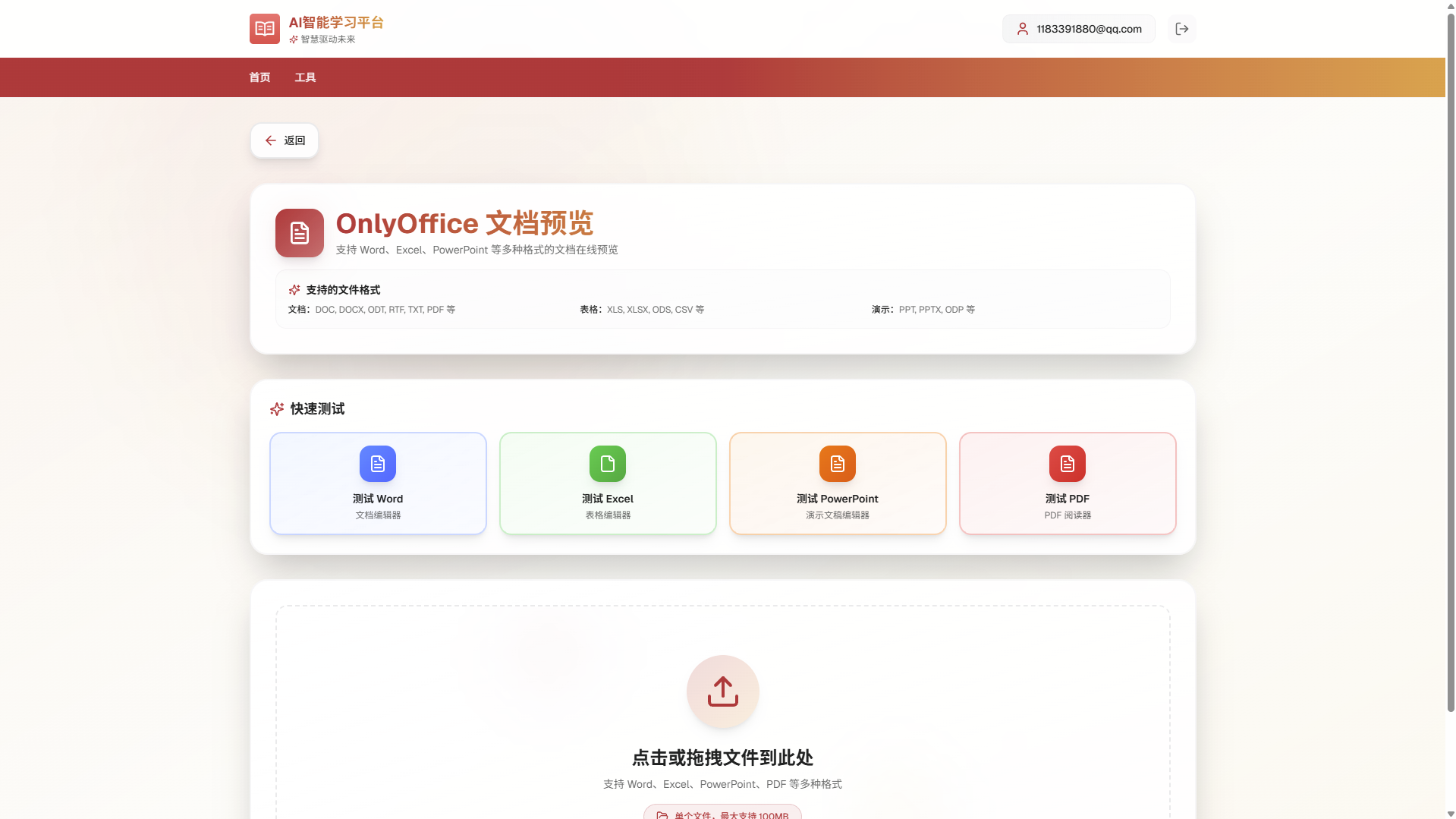
在线地址
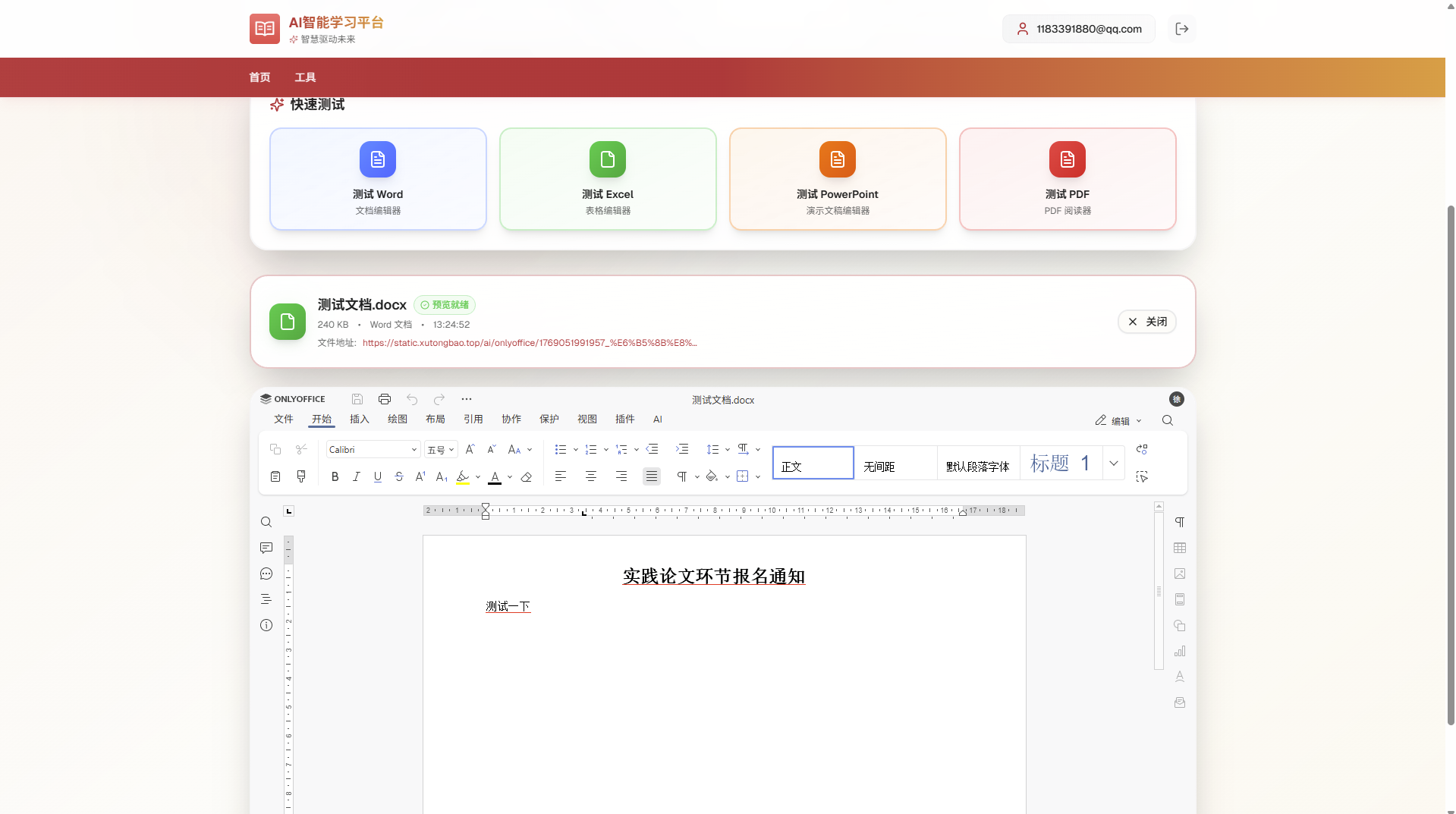
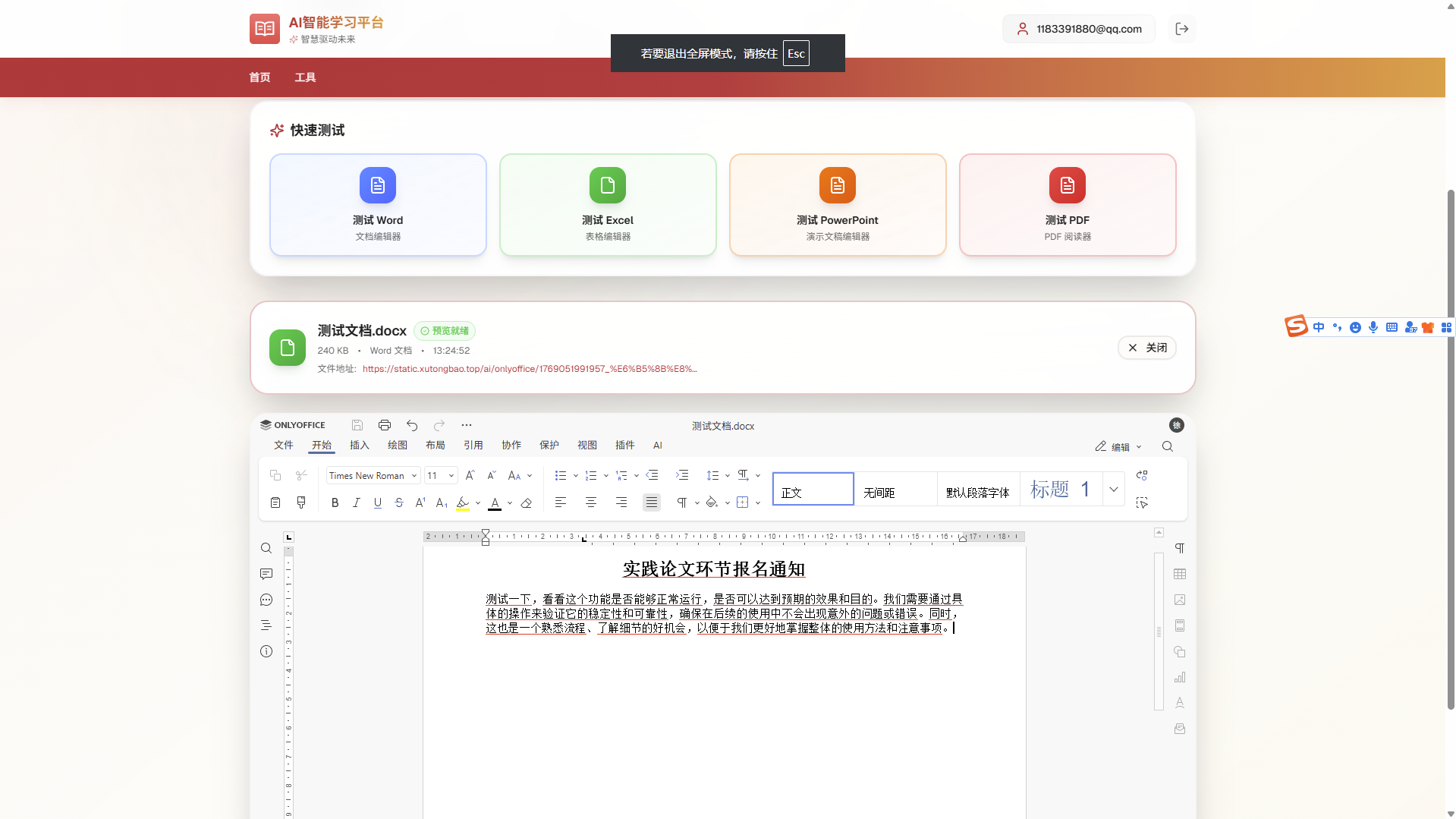
https://chat.xutongbao.top/nextjs/light/onlyOffice
page.tsx
'use client'
import { useState, useRef, useEffect } from 'react'
import Header from '@/components/header'
import {
ArrowLeft,
Upload,
FileText,
File,
CheckCircle2,
AlertCircle,
Loader2,
X,
FolderOpen,
Sparkles,
Copy,
Search,
BookOpen,
MessageSquare,
Wand2,
} from 'lucide-react'
import { useRouter } from 'next/navigation'
import { Button } from '@/components/ui/button'
import Script from 'next/script'
import { cn } from '@/lib/utils'
import Api from '@/api/h5Api'
// 声明全局 DocsAPI 类型
declare global {
interface Window {
DocsAPI?: {
DocEditor: new (id: string, config: any) => any
}
}
}
// OnlyOffice Editor 实例类型
interface DocEditorInstance {
destroyEditor: () => void
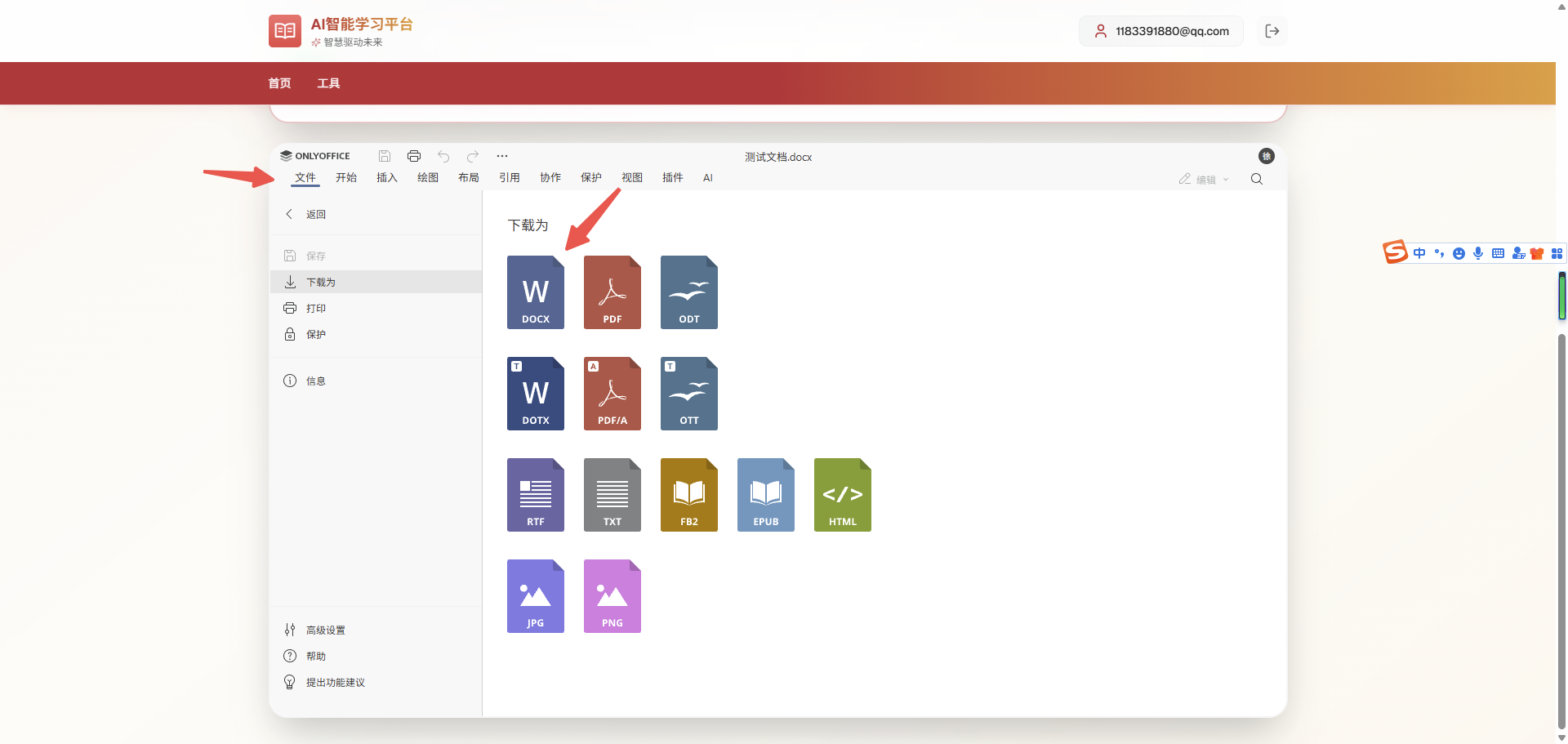
downloadAs: (format: string) => void
requestClose: () => void
}
// 支持的文件格式
const SUPPORTED_FORMATS = {
documents: [
'.doc',
'.docx',
'.docm',
'.dot',
'.dotx',
'.dotm',
'.odt',
'.fodt',
'.ott',
'.rtf',
'.txt',
'.html',
'.htm',
'.mht',
'.pdf',
'.djvu',
'.fb2',
'.epub',
'.xps',
],
spreadsheets: [
'.xls',
'.xlsx',
'.xlsm',
'.xlt',
'.xltx',
'.xltm',
'.ods',
'.fods',
'.ots',
'.csv',
],
presentations: [
'.pps',
'.ppsx',
'.ppsm',
'.ppt',
'.pptx',
'.pptm',
'.pot',
'.potx',
'.potm',
'.odp',
'.fodp',
'.otp',
],
}
const ALL_FORMATS = [
…SUPPORTED_FORMATS.documents,
…SUPPORTED_FORMATS.spreadsheets,
…SUPPORTED_FORMATS.presentations,
]
interface UploadedFile {
file: File
name: string
size: number
type: string
uploadTime: number
previewUrl?: string
}
// API 响应类型
interface ApiResponse {
code: number
data?: {
token?: string
key?: string
url?: string
}
}
export default function OnlyOfficePage() {
const router = useRouter()
const [uploadedFile, setUploadedFile] = useState<UploadedFile | null>(null)
const [isUploading, setIsUploading] = useState(false)
const [isDragOver, setIsDragOver] = useState(false)
const [error, setError] = useState<string | null>(null)
const [isPreviewReady, setIsPreviewReady] = useState(false)
const [scriptLoaded, setScriptLoaded] = useState(false)
const [qiniuToken, setQiniuToken] = useState<string>('')
const [uploadProgress, setUploadProgress] = useState<number>(0)
const fileInputRef = useRef<HTMLInputElement>(null)
const editorContainerRef = useRef<HTMLDivElement>(null)
const docEditorRef = useRef<DocEditorInstance | null>(null)
// 鼠标位置追踪
const mousePositionRef = useRef({ x: 0, y: 0 })
// 上下文菜单状态
const [contextMenu, setContextMenu] = useState<{
visible: boolean
x: number
y: number
selectedText: string
}>({
visible: false,
x: 0,
y: 0,
selectedText: '',
})
// 格式化文件大小
const formatBytes = (bytes: number): string => {
if (bytes === 0) return '0 B'
const k = 1024
const sizes = ['B', 'KB', 'MB', 'GB']
const i = Math.floor(Math.log(bytes) / Math.log(k))
return Math.round((bytes / Math.pow(k, i)) * 100) / 100 + ' ' + sizes[i]
}
// 检查文件格式
const isFileSupported = (fileName: string): boolean => {
const ext = '.' + fileName.split('.').pop()?.toLowerCase()
return ALL_FORMATS.includes(ext)
}
// 获取文件类型
const getFileType = (
fileName: string,
): 'word' | 'cell' | 'slide' | 'unknown' => {
const ext = '.' + fileName.split('.').pop()?.toLowerCase()
if (SUPPORTED_FORMATS.documents.includes(ext)) return 'word'
if (SUPPORTED_FORMATS.spreadsheets.includes(ext)) return 'cell'
if (SUPPORTED_FORMATS.presentations.includes(ext)) return 'slide'
return 'unknown'
}
// 获取七牛云上传 token
useEffect(() => {
const fetchQiniuToken = async () => {
try {
const res = (await Api.uploadGetTokenForH5(
{}
)) as unknown as ApiResponse
if (res.code === 200 && res.data?.token) {
setQiniuToken(res.data.token)
}
} catch (error) {
console.error('获取上传token失败:', error)
}
}
fetchQiniuToken()
}, [])
// 上传文件到七牛云
const uploadFileToQiniu = async (file: File): Promise<string> => {
if (!qiniuToken) {
throw new Error('上传 token 未获取,请稍后重试')
}
const formData = new FormData()
const key = `ai/onlyoffice/${Date.now()}_${file.name}`
formData.append('file', file)
formData.append('token', qiniuToken)
formData.append('key', key)
setUploadProgress(10)
const response = await fetch('https://upload-z1.qiniup.com', {
method: 'POST',
body: formData,
})
setUploadProgress(80)
const result = await response.json()
console.log('七牛云上传响应:', result)
// 七牛云直接返回 { key: "…", hash: "…" }
if (result.code === 200) {
const fileUrl = `https://static.xutongbao.top/${result.data.key}`
setUploadProgress(100)
console.log('上传成功,文件 URL:', fileUrl)
return fileUrl
} else {
throw new Error(result.error || '上传失败,未返回文件地址')
}
}
// 处理文件选择(改为上传到七牛云)
const handleFileSelect = async (file: File) => {
setError(null)
setIsPreviewReady(false)
setUploadProgress(0)
if (!isFileSupported(file.name)) {
setError(
`不支持的文件格式。支持的格式包括:${ALL_FORMATS.slice(0, 10).join(', ')} 等`,
)
return
}
if (!qiniuToken) {
setError('上传服务未就绪,请稍后重试')
return
}
setIsUploading(true)
try {
// 上传文件到七牛云
const fileUrl = await uploadFileToQiniu(file)
const uploadedFileData: UploadedFile = {
file,
name: file.name,
size: file.size,
type: getFileType(file.name),
uploadTime: Date.now(),
previewUrl: fileUrl, // 使用七牛云返回的 URL
}
setUploadedFile(uploadedFileData)
// 延迟显示预览准备就绪,useEffect 会自动触发 initOnlyOfficeEditor
setTimeout(() => {
setIsPreviewReady(true)
}, 500)
} catch (err: any) {
console.error('上传失败:', err)
setError(err.message || '上传失败,请重试')
} finally {
setIsUploading(false)
setUploadProgress(0)
}
}
// 初始化 OnlyOffice 编辑器
const initOnlyOfficeEditor = (fileData: any, type?: any) => {
if (!editorContainerRef.current || !window.DocsAPI) {
console.warn('OnlyOffice API 未加载或容器未准备好')
return
}
// 销毁旧的编辑器实例
if (docEditorRef.current) {
try {
docEditorRef.current.destroyEditor()
docEditorRef.current = null
// 清理容器内容
if (editorContainerRef.current) {
editorContainerRef.current.innerHTML = ''
}
} catch (error) {
console.warn('销毁旧编辑器失败:', error)
}
}
// 确定文件 URL 和数据
let url: string
let documentType: string
let fileName: string
let fileType: string
let timestamp: number
// 测试按钮使用固定的测试文件
if (type === '1') {
url = 'https://static.xutongbao.top/ai/onlyoffice/1769051991957_%E6%B5%8B%E8%AF%95%E4%B8%80%E4%B8%8B.docx'
documentType = 'word'
fileName = '测试.docx'
fileType = 'docx'
timestamp = 1768789600204
} else if (type === '2') {
url = 'https://static.xutongbao.top/ai/onlyoffice/1769053651678_1.xlsx'
documentType = 'cell'
fileName = '测试.xlsx'
fileType = 'xlsx'
timestamp = 1768789600204
} else if (type === '3') {
url = 'https://static.xutongbao.top/ai/onlyoffice/1769053694718_1.pptx'
documentType = 'slide'
fileName = '测试.pptx'
fileType = 'pptx'
timestamp = 1768789600204
} else {
// 用户上传的文件
url = fileData.previewUrl || ''
documentType = fileData.type || 'word'
fileName = fileData.name || '未命名文档'
fileType = fileName.split('.').pop() || 'docx'
timestamp = fileData.uploadTime || Date.now()
}
console.log('========== OnlyOffice 初始化 ==========')
console.log('文档 URL:', url)
console.log('文档类型:', documentType)
console.log('文件名:', fileName)
console.log('文件格式:', fileType)
console.log('时间戳:', timestamp)
console.log('=====================================')
if (!url) {
console.error('文档 URL 为空,无法加载')
setError('文档地址获取失败')
return
}
const config = {
documentType,
document: {
fileType,
key: `${timestamp}-${Math.random().toString(36).substring(7)}`,
title: fileName,
url,
},
editorConfig: {
mode: 'edit', // 编辑模式
lang: 'zh-CN',
user: {
id: '690313ca3814f11a1fb7cbd7',
name: '徐同保',
},
// 启用文本选中监听插件
plugins: {
autostart: ['asc.008'],
},
},
width: '100%',
height: '100%',
events: {
onDocumentReady: () => {
console.log('OnlyOffice 文档加载完成')
},
onAppReady: () => {
console.log('OnlyOffice 应用已准备就绪')
},
},
}
const editor = new window.DocsAPI.DocEditor('onlyoffice-editor', config)
docEditorRef.current = editor
}
// 监听 OnlyOffice API 脚本加载和 DOM 准备就绪
useEffect(() => {
if (
window.DocsAPI &&
scriptLoaded &&
uploadedFile &&
isPreviewReady &&
editorContainerRef.current
) {
console.log('useEffect 触发: 所有条件满足,初始化编辑器')
initOnlyOfficeEditor(uploadedFile)
}
}, [scriptLoaded, uploadedFile, isPreviewReady])
// 监听鼠标移动,追踪鼠标坐标
useEffect(() => {
const handleMouseMove = (e: MouseEvent) => {
mousePositionRef.current = { x: e.clientX, y: e.clientY }
}
window.addEventListener('mousemove', handleMouseMove)
return () => {
window.removeEventListener('mousemove', handleMouseMove)
}
}, [])
// 监听来自 OnlyOffice 的消息
useEffect(() => {
const handleMessage = (event: MessageEvent) => {
// 监听来自 OnlyOffice iframe 的消息
if (event.data && typeof event.data === 'object') {
// 添加到对话消息
if (event.data.type === 'ADD_TO_CHAT') {
console.log('✓ 收到添加到对话请求:', event.data.text)
// 这里可以调用你的对话功能
alert(`添加到对话:\\n${event.data.text}`)
}
// 翻译消息
if (event.data.type === 'TRANSLATE_TEXT') {
console.log('✓ 收到翻译请求:', event.data.text)
// 这里可以调用你的翻译功能
alert(`翻译文本:\\n${event.data.text}`)
}
// 文本选中消息 – 使用父页面捕获的鼠标坐标
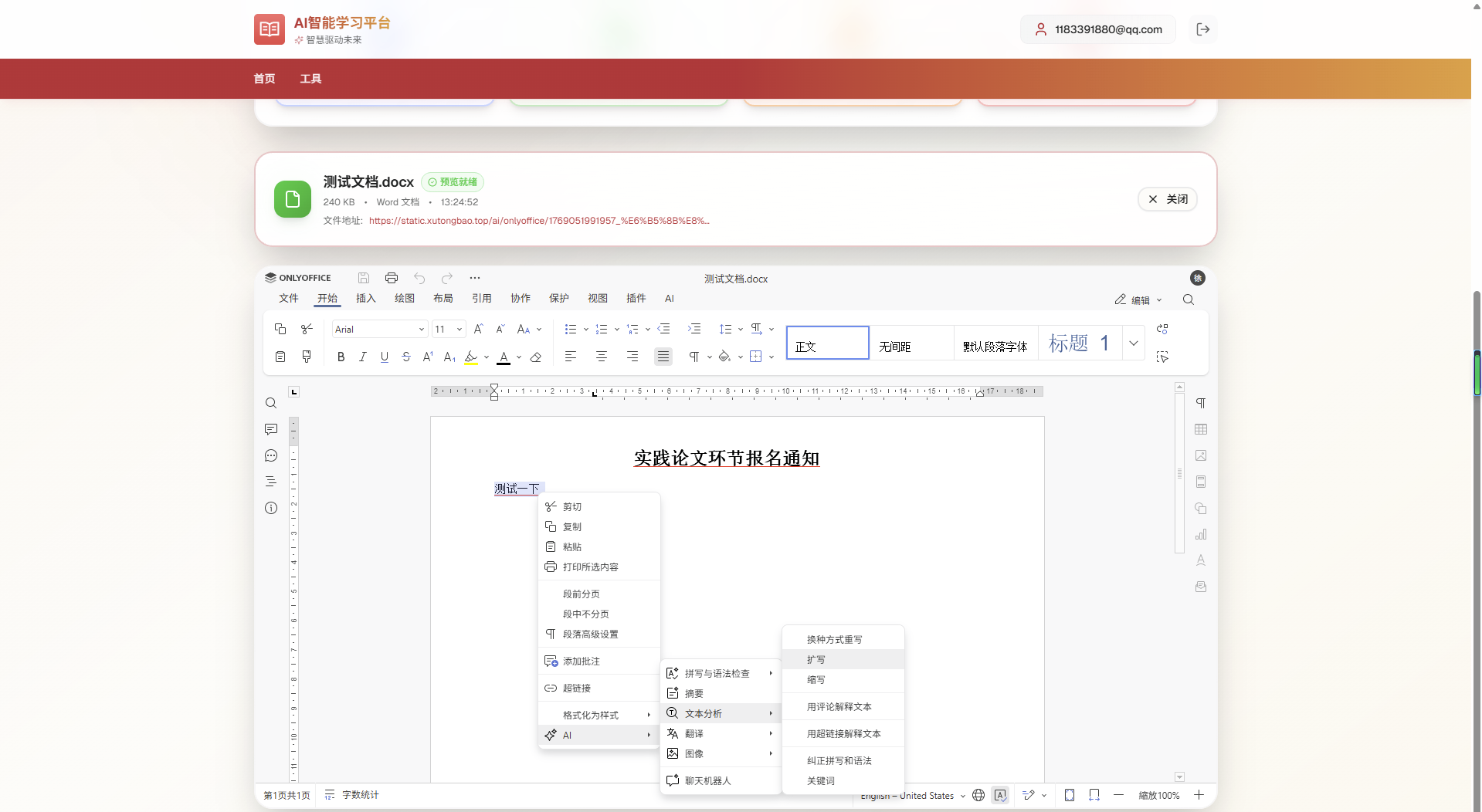
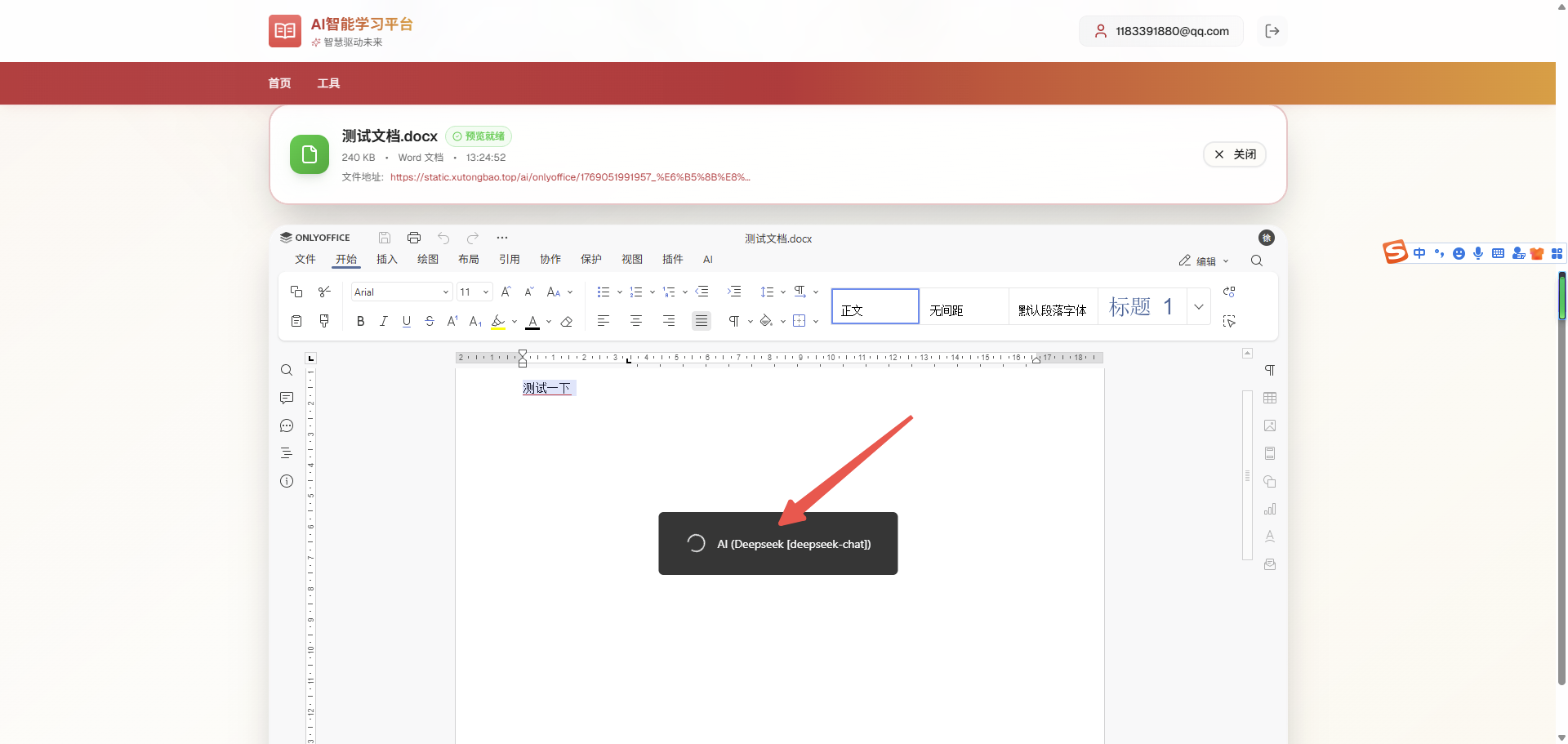
if (event.data.type === 'TEXT_SELECTED') {
const mousePos = mousePositionRef.current
const selectedText = event.data.text
console.log('✓ 收到文本选中事件:', {
text: selectedText,
mousePosition: mousePos,
timestamp: event.data.timestamp,
})
// 保存选中的文本到 state 并显示悬浮菜单(固定到屏幕中心)
setContextMenu({
visible: true,
x: 0, // 不再使用鼠标坐标
y: 0,
selectedText: selectedText,
})
console.log('选中文本已保存到 state:', selectedText)
console.log('悬浮菜单显示在坐标:', mousePos)
}
// 隐藏文本选中菜单消息
if (event.data.type === 'HIDE_TEXT_SELECTED') {
console.log('✓ 收到隐藏菜单事件:', {
timestamp: event.data.timestamp,
})
setContextMenu({
visible: false,
x: 0,
y: 0,
selectedText: '',
})
console.log('悬浮菜单已隐藏')
}
}
}
window.addEventListener('message', handleMessage)
return () => {
window.removeEventListener('message', handleMessage)
}
}, [])
// 监听全局点击事件,点击菜单外部时隐藏菜单
useEffect(() => {
if (!contextMenu.visible) return
const handleClickOutside = (e: MouseEvent) => {
const target = e.target as HTMLElement
// 检查点击的元素是否在菜单内部
const menuElement = document.getElementById('context-menu')
if (menuElement && !menuElement.contains(target)) {
setContextMenu((prev) => ({ …prev, visible: false }))
}
}
// 延迟添加事件监听,避免菜单刚显示就被关闭
const timer = setTimeout(() => {
document.addEventListener('click', handleClickOutside)
}, 100)
return () => {
clearTimeout(timer)
document.removeEventListener('click', handleClickOutside)
}
}, [contextMenu.visible])
// 添加到对话
const handleAddToChat = () => {
console.log('添加到对话 – 选中的文本:', contextMenu.selectedText)
setContextMenu((prev) => ({ …prev, visible: false }))
}
// 翻译
const handleTranslateText = () => {
console.log('翻译 – 选中的文本:', contextMenu.selectedText)
setContextMenu((prev) => ({ …prev, visible: false }))
}
const handleTest = (type: any) => {
setError(null)
// 先销毁旧的编辑器
if (docEditorRef.current) {
try {
docEditorRef.current.destroyEditor()
docEditorRef.current = null
} catch (error) {
console.warn('销毁旧编辑器失败:', error)
}
}
// 重置状态
setIsPreviewReady(false)
setIsUploading(false)
setUploadedFile(null)
// 根据测试类型设置完整的文件信息
let testFileData: UploadedFile
if (type === '1') {
testFileData = {
file: {} as File, // 测试文件不需要实际 File 对象
name: '测试文档.docx',
size: 245760, // 240 KB
type: 'word',
uploadTime: Date.now(),
previewUrl:
'https://static.xutongbao.top/ai/onlyoffice/1769051991957_%E6%B5%8B%E8%AF%95%E4%B8%80%E4%B8%8B.docx',
}
} else if (type === '2') {
testFileData = {
file: {} as File,
name: '测试表格.xlsx',
size: 102400, // 100 KB
type: 'cell',
uploadTime: Date.now(),
previewUrl:
'https://static.xutongbao.top/ai/onlyoffice/1769053651678_1.xlsx',
}
} else if (type === '3') {
testFileData = {
file: {} as File,
name: '测试演示文稿.pptx',
size: 512000, // 500 KB
type: 'slide',
uploadTime: Date.now(),
previewUrl:
'https://static.xutongbao.top/ai/onlyoffice/1769053694718_1.pptx',
}
} else if (type === '4') {
testFileData = {
file: {} as File,
name: '测试文档.pdf',
size: 1024000, // 1 MB
type: 'word', // PDF 使用 word 类型
uploadTime: Date.now(),
previewUrl:
'https://static.xutongbao.top/ai/onlyoffice/1769054138134_%E6%B5%8B%E8%AF%95%E4%B8%80%E4%B8%8B.pdf',
}
} else {
return
}
// 延迟设置新文件,确保 DOM 完全清理
setTimeout(() => {
setUploadedFile(testFileData)
setTimeout(() => {
setIsPreviewReady(true)
}, 100)
}, 100)
}
// 拖拽事件处理
const handleDragOver = (e: React.DragEvent) => {
e.preventDefault()
setIsDragOver(true)
}
const handleDragLeave = () => {
setIsDragOver(false)
}
const handleDrop = (e: React.DragEvent) => {
e.preventDefault()
setIsDragOver(false)
const file = e.dataTransfer.files[0]
if (file) {
handleFileSelect(file)
}
}
// 清除文件
const handleClearFile = () => {
setUploadedFile(null)
setIsPreviewReady(false)
setError(null)
if (fileInputRef.current) {
fileInputRef.current.value = ''
}
}
return (
<>
{/* 加载 OnlyOffice API 脚本 */}
<Script
src='https://chat.xutongbao.top/onlyoffice/web-apps/apps/api/documents/api.js'
// src='http://20.51.117.204/web-apps/apps/api/documents/api.js'
strategy='afterInteractive'
onLoad={() => {
console.log('OnlyOffice API 加载完成')
setScriptLoaded(true)
}}
onError={(e) => {
console.error('OnlyOffice API 加载失败:', e)
setError('OnlyOffice API 加载失败,请检查网络连接或服务器配置')
}}
/>
<Header />
<main className='m-only-office min-h-screen bg-gradient-to-br from-primary/5 via-background to-secondary/5 relative overflow-hidden'>
{/* 背景装饰 */}
<div className='absolute inset-0 overflow-hidden pointer-events-none'>
<div className='absolute top-20 left-1/4 w-96 h-96 bg-primary/5 rounded-full blur-3xl animate-pulse-slow' />
<div
className='absolute bottom-20 right-1/4 w-96 h-96 bg-secondary/5 rounded-full blur-3xl animate-pulse-slow'
style={{ animationDelay: '2s' }}
/>
<div className='absolute top-1/2 left-1/2 -translate-x-1/2 -translate-y-1/2 w-[800px] h-[800px] bg-gradient-to-r from-primary/3 to-secondary/3 rounded-full blur-3xl animate-spin-slow' />
</div>
{/* 内容区域 */}
<div className='relative max-w-7xl mx-auto px-4 py-8'>
{/* 返回按钮 */}
<button
onClick={() => router.push('/light')}
className='group mb-8 flex items-center gap-2 px-4 py-3 rounded-2xl bg-card/80 backdrop-blur-xl border-2 border-border hover:border-primary shadow-lg hover:shadow-xl transition-all duration-300 hover:scale-105 animate-fade-in'
>
<div className='relative'>
<div className='absolute inset-0 bg-primary/20 rounded-full blur-md scale-0 group-hover:scale-150 transition-transform duration-500' />
<ArrowLeft className='relative w-5 h-5 text-primary group-hover:text-primary transition-all duration-300 group-hover:-translate-x-1' />
</div>
<span className='text-sm font-medium text-foreground group-hover:text-primary transition-colors duration-300'>
返回
</span>
</button>
{/* 主标题卡片 */}
<div className='mb-8 p-8 rounded-3xl bg-gradient-to-br from-card/95 to-card/80 backdrop-blur-2xl border-2 border-border/50 shadow-2xl animate-fade-in'>
<div className='flex items-center gap-4 mb-3'>
<div className='relative'>
<div className='absolute inset-0 bg-primary/20 rounded-2xl blur-xl animate-pulse-slow' />
<div className='relative w-16 h-16 rounded-2xl bg-gradient-to-br from-primary to-primary/70 flex items-center justify-center shadow-lg'>
<FileText className='w-8 h-8 text-primary-foreground' />
</div>
</div>
<div className='flex-1'>
<h1 className='text-3xl md:text-4xl font-bold bg-gradient-to-r from-primary via-secondary to-accent bg-clip-text text-transparent'>
OnlyOffice 文档预览
</h1>
<p className='text-sm text-muted-foreground mt-1'>
支持 Word、Excel、PowerPoint 等多种格式的文档在线预览
</p>
</div>
</div>
{/* 支持格式说明 */}
<div className='mt-4 p-4 rounded-xl bg-muted/30 border border-border/50'>
<div className='flex items-center gap-2 mb-2'>
<Sparkles className='w-4 h-4 text-primary' />
<span className='text-sm font-semibold text-foreground'>
支持的文件格式
</span>
</div>
<div className='grid grid-cols-1 md:grid-cols-3 gap-2 text-xs text-muted-foreground'>
<div>
<span className='font-medium text-foreground'>文档:</span>
DOC, DOCX, ODT, RTF, TXT, PDF 等
</div>
<div>
<span className='font-medium text-foreground'>表格:</span>
XLS, XLSX, ODS, CSV 等
</div>
<div>
<span className='font-medium text-foreground'>演示:</span>
PPT, PPTX, ODP 等
</div>
</div>
</div>
</div>
{/* 测试按钮组 */}
<div className='mb-8 p-6 rounded-3xl bg-gradient-to-br from-card/95 to-card/80 backdrop-blur-2xl border-2 border-border/50 shadow-2xl animate-fade-in'>
<div className='flex items-center gap-2 mb-4'>
<Sparkles className='w-5 h-5 text-primary' />
<h2 className='text-lg font-semibold text-foreground'>
快速测试
</h2>
</div>
<div className='grid grid-cols-1 md:grid-cols-2 lg:grid-cols-4 gap-4'>
{/* Word 测试按钮 */}
<button
onClick={() => handleTest('1')}
className='group relative overflow-hidden px-6 py-4 rounded-2xl bg-gradient-to-br from-blue-500/10 to-blue-600/5 backdrop-blur-xl border-2 border-blue-500/30 hover:border-blue-500 shadow-lg hover:shadow-2xl hover:shadow-blue-500/20 transition-all duration-300 hover:scale-105'
>
<div className='absolute inset-0 bg-gradient-to-br from-blue-500/0 to-blue-600/0 group-hover:from-blue-500/10 group-hover:to-blue-600/5 transition-all duration-300' />
<div className='relative flex flex-col items-center gap-3'>
<div className='w-12 h-12 rounded-xl bg-gradient-to-br from-blue-500 to-blue-600 flex items-center justify-center shadow-lg group-hover:scale-110 transition-transform duration-300'>
<FileText className='w-6 h-6 text-white' />
</div>
<div>
<div className='text-sm font-semibold text-foreground group-hover:text-blue-600 transition-colors duration-300'>
测试 Word
</div>
<div className='text-xs text-muted-foreground mt-1'>
文档编辑器
</div>
</div>
</div>
</button>
{/* Excel 测试按钮 */}
<button
onClick={() => handleTest('2')}
className='group relative overflow-hidden px-6 py-4 rounded-2xl bg-gradient-to-br from-green-500/10 to-green-600/5 backdrop-blur-xl border-2 border-green-500/30 hover:border-green-500 shadow-lg hover:shadow-2xl hover:shadow-green-500/20 transition-all duration-300 hover:scale-105'
>
<div className='absolute inset-0 bg-gradient-to-br from-green-500/0 to-green-600/0 group-hover:from-green-500/10 group-hover:to-green-600/5 transition-all duration-300' />
<div className='relative flex flex-col items-center gap-3'>
<div className='w-12 h-12 rounded-xl bg-gradient-to-br from-green-500 to-green-600 flex items-center justify-center shadow-lg group-hover:scale-110 transition-transform duration-300'>
<File className='w-6 h-6 text-white' />
</div>
<div>
<div className='text-sm font-semibold text-foreground group-hover:text-green-600 transition-colors duration-300'>
测试 Excel
</div>
<div className='text-xs text-muted-foreground mt-1'>
表格编辑器
</div>
</div>
</div>
</button>
{/* PowerPoint 测试按钮 */}
<button
onClick={() => handleTest('3')}
className='group relative overflow-hidden px-6 py-4 rounded-2xl bg-gradient-to-br from-orange-500/10 to-orange-600/5 backdrop-blur-xl border-2 border-orange-500/30 hover:border-orange-500 shadow-lg hover:shadow-2xl hover:shadow-orange-500/20 transition-all duration-300 hover:scale-105'
>
<div className='absolute inset-0 bg-gradient-to-br from-orange-500/0 to-orange-600/0 group-hover:from-orange-500/10 group-hover:to-orange-600/5 transition-all duration-300' />
<div className='relative flex flex-col items-center gap-3'>
<div className='w-12 h-12 rounded-xl bg-gradient-to-br from-orange-500 to-orange-600 flex items-center justify-center shadow-lg group-hover:scale-110 transition-transform duration-300'>
<FileText className='w-6 h-6 text-white' />
</div>
<div>
<div className='text-sm font-semibold text-foreground group-hover:text-orange-600 transition-colors duration-300'>
测试 PowerPoint
</div>
<div className='text-xs text-muted-foreground mt-1'>
演示文稿编辑器
</div>
</div>
</div>
</button>
{/* PDF 测试按钮 */}
<button
onClick={() => handleTest('4')}
className='group relative overflow-hidden px-6 py-4 rounded-2xl bg-gradient-to-br from-red-500/10 to-red-600/5 backdrop-blur-xl border-2 border-red-500/30 hover:border-red-500 shadow-lg hover:shadow-2xl hover:shadow-red-500/20 transition-all duration-300 hover:scale-105'
>
<div className='absolute inset-0 bg-gradient-to-br from-red-500/0 to-red-600/0 group-hover:from-red-500/10 group-hover:to-red-600/5 transition-all duration-300' />
<div className='relative flex flex-col items-center gap-3'>
<div className='w-12 h-12 rounded-xl bg-gradient-to-br from-red-500 to-red-600 flex items-center justify-center shadow-lg group-hover:scale-110 transition-transform duration-300'>
<FileText className='w-6 h-6 text-white' />
</div>
<div>
<div className='text-sm font-semibold text-foreground group-hover:text-red-600 transition-colors duration-300'>
测试 PDF
</div>
<div className='text-xs text-muted-foreground mt-1'>
PDF 阅读器
</div>
</div>
</div>
</button>
</div>
</div>
{/* 上传区域或文件预览 */}
{!uploadedFile ? (
<div className='p-8 rounded-3xl bg-gradient-to-br from-card/95 to-card/80 backdrop-blur-2xl border-2 border-border/50 shadow-2xl animate-fade-in-up'>
<div
className={`
border-2 border-dashed rounded-2xl p-16 text-center cursor-pointer
transition-all duration-300 relative overflow-hidden
${
isDragOver
? 'border-primary bg-primary/10 scale-[1.02]'
: 'border-border hover:border-primary/50 hover:bg-muted/30'
}
`}
onClick={() => fileInputRef.current?.click()}
onDragOver={handleDragOver}
onDragLeave={handleDragLeave}
onDrop={handleDrop}
>
{/* 装饰性背景 */}
<div className='absolute inset-0 overflow-hidden pointer-events-none'>
<div className='absolute top-0 left-1/4 w-32 h-32 bg-primary/5 rounded-full blur-2xl animate-float' />
<div
className='absolute bottom-0 right-1/4 w-32 h-32 bg-secondary/5 rounded-full blur-2xl animate-float'
style={{ animationDelay: '1s' }}
/>
</div>
<div className='relative flex flex-col items-center gap-6'>
<div
className={`
w-24 h-24 rounded-full flex items-center justify-center
transition-all duration-500
${
isDragOver
? 'bg-primary scale-110 shadow-2xl shadow-primary/50'
: 'bg-gradient-to-br from-primary/20 to-secondary/20 shadow-lg'
}
`}
>
{isUploading ? (
<Loader2 className='w-12 h-12 text-primary animate-spin' />
) : (
<Upload
className={`w-12 h-12 transition-all duration-300 ${
isDragOver ? 'text-white scale-110' : 'text-primary'
}`}
/>
)}
</div>
<div>
<div className='text-2xl font-bold text-foreground mb-2'>
{isUploading
? '上传中…'
: isDragOver
? '松开以上传文件'
: '点击或拖拽文件到此处'}
</div>
<div className='text-sm text-muted-foreground mb-4'>
支持 Word、Excel、PowerPoint、PDF 等多种格式
</div>
{/* 上传进度条 */}
{isUploading && uploadProgress > 0 && (
<div className='w-64 mx-auto mb-4'>
<div className='flex items-center justify-between text-xs text-muted-foreground mb-1'>
<span>上传进度</span>
<span>{uploadProgress}%</span>
</div>
<div className='w-full h-2 bg-muted rounded-full overflow-hidden'>
<div
className='h-full bg-gradient-to-r from-primary to-secondary transition-all duration-300'
style={{ width: `${uploadProgress}%` }}
/>
</div>
</div>
)}
<div className='inline-flex items-center gap-2 px-4 py-2 rounded-full bg-primary/10 border border-primary/20'>
<FolderOpen className='w-4 h-4 text-primary' />
<span className='text-xs font-medium text-primary'>
单个文件,最大支持 100MB
</span>
</div>
</div>
</div>
</div>
<input
ref={fileInputRef}
type='file'
accept={ALL_FORMATS.join(',')}
className='hidden'
onChange={(e) => {
const file = e.target.files?.[0]
if (file) handleFileSelect(file)
}}
/>
{/* 错误提示 */}
{error && (
<div className='mt-6 p-4 rounded-xl bg-destructive/10 border-2 border-destructive/30 flex items-start gap-3 animate-shake'>
<AlertCircle className='w-5 h-5 text-destructive mt-0.5 flex-shrink-0' />
<div className='flex-1'>
<div className='font-semibold text-destructive mb-1'>
上传失败
</div>
<div className='text-sm text-destructive/80'>{error}</div>
</div>
</div>
)}
</div>
) : (
<>
{/* 文件信息卡片 */}
<div className='mb-6 p-6 rounded-3xl bg-gradient-to-br from-card/95 to-card/80 backdrop-blur-2xl border-2 border-primary/30 shadow-2xl animate-fade-in'>
<div className='flex items-center justify-between'>
<div className='flex items-center gap-4 flex-1'>
<div className='relative'>
<div className='absolute inset-0 bg-green-500/20 rounded-xl blur-lg animate-pulse-slow' />
<div className='relative w-12 h-12 rounded-xl bg-gradient-to-br from-green-500 to-green-600 flex items-center justify-center shadow-lg'>
<File className='w-6 h-6 text-white' />
</div>
</div>
<div className='flex-1 min-w-0'>
<div className='flex items-center gap-2 mb-1'>
<h3 className='text-lg font-semibold text-foreground truncate'>
{uploadedFile.name}
</h3>
{isPreviewReady && (
<div className='flex items-center gap-1 px-2 py-1 rounded-full bg-green-500/10 border border-green-500/30'>
<CheckCircle2 className='w-3 h-3 text-green-500' />
<span className='text-xs font-medium text-green-500'>
预览就绪
</span>
</div>
)}
</div>
<div className='flex items-center gap-3 text-xs text-muted-foreground'>
<span>{formatBytes(uploadedFile.size)}</span>
<span>•</span>
<span className='capitalize'>
{uploadedFile.type} 文档
</span>
<span>•</span>
<span>
{new Date(
uploadedFile.uploadTime,
).toLocaleTimeString()}
</span>
</div>
{/* 显示文件 URL */}
{uploadedFile.previewUrl && (
<div className='mt-2 flex items-center gap-2'>
<span className='text-xs text-muted-foreground'>文件地址:</span>
<a
href={uploadedFile.previewUrl}
target='_blank'
rel='noopener noreferrer'
className='text-xs text-primary hover:underline truncate max-w-md'
>
{uploadedFile.previewUrl}
</a>
</div>
)}
</div>
</div>
<Button
onClick={handleClearFile}
variant='outline'
size='sm'
className='rounded-xl border-2 hover:border-destructive hover:bg-destructive/5 hover:text-destructive transition-all duration-300'
>
<X className='w-4 h-4 mr-1' />
关闭
</Button>
</div>
</div>
{/* 预览区域 */}
<div className='rounded-3xl bg-gradient-to-br from-card/95 to-card/80 backdrop-blur-2xl border-2 border-border/50 shadow-2xl animate-fade-in-up overflow-hidden'>
{!isPreviewReady ? (
<div className='w-full h-[calc(100vh-300px)] min-h-[700px] flex flex-col items-center justify-center gap-4 bg-muted/20'>
<Loader2 className='w-12 h-12 text-primary animate-spin' />
<div className='text-lg font-semibold text-foreground'>
正在加载预览…
</div>
<div className='text-sm text-muted-foreground'>
请稍候片刻
</div>
</div>
) : (
<div className='relative'>
<div
ref={editorContainerRef}
id='onlyoffice-editor'
className='w-full h-[calc(100vh-300px)] min-h-[700px] bg-white'
>
{/* OnlyOffice 编辑器将在这里加载 */}
</div>
</div>
)}
</div>
</>
)}
</div>
</main>
{/* 上下文菜单 */}
{contextMenu.visible && (
<div
id='context-menu'
className='fixed z-50'
style={{
left: '50%',
top: '50%',
transform: 'translate(-50%, -50%)',
}}
>
<div className='px-4 py-3 rounded-xl bg-gradient-to-br from-card/95 to-card/90 backdrop-blur-2xl border-2 border-border/50 shadow-2xl'>
<div className='flex items-center gap-2'>
{/* 添加到对话按钮 */}
<button
onClick={handleAddToChat}
className='group relative px-4 py-2.5 rounded-lg hover:bg-primary/10 transition-all duration-200 flex items-center gap-2'
title='添加到对话'
>
<div className='absolute inset-0 bg-primary/20 rounded-lg blur-md scale-0 group-hover:scale-100 transition-transform duration-300' />
<MessageSquare className='relative w-4 h-4 text-foreground group-hover:text-primary transition-colors duration-200' />
<span className='relative text-sm text-foreground group-hover:text-primary transition-colors duration-200'>
添加到对话
</span>
</button>
{/* 翻译按钮 */}
<button
onClick={handleTranslateText}
className='group relative px-4 py-2.5 rounded-lg hover:bg-primary/10 transition-all duration-200 flex items-center gap-2'
title='翻译'
>
<div className='absolute inset-0 bg-primary/20 rounded-lg blur-md scale-0 group-hover:scale-100 transition-transform duration-300' />
<BookOpen className='relative w-4 h-4 text-foreground group-hover:text-primary transition-colors duration-200' />
<span className='relative text-sm text-foreground group-hover:text-primary transition-colors duration-200'>
翻译
</span>
</button>
</div>
</div>
</div>
)}
{/* 自定义动画样式 */}
<style jsx global>{`
@keyframes pulse-slow {
0%,
100% {
opacity: 0.3;
transform: scale(1);
}
50% {
opacity: 0.6;
transform: scale(1.05);
}
}
@keyframes spin-slow {
from {
transform: translate(-50%, -50%) rotate(0deg);
}
to {
transform: translate(-50%, -50%) rotate(360deg);
}
}
@keyframes fade-in {
from {
opacity: 0;
transform: translateY(10px);
}
to {
opacity: 1;
transform: translateY(0);
}
}
@keyframes fade-in-up {
from {
opacity: 0;
transform: translateY(20px);
}
to {
opacity: 1;
transform: translateY(0);
}
}
@keyframes float {
0%,
100% {
transform: translateY(0px);
}
50% {
transform: translateY(-20px);
}
}
@keyframes shake {
0%,
100% {
transform: translateX(0);
}
10%,
30%,
50%,
70%,
90% {
transform: translateX(-2px);
}
20%,
40%,
60%,
80% {
transform: translateX(2px);
}
}
.animate-pulse-slow {
animation: pulse-slow 4s ease-in-out infinite;
}
.animate-spin-slow {
animation: spin-slow 20s linear infinite;
}
.animate-fade-in {
animation: fade-in 0.5s ease-out forwards;
}
.animate-fade-in-up {
animation: fade-in-up 0.6s ease-out forwards;
}
.animate-float {
animation: float 3s ease-in-out infinite;
}
.animate-shake {
animation: shake 0.5s ease-in-out;
}
/* OnlyOffice 编辑器 iframe 样式 */
.m-only-office iframe {
width: 100% !important;
height: 100% !important;
min-height: 700px !important;
border: none !important;
}
`}</style>
</>
)
}
nginx配置
# OnlyOffice cache 路径代理
location /cache/ {
# 设置允许跨域
add_header 'Access-Control-Allow-Origin' '*' always;
add_header 'Access-Control-Allow-Methods' 'GET, POST, OPTIONS' always;
add_header 'Access-Control-Allow-Headers' 'User-Agent,Keep-Alive,Content-Type,Authorization' always;
add_header 'Access-Control-Max-Age' 1728000 always;
proxy_set_header X-Real-IP $remote_addr;
proxy_set_header REMOTE-HOST $remote_addr;
proxy_set_header X-Forwarded-For $proxy_add_x_forwarded_for;
proxy_set_header X-NginX-Proxy true;
proxy_set_header Host $host;
# 关键:告诉后端服务这是 HTTPS 请求
proxy_set_header X-Forwarded-Proto https;
proxy_set_header X-Forwarded-Ssl on;
# 禁用 gzip 压缩
proxy_set_header Accept-Encoding "";
proxy_http_version 1.1;
proxy_set_header Connection "";
# 对于二进制文件,关闭缓冲可能更好
proxy_buffering off;
proxy_cache off;
proxy_request_buffering off;
# 代理到 OnlyOffice 服务器
proxy_pass http://20.51.117.204/cache/;
# 增加超时时间
proxy_connect_timeout 300s;
proxy_send_timeout 300s;
proxy_read_timeout 300s;
# 缓冲区设置(即使关闭 buffering,也保留这些设置)
proxy_buffer_size 128k;
proxy_buffers 8 128k;
proxy_busy_buffers_size 256k;
}
# OnlyOffice 代理配置
location /onlyoffice/ {
# 设置允许跨域
add_header 'Access-Control-Allow-Origin' '*' always;
add_header 'Access-Control-Allow-Methods' 'GET, POST, OPTIONS' always;
add_header 'Access-Control-Allow-Headers' 'User-Agent,Keep-Alive,Content-Type,Authorization' always;
add_header 'Access-Control-Max-Age' 1728000 always;
proxy_set_header X-Real-IP $remote_addr;
proxy_set_header REMOTE-HOST $remote_addr;
proxy_set_header X-Forwarded-For $proxy_add_x_forwarded_for;
proxy_set_header X-NginX-Proxy true;
proxy_set_header Host $host;
# 使用代理目标的 Host,而不是客户端请求的 Host
# proxy_set_header Host 20.51.117.204;
# 关键:告诉后端服务这是 HTTPS 请求
proxy_set_header X-Forwarded-Proto https;
proxy_set_header X-Forwarded-Ssl on;
proxy_http_version 1.1;
proxy_set_header Upgrade $http_upgrade;
proxy_set_header Connection "upgrade";
# 将响应中的 HTTP 链接替换为 HTTPS
sub_filter 'http://chat.xutongbao.top' 'https://chat.xutongbao.top';
sub_filter 'http://${host}' 'https://${host}';
sub_filter_once off;
sub_filter_types *;
chunked_transfer_encoding off;
# 注意:使用 sub_filter 需要开启 buffering
proxy_buffering on;
proxy_cache off;
# 代理到 OnlyOffice 服务器
proxy_pass http://20.51.117.204/;
# 增加超时时间
proxy_connect_timeout 300s;
proxy_send_timeout 300s;
proxy_read_timeout 300s;
# 缓冲区设置
proxy_buffer_size 16k;
proxy_buffers 4 64k;
proxy_busy_buffers_size 128k;
}
# 原有项目根目录 (hash 模式)
location / {
root /temp/yuying;
index index.html index.htm;
add_header Content-Security-Policy upgrade-insecure-requests;
}
参考链接
https://blog.csdn.net/xutongbao/article/details/157180010?spm=1001.2014.3001.5501
![告别多工具混战|为什么越来越多毕业生选择 Paperxie 一站式方案[特殊字符]-网硕互联帮助中心](https://www.wsisp.com/helps/wp-content/uploads/2026/10/20261027155643-6ae0c9bb796f4.png)



评论前必须登录!
注册